When you ask the support assistant how to do something, it may offer to show you in Zinstruct with a guided demo. A demo only starts after you press Start the demo in the assistant, and Zinstruct then emails you a receipt with a Stop the demo button. Guided demos are being rolled out gradually: if the assistant doesn't offer one, follow the steps in its answer.
Who can use a guided demo
- Any team member (owner, admin, staff or viewer) can start one, for their own session.
- A demo runs only in the browser tab where you started it, for up to 30 minutes, and can only do what your own account is allowed to do.
- Only the person who started a demo gets its receipt and can stop it.
The receipt email
The subject is "You started a guided demo in Zinstruct". It says what the demo is showing you and how long it can run, and it lists what the demo will never do.
While a demo runs, it highlights each button you need and waits for you to press it, and it fills in fields for you. Before it fills a field, it shows you the exact text, and you can change it or skip it.
It will never:
- press Save, Publish, Delete or Send for you. It points to the button and you press it.
- charge money or change anything about billing.
- invite anyone to your workspace.
- change domains or DNS.
- type passwords, card details, API keys or other secrets.
During a demo
- A banner across the top of the page says "Zinstruct is showing you:" and the demo's name, with Pause and Stop (Esc).
- To open a screen, it shows you the way in the sidebar. If the page sits inside a closed section, the pointer moves there slowly and opens the section for you (such as Website); then it highlights the page (such as Domain) and waits for you to press it. If the link isn't showing, press Take me there.
- It highlights each button you need and waits for you to press it yourself. It never presses a button for you.
- Before it fills a field, a box shows the exact text it will type. Change it if you like, then press Fill it, or press Skip.
- If you click or type anywhere else, or switch to another tab, the demo pauses. Press Resume to carry on. If you reload the page, the demo comes back paused.
- When the demo asks you to pick or type something yourself, such as a template, a product or a price, it waits while you do, and your clicks and typing there don't pause it. Press Next when you're done.
- At the end, choose Show me again, Close or Open chat (back to the assistant). If you stopped the demo, Start over runs it again from the beginning without asking again; each start sends a new receipt email.
- You can also start a demo again from Show me under the assistant's answer, even after you close and reopen the chat.
Demos the assistant can show you
- Connect Stripe to take payments: opens Settings → Payment setup and shows you the Stripe status. You press Connect with Stripe yourself and finish on Stripe's secure sign-up; back on Payment setup it points at Refresh status. Only the workspace owner can connect Stripe.
- Create and publish an offer: opens Revenue → Offers → New offer. You choose the product, the demo fills an offer name you can edit, and you press Continue to pricing. You choose the pricing plan and type the price yourself, then press Continue, Continue to review and Publish offer.
- Add modules and lessons to a course: opens the Catalog; you press your course to open the builder. The demo fills a module name you can edit, you press Add module, then it shows you where to add lessons.
- Add a video to a lesson: opens the Catalog; you press your course, then the lesson. It points at the Video panel, where you press Upload video and choose the file yourself.
- Publish a course: opens the Catalog; you press your course. It reminds you to set ready lessons to Live, then you press Publish course yourself (skipped if it's already published).
- Test your checkout before you launch: opens Revenue → Offers; you press your live offer, and it points at its Checkout link to open in a private window. Then it takes you to Discounts, where you can make a 100%-off code for a free test.
- Create an opt-in form: opens Marketing → Forms → New form. It fills a form name you can edit, explains single and double opt-in and what happens after submit, and you press Save form. It ends on Embed.
- Draft your first email broadcast: opens Marketing → Email → New broadcast. It fills an internal name and a subject line you can edit, you press Create & compose, choose the audience, write the email and press Save draft. It points at Send test; it never sends, and only you press Send now.
- Connect your own domain: opens Website → Domain. You type your domain in the demo's box (it never makes one up) and press Connect domain yourself. It then points at the DNS records to add at your domain company, and at Verify connection for when they're added. If a domain is already connected, it goes straight to the records.
- Make your home page from a template: opens Website. You press your Home page to open the builder, then Templates. You pick a template and choose Replace this page. Back in the builder, change what you like and press Publish yourself.
- Create a basic evergreen course: opens the new-product page. You press Get started; it fills in a title and short description you can edit; you switch off AI drafting; Evergreen is already picked. You press Create course, then it names your first module and you press Add module. It finishes by pointing at Publish for when your lessons are ready.
- Import contacts from a CSV: opens Contacts → Imports. You choose the CSV file and press Import contacts yourself; it shows where the summary appears. Before a paid plan, it points at the plan prompt instead.
- Give someone product access by hand: opens Contacts → New contact. You type their email, pick the offer under Grant offers and press Create contact yourself.
- Invite a teammate: opens Team. You type their email, pick a role and press Invite yourself. On the free trial it points at the plan prompt instead.
- Create a discount code: opens Revenue → Discounts → New discount. It fills a code you can edit; you choose the amount, the duration and where it applies, and press Create discount yourself.
- Build an email sequence: opens Marketing → Email → Sequences → New sequence. It fills a name you can edit and shows where each email's wait, subject and body go; you press Save draft, then Publish. Contacts join through an automation.
- Set up a sending domain: opens Settings → Email sending. You type your domain and press Add domain yourself; it points at the DNS records to add and at Verify. If your domain is already added, it goes straight to the records.
- Build an automation: opens Marketing → Automations → New automation. It fills a name you can edit and walks you through When, But only if and Then; you make each choice and press Publish yourself.
- Make lessons free to preview: opens the Catalog; you press your course. It explains Free and Members lessons, then you switch lessons to Free in the outline yourself.
- Drip a course's lessons: opens the Catalog; you press your course, then a lesson. It points at Release, where you choose Drip (days after enrollment) and the days, and you press Save lesson yourself.
- Create a landing page from a template: opens Website → Landing Pages → New landing page. You pick a template; in the builder, change what you like and press Publish yourself.
- Add a page to your site menu: opens Website → Navigation. It shows where the header and footer menus are chosen and where links are added; you add the links and press Save navigation yourself.
- Set your brand colours and fonts: opens Website → Style Guide. It shows the palettes and the Style Guide form; you choose and press Save style guide yourself.
- Create a community: opens the Catalog's new-product page; you press Community and Get started. It fills a name you can edit and you press Create community yourself; the community starts as a draft.
- Create a consulting program: opens the Catalog's new-product page; you press the consulting card and Get started. It fills a name you can edit, shows the program fields you fill in, and you press Create Program yourself.
- Turn on a certificate of completion: opens the Catalog; you press your course, then its Certificate tab. It shows the switch and the template; you set them and press Save template yourself.
- Add a free trial to a subscription: opens Revenue → Offers; you press your subscription offer. It points at the plan (if it isn't a subscription yet) and at Free trial days; you type the days and press Save changes yourself.
- Add an order bump or upsell: opens Revenue → Offers; you press your offer, then Conversion. It shows the Order bumps and Upsells panels, where you add them yourself.
- Build a course from your YouTube videos: opens Import & migrate. You press Connect YouTube and allow read-only access on Google's page yourself (skipped if already connected), then Browse videos; you tick the videos, choose the course options and press Create course.
Stop a demo
In the app, press Stop (Esc) on the banner at the top of the page, or press Esc. From the email, on any device:
- In the receipt email, click Stop the demo. A page titled Stop your guided demo? opens. Opening it stops nothing: "Nothing happens until you press the button."
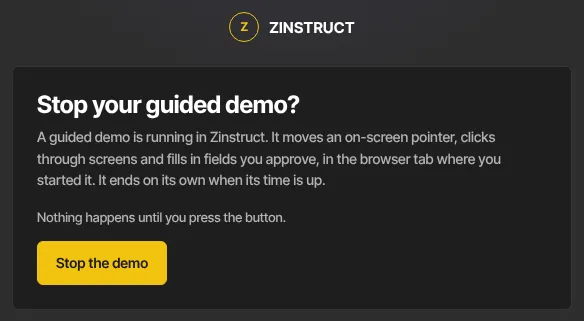
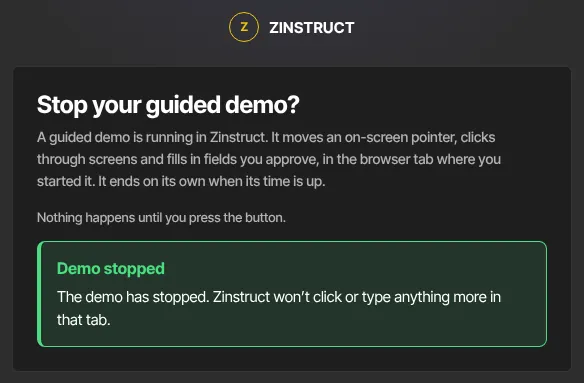
- Press Stop the demo on that page.
- A green Demo stopped box says "The demo has stopped. Zinstruct won’t click or type anything more in that tab."
You don't need to sign in to use the email's link: the link is the proof it's you. Don't forward it.
What happens next
- The demo's tab stops at its next step, and nothing more is clicked or typed.
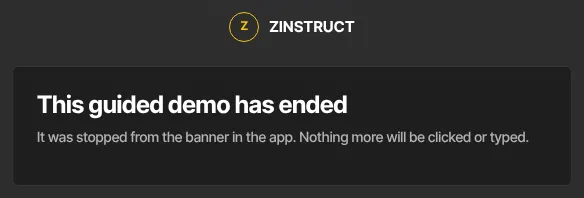
- Open the link again later and the page says This guided demo has ended, with the reason, for example that it finished, was stopped from the banner in the app, or reached its time limit.
- A demo you don't stop ends on its own after 30 minutes. Starting a new demo ends the one before it.
Common errors
- "This demo had already ended, so there was nothing to stop.": it ended between opening the page and pressing the button.
- Link not recognised, or "This link isn’t valid. If you didn’t start a guided demo, reply to the email you received.": the link is incomplete or isn't from a real demo. Open it again from the email, making sure the whole link is used.
- "Too many attempts. Please wait a few minutes and try again.": too many presses came from your network in a short time. Wait a few minutes and press again.
If you didn't start a guided demo, stop it from the email and reply to that email.