Your login details live at Settings → Sign-in & security (/settings/security). There you can change your password, move your login to a new email address, and connect or disconnect a Google account. Two-factor authentication is on the same page; see Two-factor authentication.
Who can do this
Every team member (owner, admin, staff and viewer) manages their own login. Nobody can change another person's password or email for them.
Change your password
- Go to Settings → Sign-in & security.
- In the Change password panel, enter New password and Confirm new password (at least 8 characters). The panel shows when you last changed it, if we know.
- Click Update password. The panel shows Password updated.
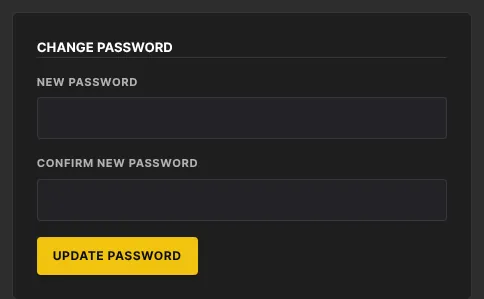
You stay signed in on this device.
Change your login email
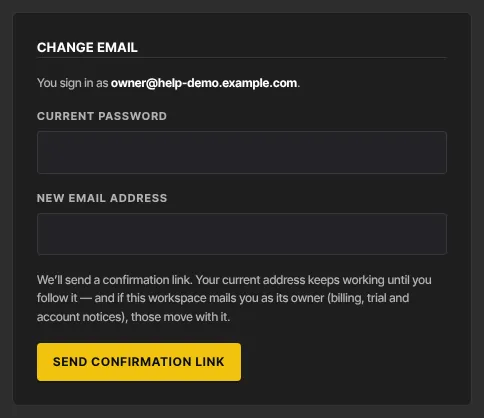
- In the Change email panel, enter your Current password (asked only if you sign in with a password) and the New email address.
- Click Send confirmation link.
- The panel says to check the new address: the change only happens once you follow the link.
- Open the confirmation email and follow its link. Your current address may get a confirmation email too; if it does, follow both links. After the first one, Sign-in & security says "Link accepted. We also emailed a link to your other address — follow it to finish the change."
- When the change is complete, Sign-in & security shows Your email address is now …. From then on, sign in with the new address. If you own the workspace, its billing, trial and account emails move to the new address too.
If a link says it has expired or was already used, look at You sign in as in the Change email panel: if it already shows the new address, the change is done (an email security scanner may have opened the link first). If not, send the change again.
Connect or disconnect Google
The Social accounts panel links a Google account to your Zinstruct login.
- Under Google, click Connect.
- Choose your Google account and approve on Google's screen. You return to Sign-in & security.
- To remove the link, click Disconnect.
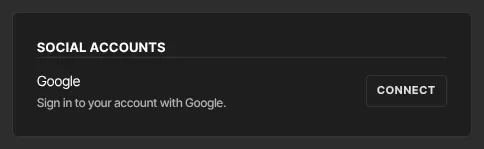
Once connected, the panel says Connected — use Continue with Google on the sign-in page. and you can sign in to the admin app with Continue with Google as well as with your email and password. If you cancel on Google's screen or the link fails, you come back to Sign-in & security with "Google wasn’t connected. Try again."
What happens next
- A new password takes effect at once on every device.
- After an email change, sign in with the new address.
Common errors
- "Use at least 8 characters" / "Passwords don’t match": fix the password fields.
- "That is already your email address.": you typed your current email.
- "Enter your current password to confirm." / "That password is not correct.": enter the password you sign in with now.
- "Not signed in.": your session ended. Sign in again.
- "No Google account is connected.": there's nothing to disconnect.
- "Could not connect Google." / "Could not disconnect Google.": try again in a moment.