You sign in to the Zinstruct admin app with the email and password you created your account with. This article covers signing in, the screens you might see instead of your Dashboard, and signing out.
Your students don't use this page. They sign in to their courses with an emailed code; see How your members sign in.
Who can do this
Every team member (owner, admin, staff and viewer) signs in the same way. What you can do once inside depends on your role; see Team and roles.
Sign in
- Go to
/loginon app.zinstruct.com. The page is titled Welcome back. - Enter your Email and Password.
- Click Sign in.
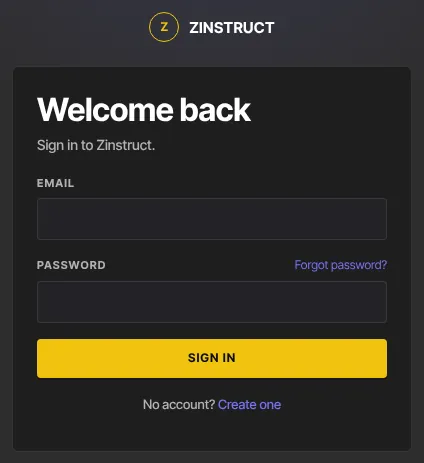
- If your account has two-factor authentication, you're asked for a 6-digit code next. See Two-factor authentication.
- You land on your Dashboard.
Or continue with Google
When Google sign-in is available, the page also shows Continue with Google above the email form. Click it, pick your Google account on Google's screen, and you come back signed in (two-factor still applies). Use the Google account with the same address as your login, or one you connected under Social accounts. If Google sign-in is cancelled or fails, you return to Welcome back with "Google sign-in didn’t finish. Try again, or sign in with your email and password."
You always land on the Dashboard after signing in, even if you followed a link to a specific page. Open that link again once you're in.
Screens you might see instead of the Dashboard
- Two-factor authentication required: your workspace requires everyone to use an authenticator app. Set one up on that screen to continue. See Two-factor authentication.
- Access paused: an owner or admin has paused your access to this workspace. Ask your workspace owner.
- "… is offline": the workspace is suspended, usually because of an unpaid bill. The owner can bring it back from that page; see When your workspace is read-only or offline.
- "… is closed": the workspace was closed. Its site is offline and billing has stopped. The owner can still download an export from this page, and everyone can use Sign out there.
- No workspace on this account: you signed in, but this login has no workspace and isn't a student at any school. This often happens after Continue with Google with a Google account that never created a workspace. Choose Create your workspace to set one up now, or Use a different account to sign out and sign in with the right one. Looking for your courses? Sign in on your school's own website instead. Invited to a team? Use the link in the invitation email.
- Your course library instead of the admin app: your login doesn't belong to any workspace, but it is a student at a school. To build your own school, see Create your account and workspace.
Sign out
- Click your avatar in the top-right corner to open the account menu.
- Click Sign out.
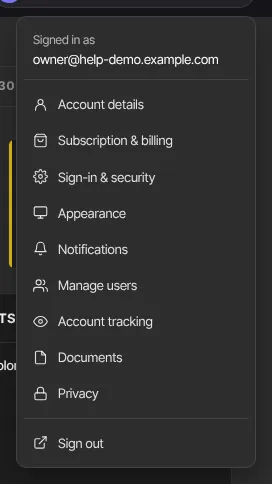
- You return to the Welcome back page.
Signing out ends your session on every device and browser you're signed in on, not just this one.
What happens next
- To get back in, sign in again with your email and password.
- Forgot your password? See Reset a forgotten password.
Common errors
- "Enter a valid email and password.": one of the fields is empty or the email is malformed.
- "Invalid login credentials" (or another message from our sign-in service): the email or password is wrong. Check for typos, or reset your password.
- "Too many attempts. Please wait a few minutes and try again.": too many sign-in attempts for this email or network. Wait a few minutes, then try again.
- "Your account is not on the operator staff list. Contact an Owner.": you're on a sign-in page for Zinstruct staff only. Sign in to your workspace at
/loginon app.zinstruct.com instead.