When someone shouldn't reach your workspace any more, you have two choices on their Manage page. Pause access stops them at once but keeps their place on the team and their role, so you can restore them later. Remove from team takes them off the team entirely. Either way they're signed out on every device straight away.
Who can do this
- Owners and admins. Admins can pause or remove other admins, as well as staff and viewers.
- Nobody can pause or remove the owner, and you can't pause or remove yourself. The owner's row and your own row on Team have no Manage button.
- Staff and viewers can't pause or remove anyone.
Pause a teammate's access
- Go to Team (
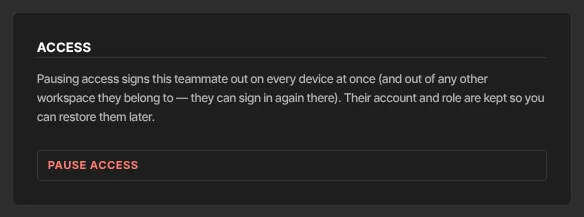
/team) and click Manage next to the teammate. Their page opens, headed with their email address. - In the Access panel, click Pause access. It reads Saving… while it works.
- The Status row changes to Access paused, and their row on Team shows a Paused badge.
Restore a paused teammate
- On Team, click Manage next to the teammate with the Paused badge.
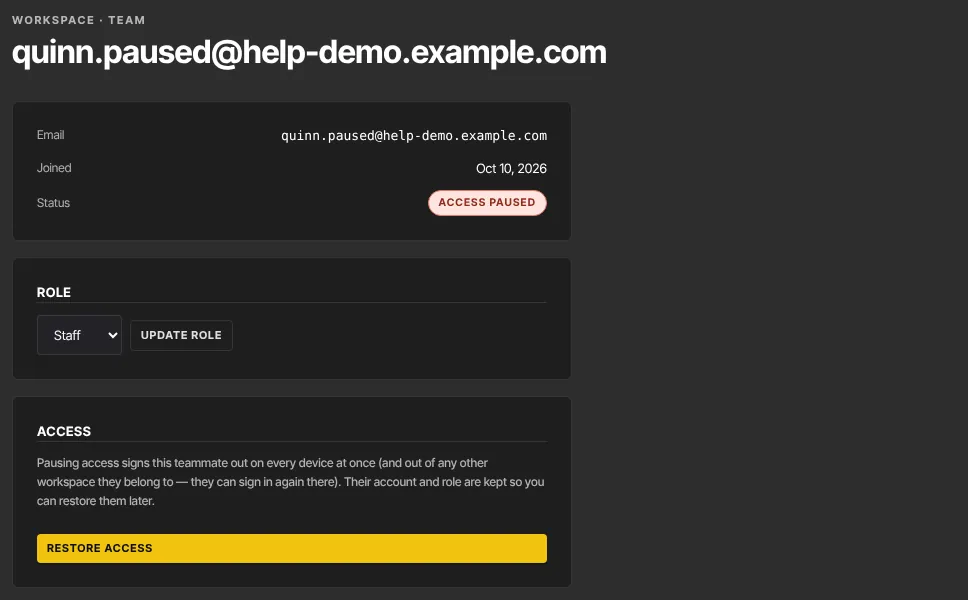
- In the Access panel, click Restore access.
- The Status row changes back to Active. They sign in again and carry on with the same role as before.
Remove a teammate
- On Team, click Manage next to the teammate.
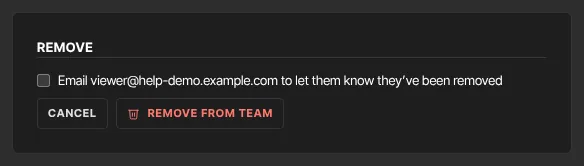
- In the Remove panel, tick "Email … to let them know they’ve been removed" if you want us to tell them. It starts unticked.
- Click Remove from team. There's no second confirmation, so check you've picked the right person. Cancel takes you back to Team without changing anything.
- You return to Team, and they're no longer in the list.
This also works for someone you invited who never joined: removing them cancels the invitation.
Pause or remove?
- Pause when access should stop for now: a contractor between projects, someone on leave, or while you look into something. Their role is kept, and Restore access brings them back in one click.
- Remove when they've left for good. To bring them back later, invite them again.
- A paused teammate still uses one of your plan's team seats. Removing them frees it.
What happens next
- They're signed out everywhere at once. Any page they open next sends them to the sign-in page, and anything they try to save is refused, even in a tab they left open. This also signs them out of any other Zinstruct workspace they belong to; they can sign in again there.
- A paused teammate who signs in again sees Access paused: "Your access to this workspace has been paused by an admin. Contact your team owner if you think this is a mistake."
- A removed teammate who signs in again no longer reaches your workspace. Their login itself isn't deleted.
- Email: with the box ticked, a removed teammate gets an email titled "You’ve been removed from" your workspace name, saying they can no longer sign in to its admin. Nothing is emailed when you pause someone, or when you remove someone with the box unticked.
- Their work stays. Nothing they created is deleted.
- Notifications: a paused admin gets no workspace notification emails until you restore them.
Common errors
- "The owner’s access can’t be paused.": the owner can't be paused or removed. To hand the workspace to someone else, see Transfer ownership of your workspace.
- "You can’t pause your own access.": ask the owner or another admin.
- "That teammate could not be removed. Reload the page and try again.": you tried to remove the owner or yourself, or the page was out of date. Reload it.
- "That teammate’s access could not be changed. Reload the page and try again.": reload the page and try again.
- "Member not found." or "That teammate could not be found. Reload the page.": they've already been removed. Go back to Team.
- "Only owners and admins can change access." or "Only owners and admins can remove teammates.": you're signed in as Staff or a Viewer.
- "Your free trial has ended, so your workspace is read-only…": the owner needs to subscribe in Subscription & billing.
What the teammate sees if they try to do something after you've acted:
- "Your access to this workspace has been paused. Contact your team owner if you think this is a mistake.": they've been paused.
- "You are no longer a member of this workspace.": they've been removed.