Each workspace has exactly one owner. If someone else should hold it (you're handing the business over, or a partner should take charge of billing), transfer ownership to them from the Team page. They become the owner and you become an Admin, in one step.
Who can do this
- Only the owner. Admins don't see the Transfer ownership panel. If one tries anyway, they get "Only the workspace owner can transfer ownership."
- The new owner must already be on your team, as an Admin, Staff or Viewer, and their access must not be paused. If they aren't on the team yet, invite them first.
- It works on every plan. If your free trial has ended and the workspace is read-only, subscribe first.
Before you start
- You can't undo this yourself. Only the new owner can transfer it back to you.
- Check their email address is right. Emails about the workspace's plan, billing and trial will go to it from now on.
Transfer ownership
- Go to Team (
/team) and click Manage next to the teammate. - Find the Transfer ownership panel. It lists what they gain (billing, API keys, privacy export and every other owner-only power) and says that you become an Admin.
- Tick "I understand that … becomes the owner and I become an Admin." The button stays greyed out until you do.
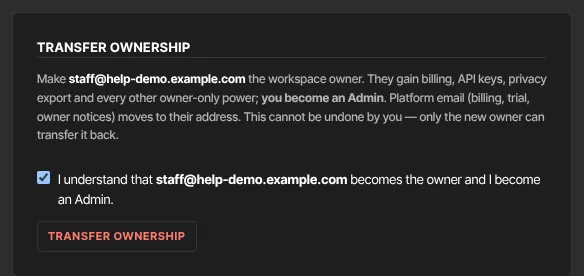
- Click Transfer ownership. It reads Transferring… while it works.
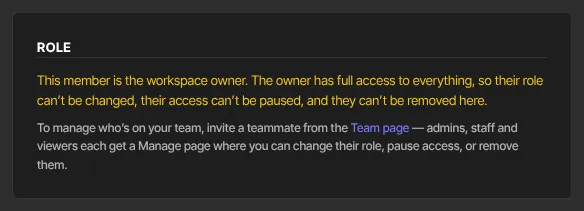
- You're now an Admin. The Transfer ownership panel disappears, and the teammate's page says This member is the workspace owner.
What changes for the new owner
- They hold every owner-only power: Subscription & billing, Payment setup, API keys, Privacy (export and close), financial notifications for admins, and transferring ownership.
- Emails about the workspace's plan, billing and trial now go to their address, and they receive the owner's notification emails.
- Most owner screens work for them on their next click. If one still says only the owner can use it, they can sign out and sign back in.
- Nobody can change their role, pause them or remove them.
What changes for you
- You keep admin access to almost everything, but not the owner-only items. See Team and roles.
- The owner's notification emails stop coming to you. As an admin, you get only the ones you turn on for yourself on Notifications, and they're off unless you've turned them on before. Money-related ones also need the new owner to allow them. See Financial notifications for admins.
What stays the same
- The transfer doesn't change your connected Stripe account or the workspace's plan. Both stay exactly as they are, and the new owner manages them from now on in Payment setup and Subscription & billing.
- Your products, contacts, sales and the rest of the team are untouched.
What happens next
- You both get an email straight away. You receive "You transferred ownership of" your workspace name; they receive "You’re now the owner of" it. Each names the other person. If either of you didn't expect it, reply to that email.
- To give ownership back, the new owner follows these same steps on your Manage page.
Common errors
- "Tick the confirmation box to continue.": tick the "I understand…" box, then click Transfer ownership.
- "Restore this member’s access before transferring ownership to them.": their access is paused. Click Restore access on their page first.
- "They haven’t accepted their invitation yet. Transfer ownership once they’ve joined.": they're still Invited. The Transfer ownership panel appears on their page once they press Join the team.
- "Could not transfer ownership. Make sure the member is active and try again.": reload the page and check they're still on the team and not paused.
- "Member not found.": they've been removed from the team.
- "That member is already the owner." or "You already own this workspace.": there's nothing to transfer.
- "Only the workspace owner can transfer ownership.": you're not the owner.
- "Your free trial has ended, so your workspace is read-only…": subscribe in Subscription & billing, then transfer.
- No Transfer ownership panel: you're not the owner, the teammate's access is paused, or you've opened your own page.