A course is a set of modules and lessons your members work through. You create one from the Catalog in a single setup step: name it, choose how to start and pick its format. It opens in the course builder as a draft, so you can build at your own pace before anyone sees it.
Who can do this
- Owners, admins and staff can create courses.
- Viewers can open the setup page, but creating is refused with "You don’t have permission for this." (or "You don’t have permission to use the AI builder." when AI drafting is on).
- Each new course counts toward your plan's product limit. See Plans and billing.
- Publishing the finished course needs an owner or admin.
Start a new course
- Go to Catalog (
/products) and click New product. On the Courses list, click New course instead to skip the next step. - On What do you want to create?, Course is already selected. Click Get started.
- The Course setup step asks How do you want to start? Keep Start from scratch to build the outline yourself, or choose Import existing course to bring in an outline you already have (see Import an existing course outline).
- Fill in Title (required) and Brief description.
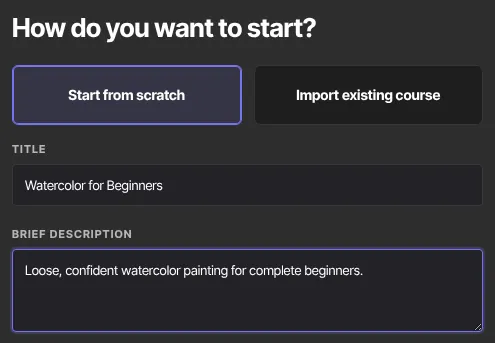
- Decide whether AI should draft your outline. Use this info to generate content and additional resources is switched on by default. Switch it off to start with an empty course, or leave it on to have AI propose modules and lessons first (see Generate a course outline and lesson drafts with AI).
- On the right, under What type of course?, keep Evergreen or choose Cohorts (see below).
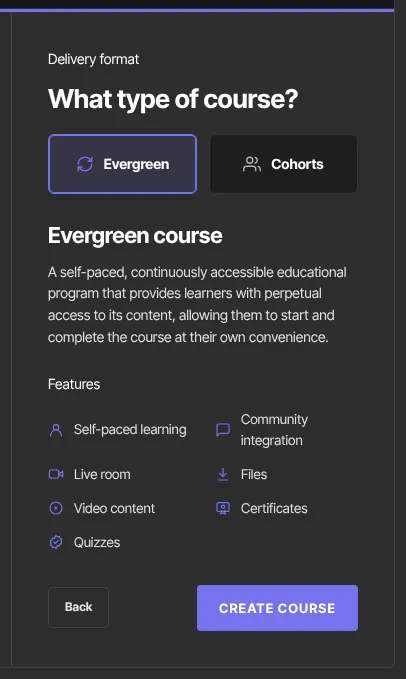
- Click the button at the bottom right. It reads Create course when AI is off, Generate course when it's on, or Review outline when you're importing. With Create course, the page shows Setting things up… and then opens your new course's builder.
Evergreen or Cohorts
- Evergreen is self-paced. Each member starts when they get access, and any dripped lessons count days from that member's own start.
- Cohorts (shown as Cohort-based) moves everyone together. Dripped lessons count days from one shared cohort start date instead.
You can't switch a course between Evergreen and Cohorts after it's created, so choose carefully.
For Cohorts, the setup step also shows an optional Start date field. The date you enter is saved as the cohort start date, and dripped lessons unlock from it for everyone. You can leave it empty and set or change it later on the course's Settings tab; see Cohort courses.
If the AI switch is greyed out
When AI drafting isn't available for your account, Use this info to generate content and additional resources is greyed out and can't be switched on. Create the course from scratch and build the outline in the builder.
What happens next
- Your course opens in the builder (
/products/{id}/builder) as a draft with no modules yet. Add modules and lessons; see Build your course outline. - You can rename it or rewrite its description any time on its Settings tab.
- When it's ready, an owner or admin publishes it, and you sell it with an offer.
Common errors
- "Add a title to continue.": fill in Title.
- "Please fix the highlighted fields.": the title is longer than 200 characters.
- "You've reached your … plan's limit of … products. Upgrade in Settings → Billing to add more.": you're at your plan's product limit. Upgrade, or reuse an existing draft course.
- "Could not create the product. Please try again.": a temporary problem. Click Create course again.
- "You don’t have permission for this.": viewers can't create courses. Ask an owner or admin to change your role.
- "Your free trial has ended, so your workspace is read-only. …": subscribe in Settings → Billing to create courses again. Nothing has been deleted.