The offer wizard walks you through the four decisions every offer needs: what you're selling, what it costs, how it's presented, and whether to publish it. Each step saves as you go, so you can stop and come back later. Nothing is for sale until you click Publish offer.
Who can do this
- Owners and admins, on any plan.
- You need at least one product. With none, the first step shows Create a product first instead of the continue button.
- Staff and viewers can open the wizard, but each step answers "You don’t have permission to manage offers."
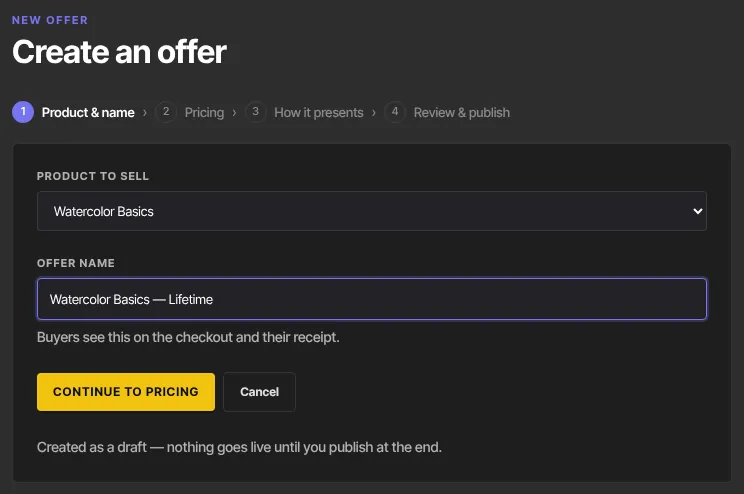
Step 1: Product & name
- Go to Revenue → Offers and click New offer. The page is titled Create an offer. (From a product's Offers tab, Add offer opens this page with the product already chosen, and finishing the wizard brings you back to that tab.)
- In Product to sell, choose the product.
- Type the Offer name. Buyers see it on the checkout and their receipt.
- Click Continue to pricing. The offer is saved as a draft.
Step 2: Pricing
- Choose a Pricing plan: One-time payment, Subscription, Payment plan (installments) or Free.
- Fill in the fields for that plan (below). Prices are in US dollars.
- Click Continue. Save & close saves and opens the offer's page instead; Back returns to step 1, the only place a draft's product can be changed.
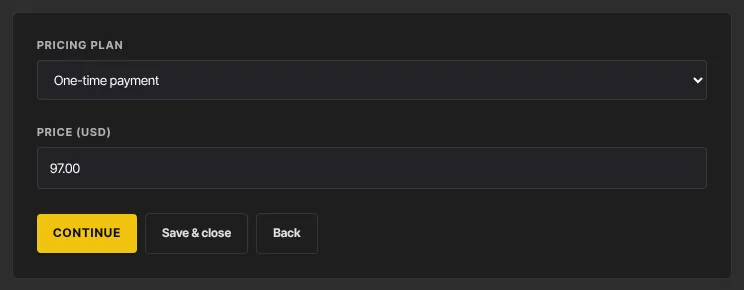
One-time payment
Enter Price (USD), such as 197 or 197.00. A paid price must be at least $0.99. The buyer pays once and keeps access.
Subscription
Enter Price (USD) and choose a Billing interval: Monthly or Yearly. Optionally add Free trial days (1 to 365); see Free trials on subscription offers. The buyer is billed every period and has access while the subscription is active.
Payment plan (installments)
Enter Per-installment price (USD), a Billing interval and the Number of installments (2 to 60). The buyer pays the first installment at checkout, the rest are billed automatically, and after the last one billing stops and they keep access.
Free
There's no price field. Buyers confirm their email address and get instant access. You don't need a payment connection to sell free offers.
Pay what you want and multiple price options are set afterwards on the offer's Details tab. See Pricing types, pay what you want and pricing options.
Step 3: How it presents
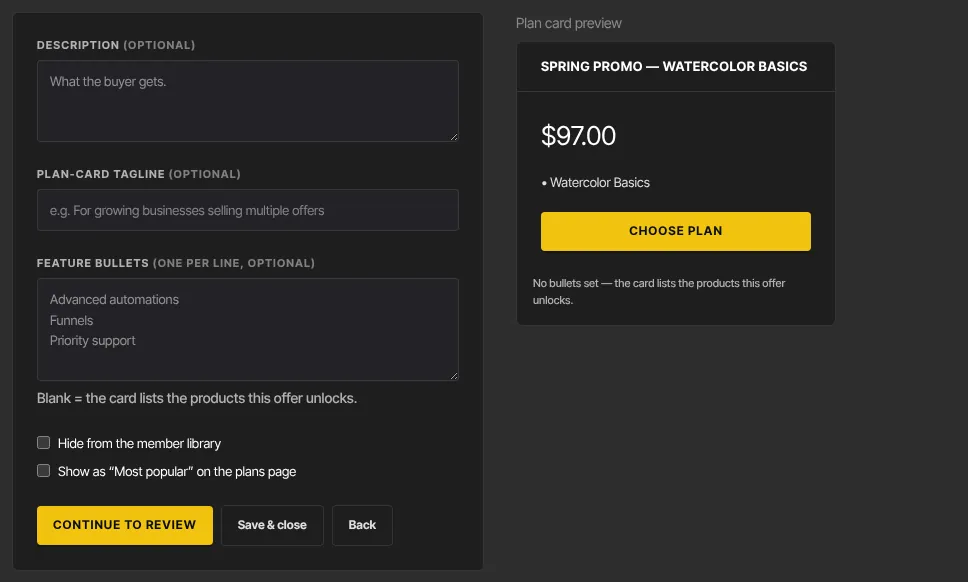
- Description (optional): what the buyer gets.
- Plan-card tagline and Feature bullets (one per line): the card this offer shows on the member Plans page, if it's a subscription or payment plan. A preview sits beside the form.
- Hide from the member library: keeps the offer out of your members' Discover list. Its checkout link still works.
- Show as “Most popular” on the plans page: adds a badge to its plan card.
- Click Continue to review.
Step 4: Review & publish
- Check the Review panel: Product, Offer name, Pricing, Description and Visibility.
- Click Publish offer. You land on the offer's page, and its status is Live.
- Not ready? Click Keep as draft for now.
- The What’s next (optional) links jump to the offer's tabs: order bumps and upsells, bundling more products, the plan card, the checkout page and the post-purchase email.
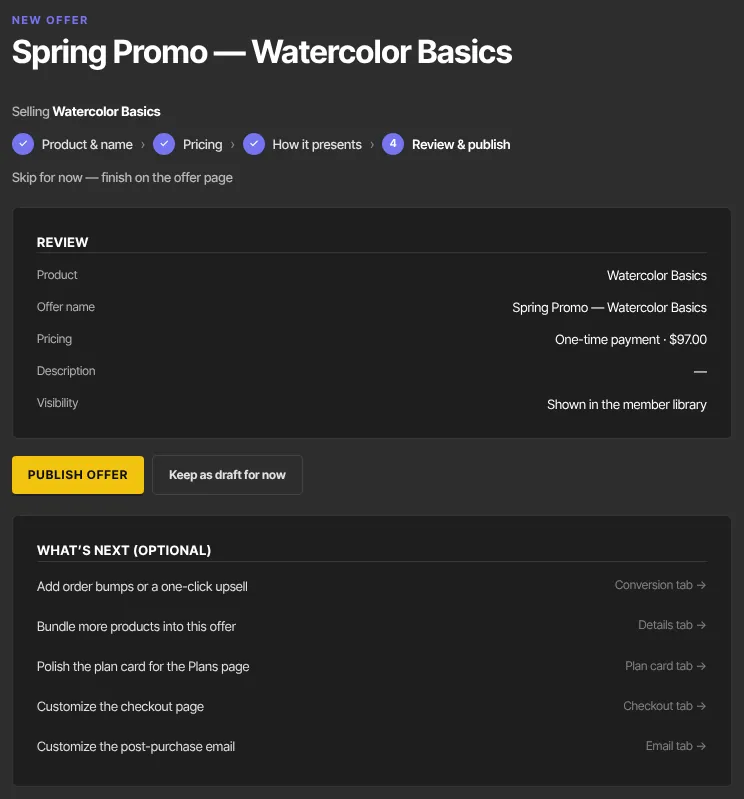
The step rail at the top links back to finished steps, and Skip for now — finish on the offer page leaves the wizard at any point. Once an offer is published, the wizard closes for it: change it on the offer's page.
What happens next
- The checkout is live at
/checkout/followed by the offer's id. Use Checkout link or the copy button on the offer's page to share it. - Paid offers need a connected payment account. Until then buyers see "This creator isn’t set up to accept payments yet. Please check back soon." See Connect payments.
- Each buyer gets access to the offer's products and an email with a sign-in button.
Common errors
- "Please fix the highlighted fields.": look under each field for the reason.
- "Enter a price like 197 or 197.00.": type the price as a number, without letters.
- "A paid price must be at least $0.99, or set it to $0 for a free offer.": raise the price, or choose Free.
- "A payment plan needs at least 2 installments.": set Number of installments to 2 or more.
- "Could not create the offer." or "Could not save the pricing.": try again in a moment.
- "You don’t have permission to manage offers.": ask an owner or admin.