A bundle offer gives buyers several products for one purchase: a course plus its workbook, or your whole catalog at one price. You build it on the offer's Details tab, in the Products in this offer panel. Adding a product to an offer that people already own also gives it to them.
Who can do this
- Owners and admins, on any plan.
- Staff and viewers see the panel, but Add product answers "You don’t have permission to change this offer." and Remove shows "You don’t have permission to do that."
Add products to an offer
- Go to Revenue → Offers, open the offer, and scroll down the Details tab to Products in this offer.
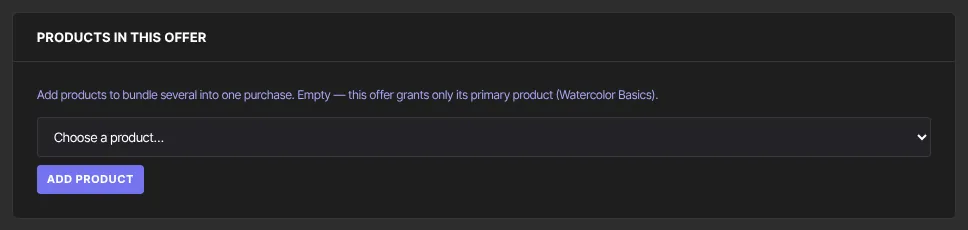
- While the list is empty, the panel reads "Empty — this offer grants only its primary product", naming the product you chose when you created the offer.
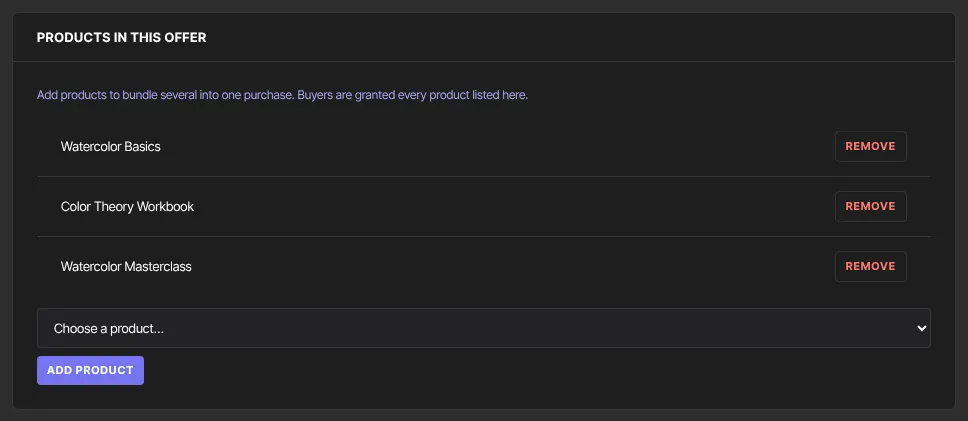
- Pick a product in Choose a product… and click Add product. The row appears straight away, and Product saved shows beside the button.
- Add your main product to the list too. Once the list has any product in it, buyers get exactly the products listed and nothing else. If you add only a bonus, new buyers get the bonus without the main product.
- Repeat for each product. When every product is in the list, the panel says "No more products to add."
Remove a product
- Click Remove next to the product.
- New buyers no longer get it. People who already have it keep it.
What buyers see
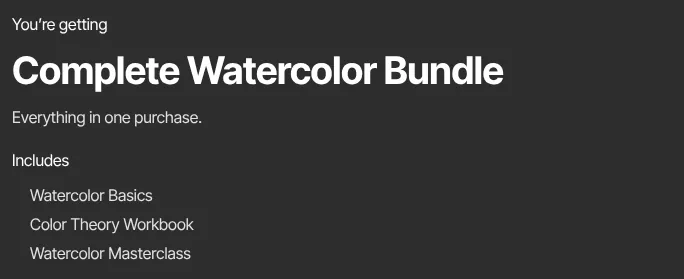
When the checkout page has no custom design, its left column lists what's included under Includes, after You’re getting and the offer's description. A subscription offer's plan card lists the bundled products too, unless you've written your own feature bullets.
What happens next
- People who already own the offer get the new product automatically, shortly afterwards and in the background. That's everyone who bought or claimed it (and wasn't refunded), everyone whose subscription or payment plan is active, on a trial or behind on a payment, and everyone who finished paying a payment plan.
- Each product shows up separately in the member's library.
- A published offer's main product can't be changed. To sell a different product, create a new offer. While an offer is still a draft, change its product in the wizard's first step.
Common errors
- "Choose a product to add.": pick a product in the list before clicking Add product.
- "Could not add the product.": try again in a moment.
- "You don’t have permission to change this offer.": you're signed in as staff or a viewer. The same message appears when your free trial has ended; subscribe in Settings → Billing.
- New buyers aren't getting the main product: add it to Products in this offer. Then grant it by hand to anyone who bought in the meantime; see Give or remove product access by hand.