A free trial lets a buyer start a subscription today and pay nothing until the trial ends. They enter their card at checkout and get full access straight away. When the free days are up, the first payment runs automatically.
Who can do this
- Owners and admins, on any plan.
- Trials are for Subscription offers only. The Free trial days field doesn't appear for one-time, payment-plan or free offers.
- Staff and viewers can't change offers: saving shows "You don’t have permission to manage offers."
Add a trial while creating the offer
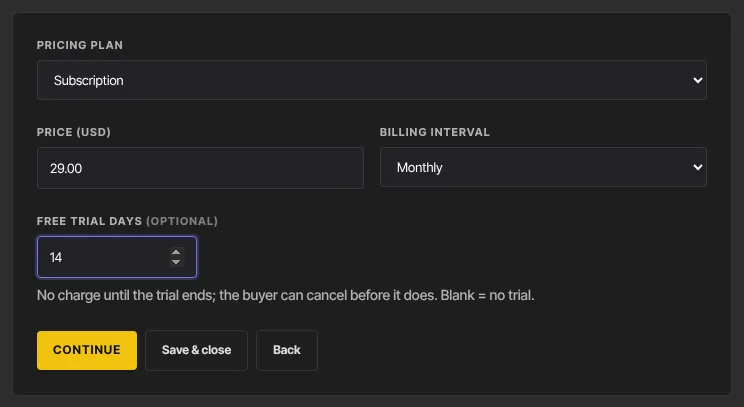
- In the offer wizard's Pricing step, set Pricing plan to Subscription.
- Enter the Price (USD) and choose the Billing interval.
- In Free trial days (optional), enter a number from 1 to 365. Leave it blank for no trial.
- Click Continue and finish the wizard. See Create and publish an offer.
Add or change a trial on an existing offer
- Open the offer from Revenue → Offers. The Details tab opens.
- Change Free trial days (optional). Its hint reads "No charge until the trial ends; the buyer can cancel from their profile before it does. Blank = no trial."
- Click Save changes.
The change applies to new checkouts. Switching the offer's plan away from Subscription clears the trial.
What buyers see at checkout
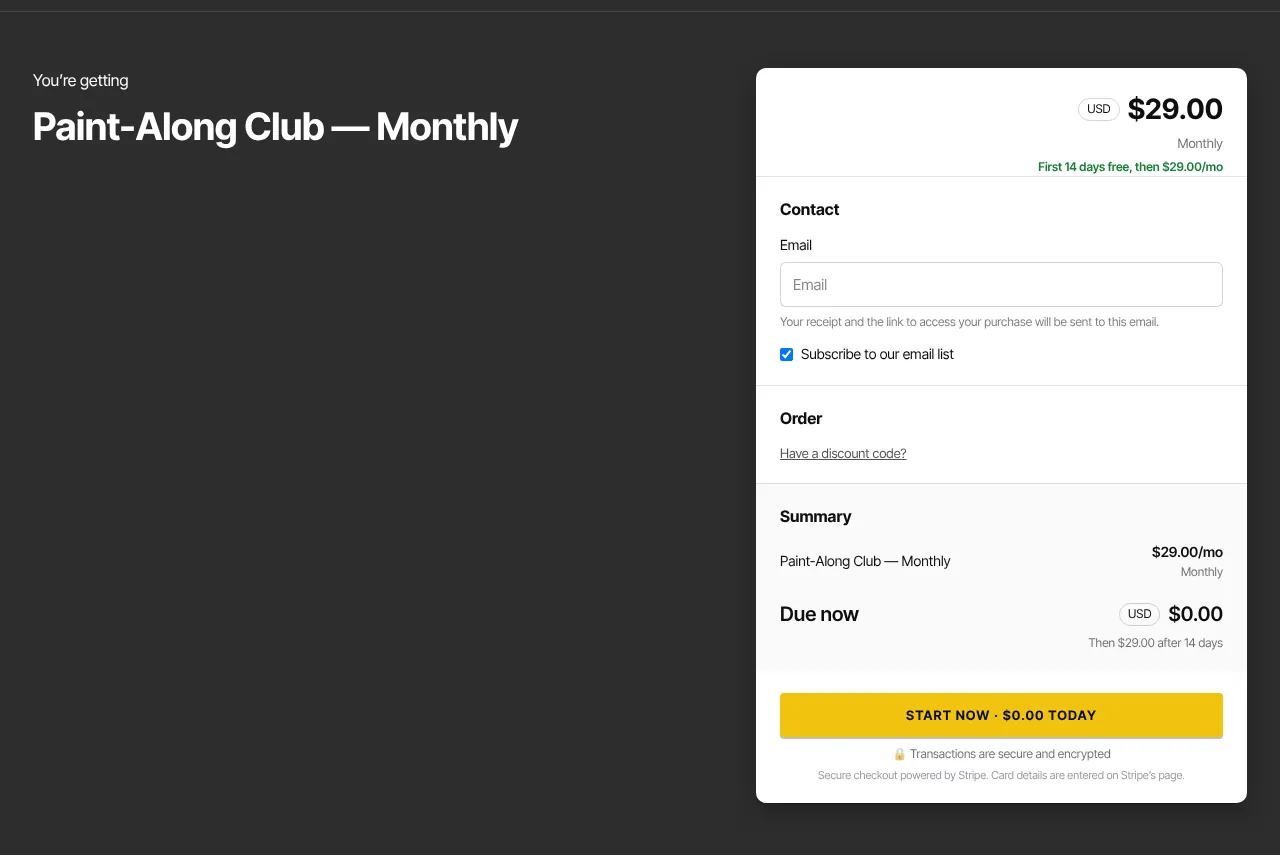
- Under the price: "First 14 days free, then $29.00/mo".
- Due now shows $0.00, with "Then $29.00 after 14 days" under it.
- The button reads Start now · $0.00 today, or your own button label followed by "· $0.00 today".
- They enter card details on the payment step. Nothing is charged today.
What happens next
- The subscription appears as Trialing in Revenue → Memberships, with full access to the offer's products.
- There's no $0.00 receipt. The member instead gets an email titled "Your subscription is set up" with their first payment date, saying they can cancel before then without being charged. You get your new-subscriber notification.
- If the offer has one-click upsells and the member adds one straight after the trial checkout, they get one receipt listing the add-ons; the trial-started email covers the trial itself.
- Trial starts aren't counted as revenue, or toward the offer's Quantity limit, until the first payment.
- When the trial ends, the first payment runs and the status becomes Active. From then on it's an ordinary subscription with a receipt for every payment. If the first payment fails, see Failed subscription payments.
- Members can cancel from their profile before the first payment; see Cancel flows for what they're shown.
- Nothing stops someone who had a trial before from starting another one later by checking out again, once their earlier subscription has ended.
- Duplicate doesn't copy trial days. Add them again on the copy.
Common errors
- The trial field won't take my number: trials run from 1 to 365 days.
- I can't find Free trial days: the offer isn't a subscription. Change Pricing plan to Subscription first.
- A buyer sees "You already have an active subscription to this. You can change or cancel it from your profile.": they're signed in and already subscribed to the same product.
- "You don’t have permission to manage offers.": ask an owner or admin.