Revenue → Memberships lists every subscription and payment plan your members are on: who, which plan, how much, when it renews, and its status. From here you can also stop a member's subscription at the end of the period they've paid for.
Who can do this
- Every team member can see the list.
- Owners and admins can stop a subscription. Staff and viewers see the Cancel button, but get "You don’t have permission to cancel subscriptions."
Read the list
- Go to Revenue → Memberships (
/sales/subscriptions). - The header shows how many memberships are active and your monthly recurring revenue, such as "4 active · $116.00/mo". It's the same figure as MRR on Membership metrics: every price turned into a monthly amount (a yearly plan counts as a twelfth), free trials not counted until their first payment, discounts taken off while they last, and payment plans left out.
- Each row shows the Customer, Plan, Amount, Renews / ends date and Status. "(ending)" after the date means it's set to stop. Amount is the plan's price before any discount, including one the member accepted in your cancel flow. The total in the header is after discounts.
- The list shows your 200 most recent memberships, newest first. There's no search: to find an older member, use the Memberships report in Reports and CSV exports.
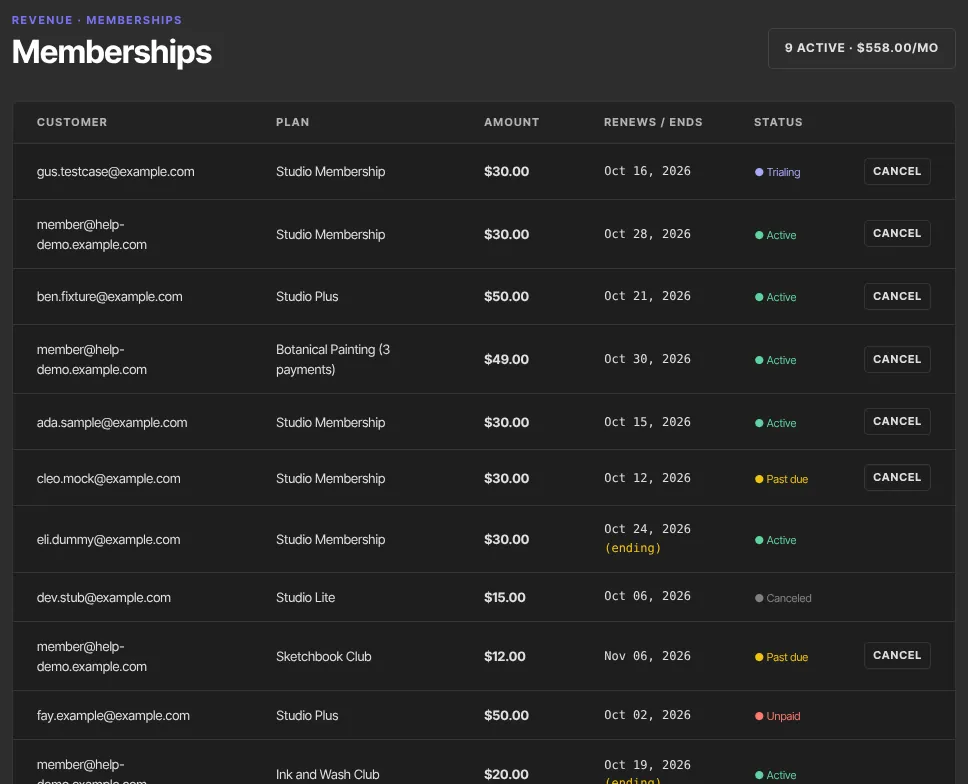
What each status means:
- Active: paying, with access.
- Trialing: in a free trial, with access. The first payment is due on the renewal date. See Free trials on subscription offers.
- Past due: a payment failed and is being retried; access continues meanwhile. See Failed subscription payments.
- Unpaid or Canceled: the subscription has ended and access to the plan's products has been removed. A finished payment plan is the exception (below).
- Incomplete: the first payment wasn't completed.
Payment plans are listed while they're being paid. After the last installment, the plan ends and shows Canceled, and the buyer keeps access for good.
Stop a member's subscription at the end of their period
- Find the member's row and click Cancel.
- It asks "Cancel at the end of the current period? The member keeps access until then."
- Click Confirm cancel. The second Cancel button closes the question without changing anything.
- The row now shows "(ending)" next to the date, and the button disappears.
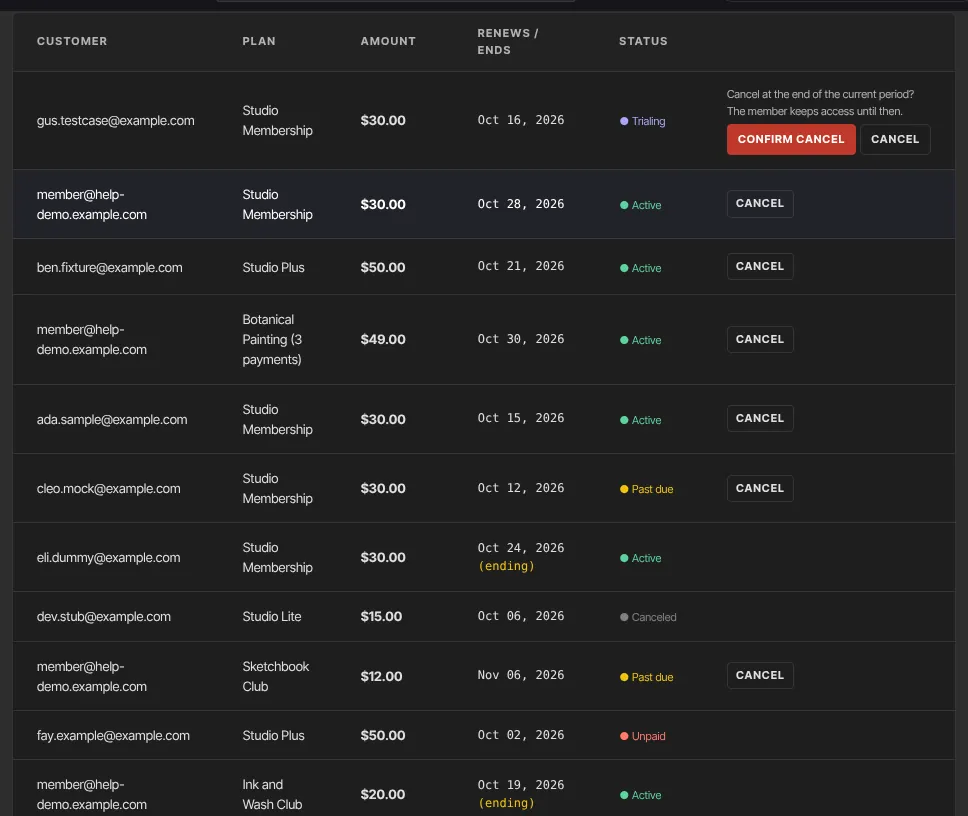
The member keeps access until that date; then billing stops and access to the plan's products ends. Cancel appears only on active, trialing and past-due subscriptions that aren't already ending. You can't undo it from here: the member can choose Keep my membership on their profile before the date.
- During a free trial: the member is never charged, and access ends when the trial ends.
- On a payment plan: Cancel stops the remaining installments, and the buyer loses the plan's products at the end of the current period. Buyers keep a plan's products for good only once every installment is paid.
What you can't do here
- End a membership straight away: refund its latest payment in Transactions. That cancels it now and removes access now.
- Pause a membership, change a member's price or plan, or move their renewal date: none of these is available. Members can move between plans themselves if you let them switch.
- Give someone a free membership: give them the products instead with Grant and revoke access.
How members join and manage their plan
- They subscribe through a subscription or payment-plan offer's checkout; see Pricing types, pay what you want and pricing options.
- A signed-in member who already pays for the same product can't buy it twice; they're told "You already have an active subscription to this. You can change or cancel it from your profile."
- Members manage their own membership from their profile: Manage membership for billing details, and Cancel membership, which runs your cancel flow if you have one.
- If you allow it, members can move between plans; see Plan cards, the Plans page and plan switching.
What happens next
- Each successful payment appears in Revenue → Transactions and emails the member a receipt. After a checkout with one-click upsells, the first payment and the add-ons share one receipt.
- You get a new-subscriber email for each new subscription, and an email titled "A subscription was canceled" when a member's subscription ends, if New subscription and Subscription canceled are ticked in your notification settings. A payment plan that's paid off doesn't send one.
- For trends such as MRR and churn, see Subscription metrics.
Common errors
- "Subscription not found.": reload the page; the subscription may already have ended.
- "Stripe could not cancel the subscription. Try again.": wait a moment and try again.
- "You don’t have permission to cancel subscriptions.": ask an owner or admin.