Once a cancel flow is published, you decide which members see it, and you can pause, copy or delete it whenever you like. These controls live on Revenue → Cancel flows and in each flow's editor. To build a flow in the first place, see Cancel flows: build, preview and publish.
Who can do this
- Owners, admins and staff, on a plan that includes cancel flows. Without it, they can still Pause and Delete the flows they have.
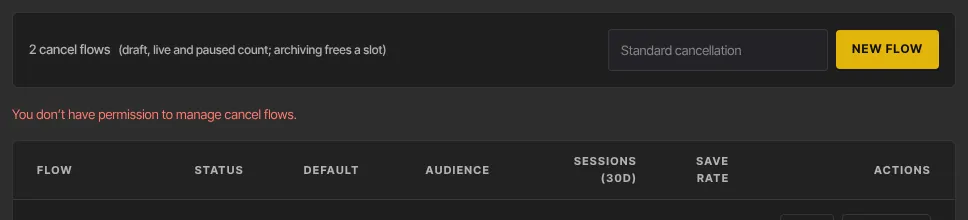
- Viewers see the same buttons, but each one is refused with "You don’t have permission to manage cancel flows."
Choose which memberships get the flow
- On Revenue → Cancel flows, click the flow's name or Open.
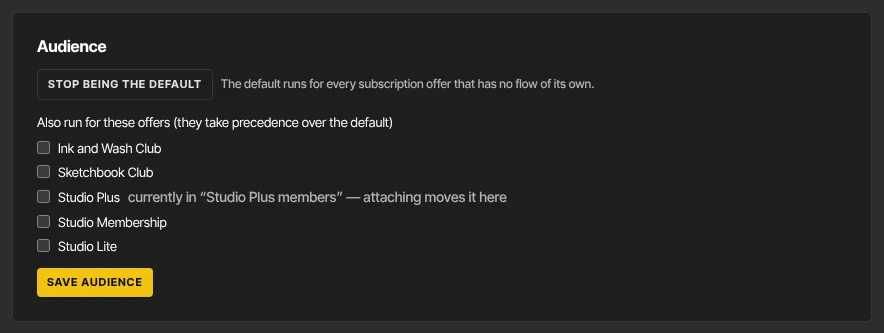
- In the Audience panel, click Make this the default flow. The default runs for every subscription offer that has no flow of its own. There's only one default, so this takes the badge off any other flow. Stop being the default undoes it.
- To run the flow for particular offers, tick them under "Also run for these offers (they take precedence over the default)". An offer that's already in another flow shows "currently in" and that flow's name, then "— attaching moves it here".
- Click Save audience. "Audience saved." appears.
Which flow a member sees when they click Cancel membership:
- If their offer is attached to a live flow, that flow.
- Otherwise your default flow, if it's live.
- Otherwise the plain confirm: "Cancel — you keep access until the period ends." with Confirm cancel.
Only published subscription offers can be attached. Payment plans always get the plain confirm. A draft or paused flow never runs, even when it's the default. If your plan doesn't include cancel flows, every member gets the plain confirm, even while a flow is still Live.
Pause or resume a flow
- On Cancel flows, click Pause on a live flow's row, or Pause at the top of its editor.
- The status changes to Paused. Members who would have seen it get the next flow in line from the list above, or the plain confirm.
- Click Resume to make the last published version live again.
Duplicate a flow
- On Cancel flows, click Duplicate on the flow's row.
- A copy opens in the editor as a draft, named after the original with "(copy)". It starts from the original's draft, without its audience or default setting.
- Edit and publish it like any other flow. Its discounts are created when you publish it.
Duplicate only shows while you're under your plan's limit.
Delete a flow
- Click Delete on the flow's row, or in the delete panel at the bottom of its editor.
- Read the confirmation. For a default flow it says: "New cancellations on every offer get the plain confirm and its save-offer coupons are retired. This can’t be undone."
- Click Yes, delete, or Keep to back out.
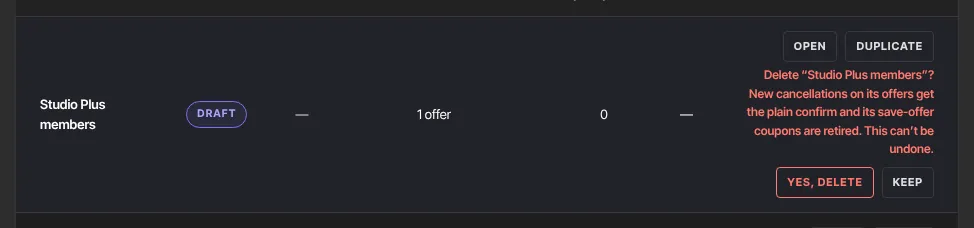
Deleting takes the flow off your list, detaches its offers, stops it being the default and retires the discounts it created. A discount a member already accepted stays on their membership. Members partway through finish on the version they started, and the flow's sessions stay in Activity. Deleting frees a slot in your plan's limit.
If your plan stops including cancel flows
If you move to a plan without cancel flows, for example after a downgrade, your flows stop running. Members who click Cancel membership get the plain confirm, with no survey and no save offer, even while a flow is still Live. You can still switch your flows off:
- Go to Revenue → Cancel flows. The upgrade panel is at the top. Your flows are listed under it with the note "Your plan doesn’t include cancel flows, so members get the plain cancel confirm — no survey and no save offers."
- Click Pause on a live flow, or Delete and then Yes, delete to remove a flow and retire its discounts.
Creating, opening, editing, duplicating, publishing and resuming flows need the plan again, and Activity shows only the upgrade panel. A member who was partway through a flow when your plan changed can still decline or cancel, but accepting a save offer shows "This offer is no longer available."
What happens next
- Audience, default and pause changes apply to the next member who clicks Cancel membership.
- A member already partway through a flow keeps the version they started.
Common errors
- "You don’t have permission to manage cancel flows.": you're a viewer.
- "Publish the flow before making it live.": only a published flow can run. Publish it first.
- "An archived flow cannot change status." or "An archived flow cannot be published.": the flow has been deleted.
- "Flow not found.": the flow was deleted, or the page is out of date. Reload it.
- "Invalid request.": reload the page and try again.
- "You've reached your … plan's limit of … cancel flows. Upgrade in Settings → Billing to add more.": delete a flow you don't need, or upgrade.
- "Cancel flows is included from the … plan up. Subscribe in Settings → Billing to unlock it.": your plan doesn't include cancel flows. Only Pause and Delete still work: see "If your plan stops including cancel flows" above.
- "No published subscription offers yet." in Audience: publish a subscription offer first. See Create an offer.