Discount codes let buyers pay less by typing a code at checkout. A single discount is one shared code, such as LAUNCH20. Bulk codes are a batch of unique codes, each usable once. Both live at Revenue → Discounts (/sales/coupons), where each code is still called a coupon.
Who can do this
- Owners and admins create and archive codes and download bulk codes.
- Plan: creating codes needs a paid plan. On the Trial plan the page shows a Discounts card, "Included from the Core plan up.", instead of New discount. Existing codes stay listed and can still be archived. See Plans and billing.
- Staff and viewers can see the list. Create discount answers "You don’t have permission to manage coupons.", Archive shows "You don’t have permission to do that.", and Download CSV opens a page that says "Forbidden".
Create a single discount code
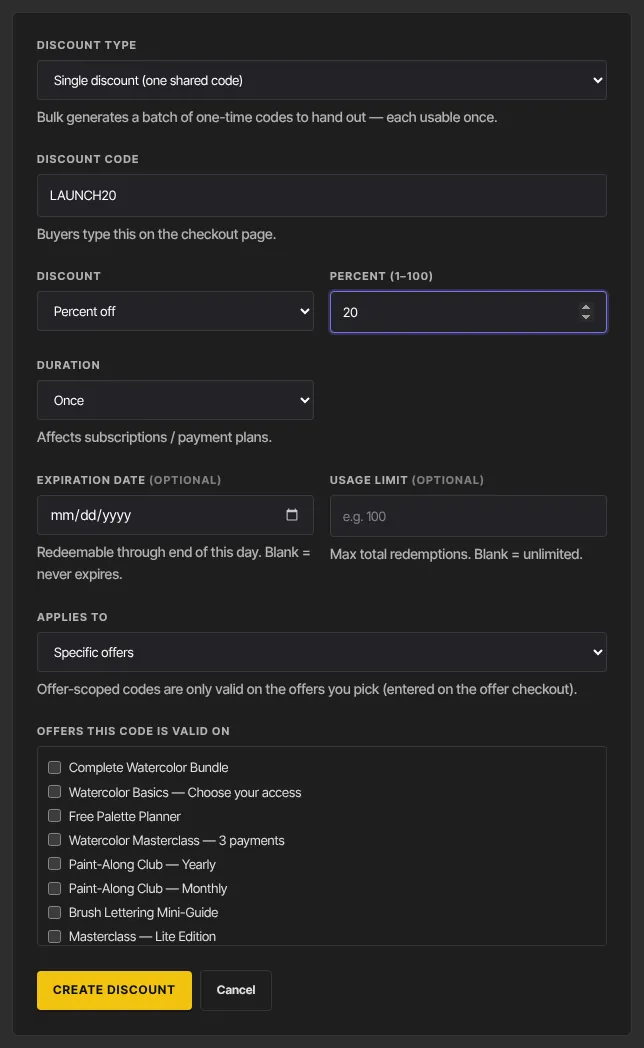
- Go to Revenue → Discounts and click New discount. The page is titled Create a coupon.
- Discount type: Single discount (one shared code).
- Discount code: 3 to 40 letters, numbers, hyphens or underscores. It's saved in capitals.
- Discount: Percent off with Percent (1–100), or Amount off (USD) with Amount (USD).
- Duration: Once, Forever or Repeating (months) with Months (1 to 36). This matters for subscriptions and payment plans: once means the first payment only, forever means every payment, repeating means that many months.
- Expiration date (optional): the code works through the end of that day. Blank never expires.
- Usage limit (optional): the most times the code can be used in total.
- Applies to: Any checkout (cart-wide) or Specific offers. For specific offers, tick at least one under Offers this code is valid on. A code limited to specific offers with none ticked is saved but works nowhere.
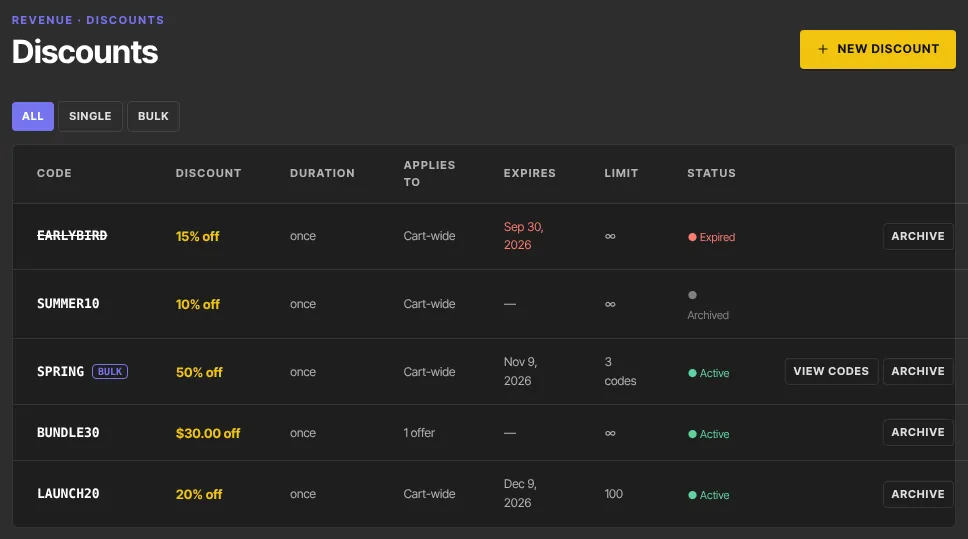
- Click Create discount. Back on the list, the row shows the discount, duration, where it applies, expiry, limit and ● Active.
Cart-wide codes work on every offer checkout and in the cart. Codes for specific offers work only on those offers' checkouts, not in the cart. Only published offers can be picked.
Create bulk single-use codes
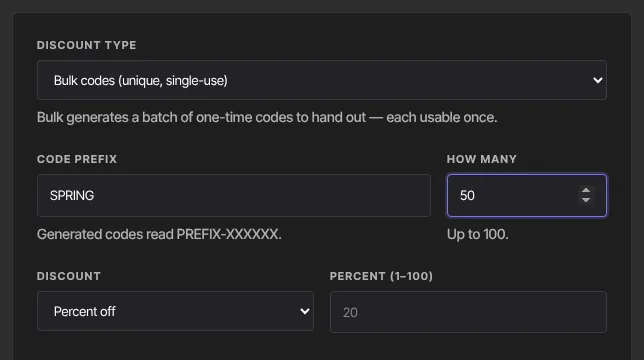
- Choose Bulk codes (unique, single-use) as the Discount type.
- Enter a Code prefix. Codes read PREFIX-XXXXXX.
- Enter How many (up to 100).
- Set the discount, duration, expiry and Applies to as above. They're shared by every code; there's no usage limit because each code works once.
- Click Create discount. The row is marked BULK, and Limit shows how many codes it has.
View and download bulk codes
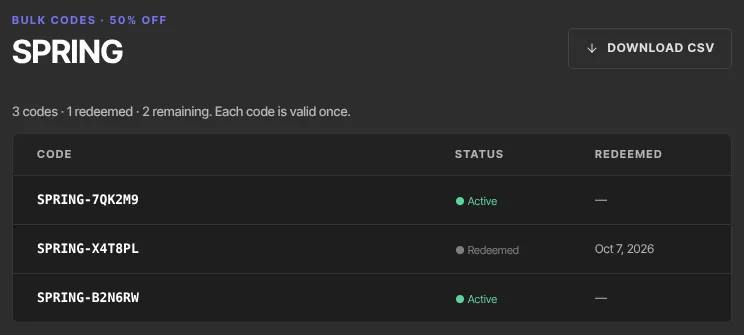
- Click View codes on the row, or the code itself.
- The page lists each code with its status (Active or Redeemed) and redeemed date, and a line such as "50 codes · 3 redeemed · 47 remaining. Each code is valid once."
- Click Download CSV for a file with each code, its status and when it was redeemed.
Archive a code
- On the list, click Archive on an active row.
- It shows ● Archived. Buyers who enter it see "That code is not valid." An archived code can't be switched back on.
Codes can't be edited after they're created; create a new one instead. A code past its expiry date shows ● Expired and is struck through. Use All, Single and Bulk above the list to filter.
What happens next
- On an offer checkout, buyers click Have a discount code? and type it into Discount code. In the cart they use Discount or coupon code. The discount is applied on the payment step.
- An offer's exit popup can hand buyers a code; see Checkout options, fields and availability.
- One-click upsells and downsells are always charged at full price.
- A bulk code shows Redeemed once its purchase completes.
Common errors
- "Letters, numbers, - and _ only": remove spaces and other symbols from the code.
- "Set how many codes to generate": fill in How many.
- "Could not create the coupon — check the code isn’t already in use and any expiry date is in the future.": choose a different code, or a future date.
- "Discounts is included from the Core plan up. Subscribe in Settings → Billing to unlock it.": choose a paid plan.
- "You don’t have permission to manage coupons.": ask an owner or admin.
- Buyers see "That code is not valid.", "That code has expired.", "That code is not valid for this offer." or "That code is not valid for cart purchases.": the code was mistyped or archived, its date passed, or it's limited to other offers. Cart purchases need a cart-wide code.