An order bump is a small extra shown as a tick box on an offer's checkout, such as "Add the workbook for $19". If the buyer ticks it, the bump is added to the same payment. It's the easiest add-on to say yes to, because it's decided before paying.
Who can do this
- Owners and admins.
- Plan: adding a new bump needs a plan that includes Checkout upsells & order bumps, which the Advanced plan and higher do. On a lower plan, the Order bumps panel shows that card, with Choose a plan, in place of the add form. Bumps you already added keep working and can still be removed. See Plans and billing.
- Staff and viewers see the panel, but adding or removing shows "You don’t have permission to do that."
Add an order bump
- The add-on must be its own published offer, priced as a One-time payment or Free. No offer yet? Create an order bump offer in the panel opens the offer wizard set to one-time.
- Open the main offer from Revenue → Offers and click the Conversion tab.
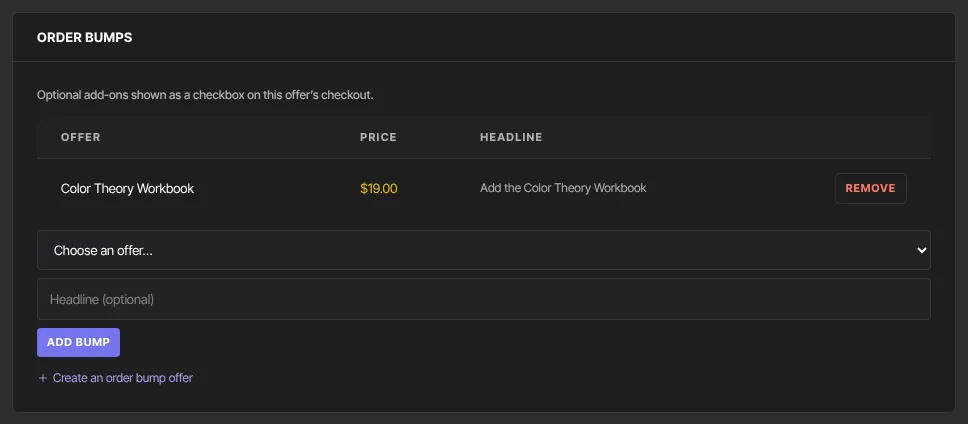
- In Order bumps, pick the add-on in Choose an offer….
- Type a Headline (optional). It's the text beside the tick box; blank uses the add-on's name.
- Click Add bump (it shows Adding…). The bump appears in the table with its price and headline. Remove takes it off.
With no suitable offer to attach, the panel says "Publish another eligible offer to attach it here."
Where bumps appear
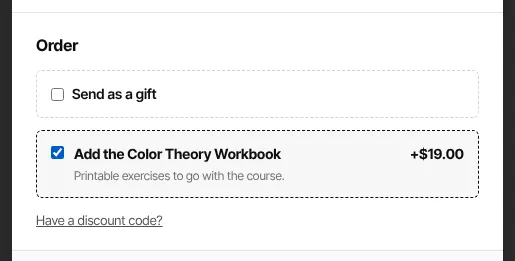
- Paid one-time checkouts. The bump shows in the Order section with its headline and price, such as "+$19.00", and Due now updates when it's ticked.
- Not on subscription offers. Their panel reads "Order bumps apply to one-time offers only." and "Not available for subscription offers."
- Not on payment plans. The panel lets you add bumps to a payment-plan offer, but they never show at its checkout. Don't attach bumps to payment plans.
- Not on free offers, gift purchases or the cart. Ticking Send as a gift hides the bumps.
- A bump whose offer is unpublished, sold out or past its Available until date is hidden automatically.

Bump or upsell?
A bump is chosen before paying, on the checkout, as part of one payment. A one-click upsell is offered after paying, as its own charge. Use a bump for a small, obviously related extra; use an upsell for a bigger next step.
What happens next
- One payment, but a separate line per offer in Revenue → Transactions, so you can refund the bump on its own. See Transactions and refunds.
- The buyer gets access to the bump's products, and it's listed on their receipt.
- A discount code applies to the whole payment, bump included.
- An affiliate who referred the sale earns commission on each line.
Common errors
- "Publish another eligible offer to attach it here.": publish a one-time or free offer to use as the bump.
- The bump isn't on the checkout: check the main offer isn't a subscription, payment plan or free offer, and that the bump's own offer is published and still available.
- A bump didn't appear in the list after Add bump: reload the page and add it again.
- "You don’t have permission to do that.": ask an owner or admin.