Every offer has one pricing plan. It decides what buyers pay at checkout, how often they're billed and how long their access lasts. You choose it in the offer wizard and can change it any time on the offer's Details tab, where you can also let buyers pay what they want or choose between several price options.
Who can do this
- Owners and admins, on any plan.
- Staff and viewers see the Details tab, but Save changes answers "You don’t have permission to manage offers." and the price option buttons show "You don’t have permission to do that."
Change an offer's price or plan
- Go to Revenue → Offers and open the offer. The Details tab opens.
- Change the Pricing plan, Price (USD) (or Price per installment (USD)), Billing interval, Free trial days or Number of installments.
- Click Save changes. "Saved." appears.
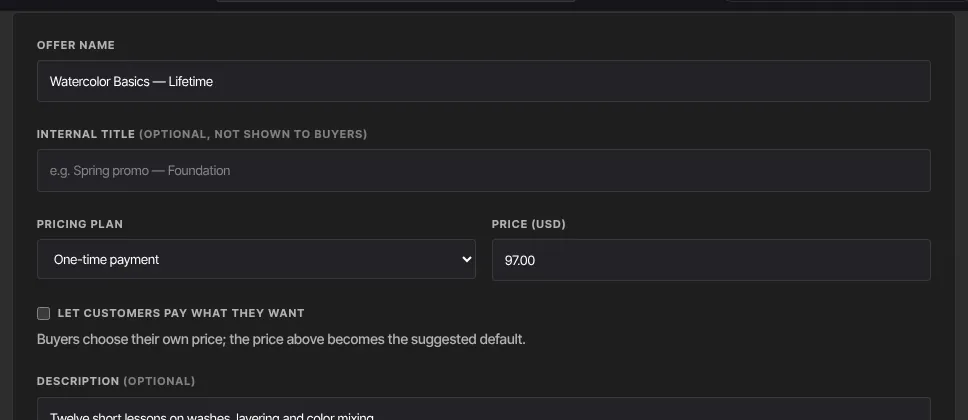
The new price applies to the next checkout. Members who already subscribed keep paying what they signed up at. Switching away from Subscription clears the trial days, and switching away from One-time payment turns pay what you want off.
How each pricing plan works
One-time payment
The checkout shows the price with a USD tag, and the button reads Pay $97.00 USD (or your own button label with the price). The buyer is charged once and keeps access. Order bumps, one-click upsells, gifts and buy now, pay later all work. Paid prices start at $0.99.
Subscription
The checkout shows the price per period, such as $29.00/mo, with Monthly or Yearly under it. The buyer is charged today and again every period until the subscription ends, and gets a receipt for each payment. They appear in Revenue → Memberships. A signed-in member who already pays for the same product is stopped with "You already have an active subscription to this. You can change or cancel it from your profile." Subscriptions can't have order bumps, pay what you want, gifts or buy now, pay later. They can start with a free trial.
Payment plan (installments)
The checkout shows the installment and the count, such as $70.00/mo × 3. The first installment is charged at checkout and the rest automatically, one per interval. After the last payment, billing stops on its own and the buyer keeps access for good. A payment plan is a fixed charge schedule: order bumps, gifts and buy now, pay later aren't applied to it. The Order bumps panel and the gift and buy now, pay later boxes still appear for a payment-plan offer, but its checkout ignores them.
One-click upsells do work after a subscription or payment-plan checkout: accepting one charges the card saved on the new subscription, without the buyer re-entering it.
Free
The checkout shows Free. Buyers confirm their email (signed-in members just click Get free access) and the product is added to their library. No payment connection is needed.
Let buyers pay what they want (one-time offers)
- On a One-time payment offer's Details tab, tick Let customers pay what they want.
- Enter a Minimum price (USD). 0 allows free.
- Your Price (USD) becomes the suggested amount buyers start from.
- Click Save changes.
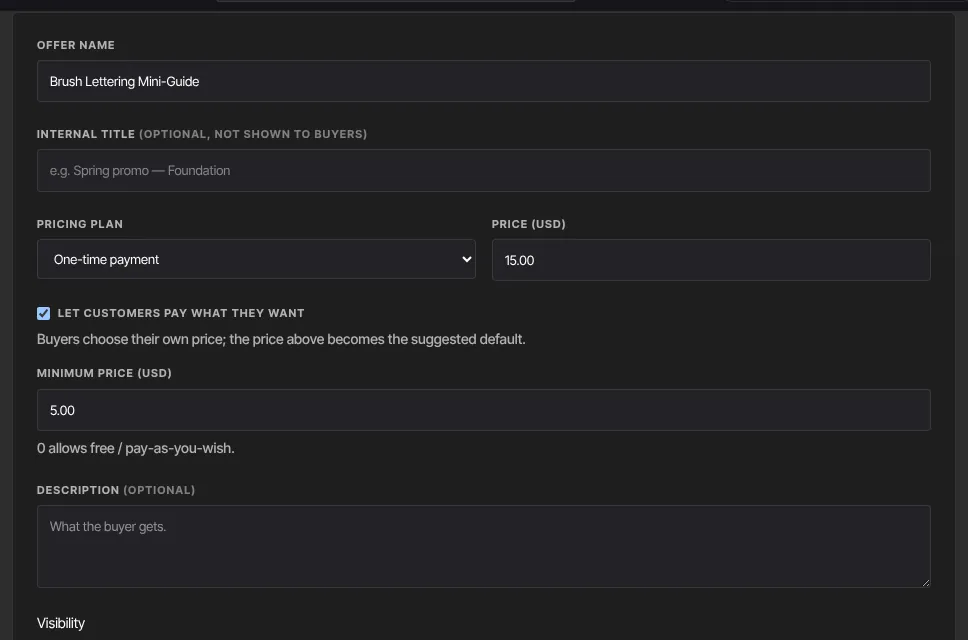
Buyers see "Pay what you want · from $5.00" and a Name your price box. An amount under your minimum shows "Enter at least $5.00.". A $0 amount gives free access only to buyers signed in to your school; anyone else is asked to sign in first. While pay what you want is on, the Pricing options panel is hidden.
Offer several price options
- On the Details tab, find Pricing options.
- Enter a Name (e.g. Yearly) and a Price, choose One-time or Subscription, and for a subscription Monthly or Yearly.
- Click Add option. Repeat for each option. Remove deletes one.
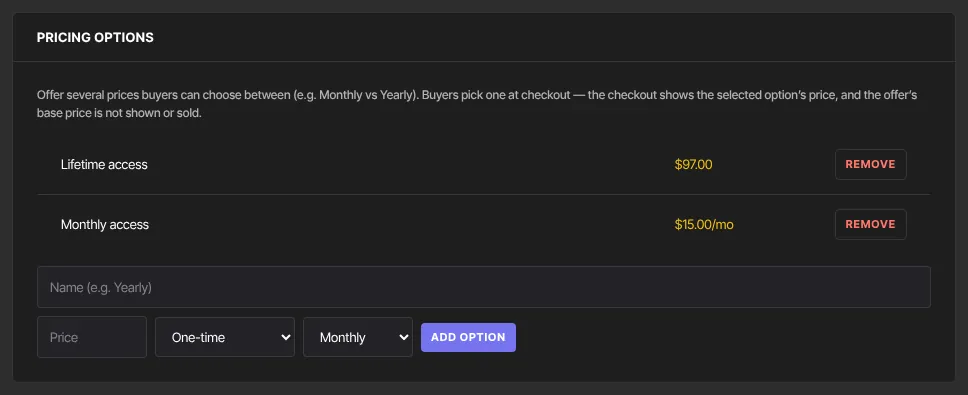
With at least one option, buyers must pick one at checkout. The checkout shows the chosen option's price, and the offer's base price is never shown or sold. A subscription option bills like a subscription offer. If an option doesn't appear after Add option, check its name and price and add it again: an option with no name or an unreadable price isn't saved.
Buy now, pay later
On the offer's Checkout tab, Offer Buy-Now-Pay-Later (Afterpay / Klarna) adds those choices to the payment step of one-time checkouts. The box is hidden for subscription offers. See Checkout options, fields and availability.
What happens next
- Price changes show on the checkout straight away and apply to new purchases only.
- Every successful payment appears in Revenue → Transactions.
Common errors
- "Enter a price like 197 or 197.00.": type the price as a number.
- "A paid price must be at least $0.99, or set it to $0 for a free offer.": raise the price or make the offer free.
- "A payment plan needs at least 2 installments.": set 2 or more.
- "Could not save the offer." or "Offer not found.": reload the page and try again.
- A buyer sees "Enter at least $5.00.": their amount is under your pay what you want minimum.
- A buyer sees "Please sign in with a verified email to get this free offer.": they entered $0 without being signed in to your school. They can sign in to your member area in the same browser and open the checkout again, or enter an amount.