With gifting on, someone can buy your course or product for a friend, a family member or a client: they pay, and the access goes to the other person's email address. The buyer gets the receipt; the recipient gets a gift email and the product, with no code to redeem.
Who can do this
- Owners and admins turn gifting on for each offer, on any plan.
- Gifting works on one-time offers only. The option is hidden for subscription and payment-plan offers, and the checkout hides Send as a gift while a buyer has a subscription price option selected.
- Staff and viewers can't change checkout options ("You don’t have permission to do that.").
Turn on gifting
- Open a one-time offer from Revenue → Offers and click the Checkout tab.
- Tick Allow this offer to be sent as a gift.
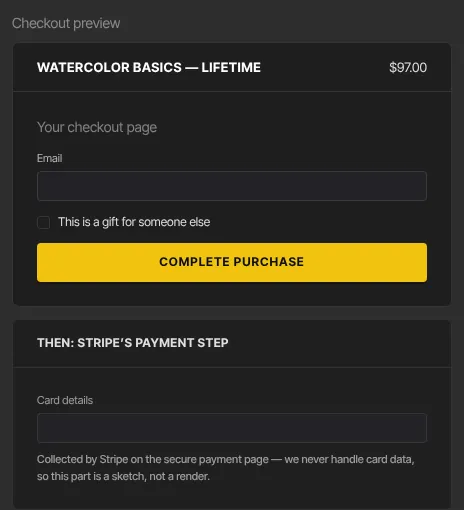
- Click Save checkout options. The Checkout preview beside the form adds the line "This is a gift for someone else"; on the real checkout buyers see a Send as a gift box.
What the buyer does
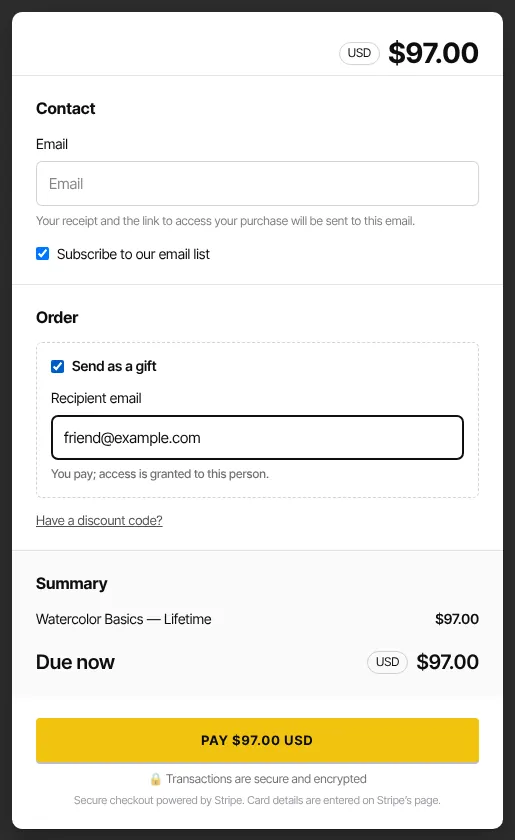
- On the checkout, they tick Send as a gift in the Order section.
- They enter the Recipient email. The note under it reads "You pay; access is granted to this person."
- Their own Email under Contact is where the receipt goes.
- They pay as usual. Order bumps disappear while Send as a gift is ticked, and no upsells follow the purchase.
What happens next
- The recipient has access straight away and gets an email titled "You’ve been gifted" followed by the product's name. It has no price on it and a button that signs them in.
- The buyer gets the priced receipt.
- Both people are added to your Contacts. The purchase is recorded under the recipient, who holds the access.
- If you've turned off Send purchase receipts in Settings → Customer payments, neither email is sent. The recipient can still sign in at your member sign-in page with the email the gift was sent to.
Common errors
- A buyer sees "Enter a valid recipient email.": the recipient address has a typo.
- The recipient can't find the product: they must sign in with the exact email the buyer entered. If it was mistyped, grant the product to the right address; see Give or remove product access by hand.
- A buyer sees "Subscriptions and payment plans can’t be sent as a gift. Untick “Send as a gift” to buy it for yourself.": gifts are one-time purchases only. They can untick the box to buy it for themselves, or you can offer a one-time option to gift.
- A buyer sees "This offer can’t be sent as a gift. Untick “Send as a gift” to buy it for yourself.": gifting is off on that offer. Turn on Allow this offer to be sent as a gift, or ask them to untick the box.
- "You don’t have permission to do that.": ask an owner or admin.