An offer is what a customer buys. Your products hold the content; an offer holds the price, the payment terms and the checkout page. One product can have several offers (a launch price, a payment plan, a membership), and one offer can bundle several products. Nothing can be bought until it's on a published offer.
Who can do this
- Owners and admins create, edit, publish, duplicate and delete offers. Offers are included on every plan.
- Staff and viewers can open Revenue → Offers and every offer's page, but can't change anything. Saving a form shows "You don’t have permission to manage offers.", buttons such as Publish or Duplicate show "You don’t have permission to do that.", and Edit checkout page sends them back to the offer's page.
- Some extras on an offer need a higher plan: see Order bumps and One-click upsells and downsells.
The Offers list
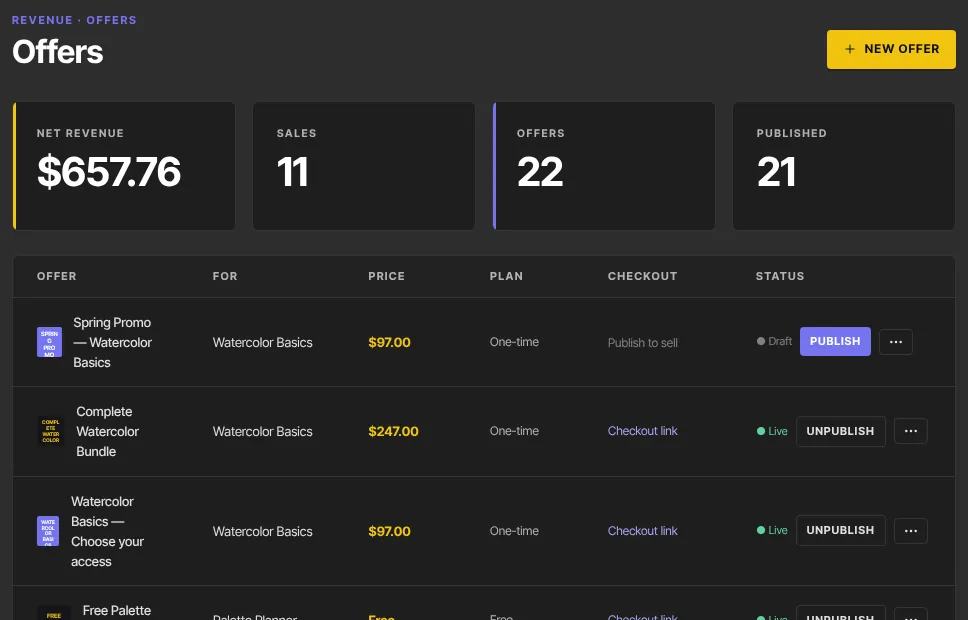
- Go to Revenue → Offers (
/sales/offers). - The tiles at the top show Net revenue, Sales, Offers and Published.
- Each row shows the Offer, the product it's For, the Price, the Plan and the Status: ● Live or ● Draft.
- A live offer has a Checkout link (it opens the checkout in a new tab) and a copy button that copies the link on your site's own address. A draft says Publish to sell.
You can also start from a product: open it, go to its Offers tab (/products/[id]/offers) and click Add offer. The new offer is created for that product, and when you publish it (or keep it as a draft, or Save & close on any step) you land back on that product's Offers tab. To create one from scratch, see Create and publish an offer.
Publish an offer, or stop selling it
- On the list, click Publish on a draft row (it shows Publishing…) or Unpublish on a live row. The same button sits at the top of each offer's page.
- A published offer's checkout is live straight away.
- After you unpublish, the checkout link shows buyers "This offer isn’t available". People who already bought keep their access.
To stop selling a course or product for a while without losing anything, unpublish its offer rather than deleting it. Publish it again whenever you're ready; its settings and sales history are still there.

Publish the product too. An offer can be published while its product is still a draft, and buyers can then pay but can't open what they bought.
Duplicate, export or delete
- Click ⋮ (More actions) on a row, or at the top of an offer's page.
- Duplicate makes a draft copy named "Copy of …" and opens it. The copy keeps the price and plan, description, availability limits, checkout options, after-purchase page, plan card and bundled products. It does not copy the free trial days, pricing options, order bumps, upsells, the checkout page design, checkout fields, two-step opt-in and exit popup, or the post-purchase email. Set those again on the copy before you publish it.
- Export downloads a CSV of this offer's purchases: Date, Status, Kind, Amount, Currency, Email and Reference.
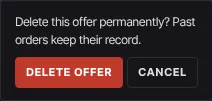
- Delete asks "Delete this offer permanently? Past orders keep their record." Click Delete offer to confirm, or Cancel.
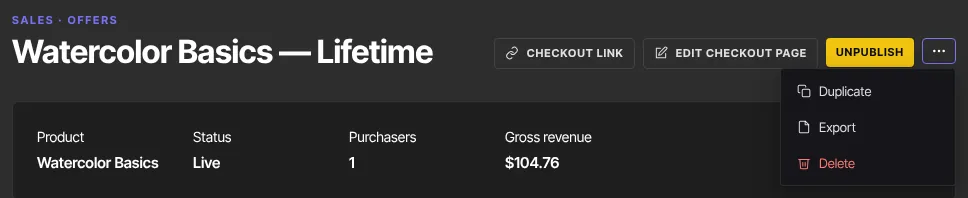
After a delete you return to the Offers list. The checkout link stops working, and the offer's order bumps and upsells go with it. Past transactions stay in Revenue → Transactions, and buyers keep the access they already have.
What happens next
- Share the checkout link anywhere: your website's offer blocks, emails, social posts.
- When someone buys, they're added to your Contacts, get access to the offer's products and receive an email with a button that signs them in. You get a new-sale email if it's turned on in your notification settings.
- A buyer who starts a paid checkout and doesn't finish gets one reminder about an hour later. See Abandoned checkout emails.
- Opening your own free offer's link while signed in shows a note that you're viewing it as the school owner; clicking the claim button would enroll your own account.
Common errors
- "You don’t have permission to manage offers." or "You don’t have permission to do that.": you're signed in as staff or a viewer. Ask an owner or admin.
- "Your free trial has ended, so your workspace is read-only. Subscribe in Settings → Billing to start creating again — nothing has been deleted.": choose a plan in Settings → Billing.
- "Offer not found." or "Could not delete the offer.": reload the page and try again.
- Buyers see "This offer isn’t available": the offer is a draft or was deleted. Publish it, or share the link of a live offer.
- Buyers see "This offer has closed" or "This offer is sold out": its Available until date passed or its Quantity limit was reached. See Checkout options, fields and availability.