An upsell is an offer shown right after someone pays. They accept with one click, and the card they just used is charged again without re-entering it. If they decline, you can show a cheaper downsell. Add several upsells to build a sequence. Upsells can also follow a free claim, where accepting opens a normal checkout.
Who can do this
- Owners and admins.
- Plan: adding a new step needs a plan that includes Checkout upsells & order bumps, which the Advanced plan and higher do. On a lower plan the panel shows that card instead of the add form; existing steps keep working. See Plans and billing.
- Staff and viewers can't add or change steps ("You don’t have permission to do that."), and Edit upsell page sends them back to the offer's page.
Add an upsell step
- The upsell must be its own published offer priced above $0: a One-time payment, or a subscription or payment plan. Create a one-click upsell offer in the panel starts a one-time one.
- Open the main offer from Revenue → Offers and click the Conversion tab.
- In One-click upsells, pick the offer in Choose an offer…, add a Headline (optional) and click Add upsell.
- Add more to build a sequence. Rows are labelled Step 1, Step 2 and so on, and buyers see them in that order, up to ten steps.
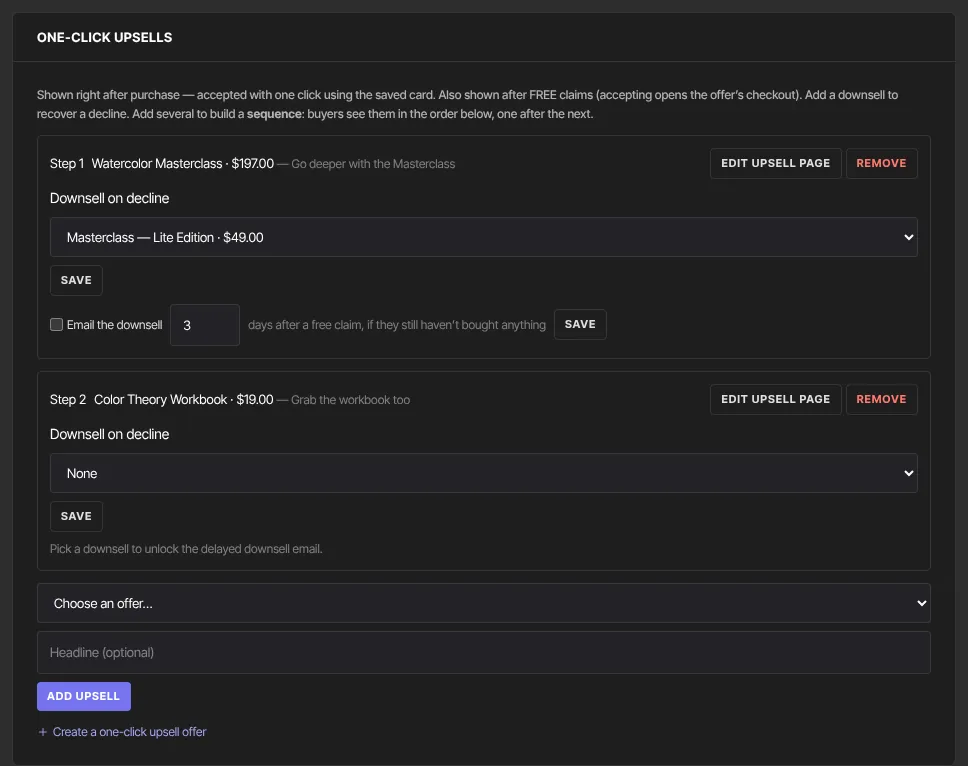
With nothing to attach, the panel says "Publish another paid offer (one-time or subscription) to attach it here."
Add a downsell to a step
- In the step's row, choose an offer under Downsell on decline, then click Save.
- The downsell is shown when the buyer turns that step down. Like the upsell, it can be one-time or a subscription.
Subscriptions as upsells and downsells
A subscription or payment plan can be a step too, for example a VIP tier of your community, or a cheaper monthly as the downsell. The pickers mark these "· subscription" or "· payment plan". It can't be started in one click, so the step shows its price per period ("$19.00 / month"), "Opens a quick secure checkout to start this plan." and Yes, start it for …. Accepting opens that offer's checkout, and the buyer leaves the sequence there. A delayed downsell email can point at a subscription too.
Design an upsell page
- In a step's row, click Edit upsell page. The builder opens, titled "Upsell page —" with the upsell and the offer it follows.
- Add blocks. Your content appears above the price card and the Yes and No buttons, replacing the default headline. Leave it empty for the default page.
- Click Save upsell page, then ← Back to offer.
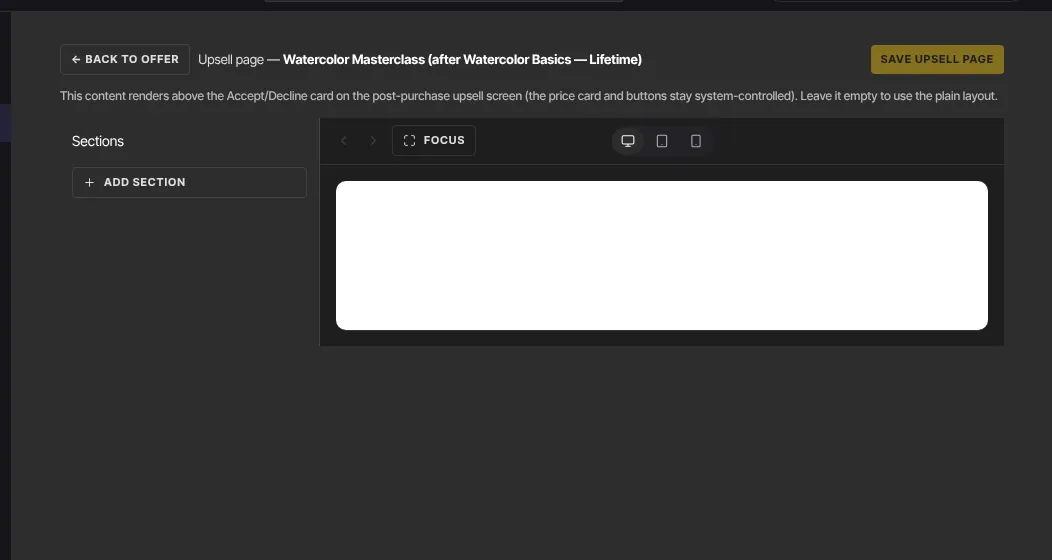
The editor previews in standard colours and fonts; buyers see the page in your site's Style Guide colours and fonts.
What buyers see after paying
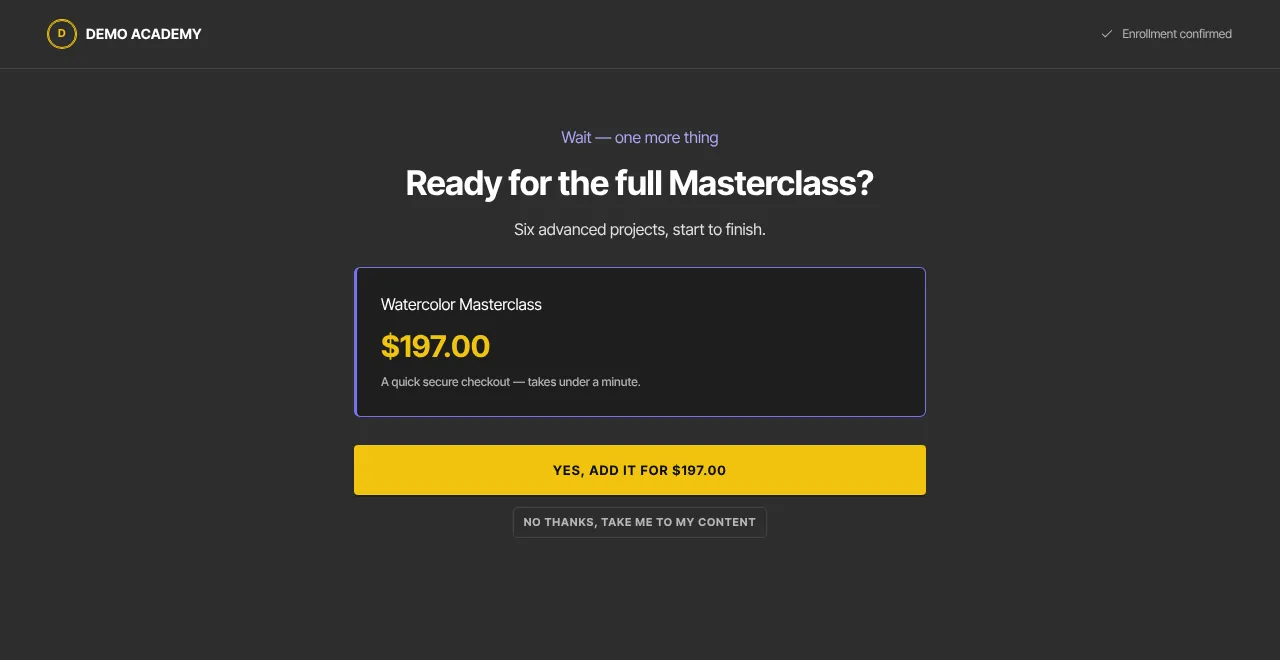
- After payment, the first step opens with Payment confirmed at the top, the offer's price and "Added to your order with one click — no need to re-enter your card."
- Yes, add it for the price charges the saved card as a separate payment and moves on. No thanks, take me to my purchase shows the step's downsell (headed Before you go) or moves on.
- After the last step they see You’re in., or your custom after-purchase page.
If the card can't be charged again without extra verification, or there's no saved card to reuse, Yes opens that offer's normal checkout with a note at the top, "We couldn’t add this to your order in one click.", saying their earlier purchase is unaffected. The buyer pays there as usual; the remaining steps are skipped. Discount codes don't carry over: upsells and downsells are charged at full price. Gift purchases skip upsells.
One receipt covers the whole order. It's sent the moment the buyer finishes the last step and reaches You’re in. (or your after-purchase page), and lists the main purchase, any bumps and every add-on accepted. A buyer who leaves partway through gets it 30 minutes after their first payment.
Subscription and payment-plan offers
Upsells work the same way after a subscription or payment-plan checkout: Yes charges the card saved on the new subscription in one click. The first payment doesn't get a receipt of its own: the one receipt at the end lists the subscription's first payment and the add-ons together. After a free trial it lists the add-ons, and the trial-started email covers the trial. Renewals get their own receipts as usual. If the first payment is still being confirmed when the buyer finishes, the receipt follows about 30 minutes later.
After free claims
Claiming a free offer that has upsell steps shows the same pages with Enrollment confirmed at the top and "A quick secure checkout — takes under a minute." Yes opens that offer's checkout; No thanks, take me to my content moves on.
Email the downsell after a free claim
- In a step that has a downsell, tick Email the downsell and set the days (1 to 30, default 3), "days after a free claim, if they still haven’t bought anything".
- Click Save. Without a downsell, the row says "Pick a downsell to unlock the delayed downsell email."
After each future free claim of this offer, the person gets one email titled "A smaller way to keep going:" with the downsell's name, linking to its checkout. It's skipped if they've paid you for anything since, or if the downsell is no longer on sale. Change its wording under Downsell offer in Settings → Email templates.
What happens next
- Each accepted upsell or downsell is its own line in Revenue → Transactions, with access to its products.
- An affiliate who referred the original sale also earns on accepted add-ons.
Common errors
- "Publish another paid offer (one-time or subscription) to attach it here.": publish another offer priced above $0.
- "Pick a downsell to unlock the delayed downsell email.": set Downsell on decline first.
- "The page contains invalid content — undo the last change and try again." or "Could not save the upsell page.": undo your last edit and save again.
- "Only owners and admins can edit the upsell page.": ask an owner or admin.
- A buyer's Yes opened a checkout saying "We couldn’t add this to your order in one click.": their bank wanted them to confirm the card, or there was no saved card to reuse. They can pay there; their earlier purchase is unaffected.