The cart lets a buyer collect several one-time or free offers and pay for them together at /cart on your site. You set it up at Revenue → Cart. Single-offer checkouts keep working exactly as before.
Who can do this
- Owners and admins, on any plan. Paid items need a connected payment account; see Connect payments.
- Staff and viewers opening Revenue → Cart see only "Only owners and admins can edit cart settings."

Set up the cart
- Go to Revenue → Cart (
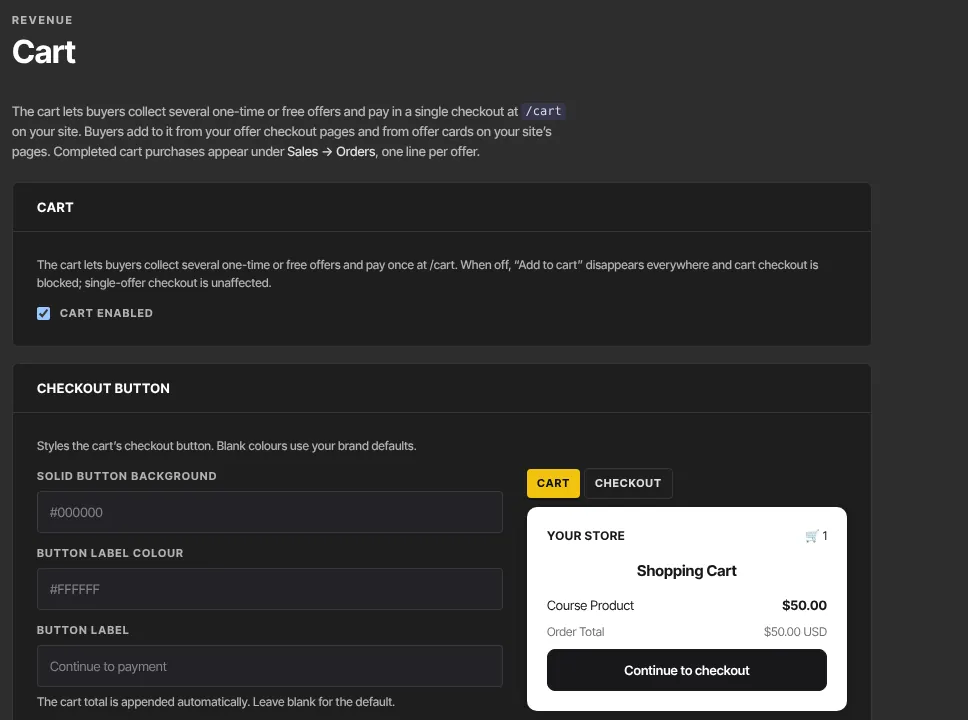
/sales/cart). - Cart enabled is ticked for new schools. Untick it to hide every Add to cart link on your site and refuse cart checkouts.
- Checkout button: Solid button background, Button label colour, Button label (the total is added automatically; blank reads "Continue to payment"), Button outline and Button border radius (0 to 32). Cart and Checkout switch the preview.
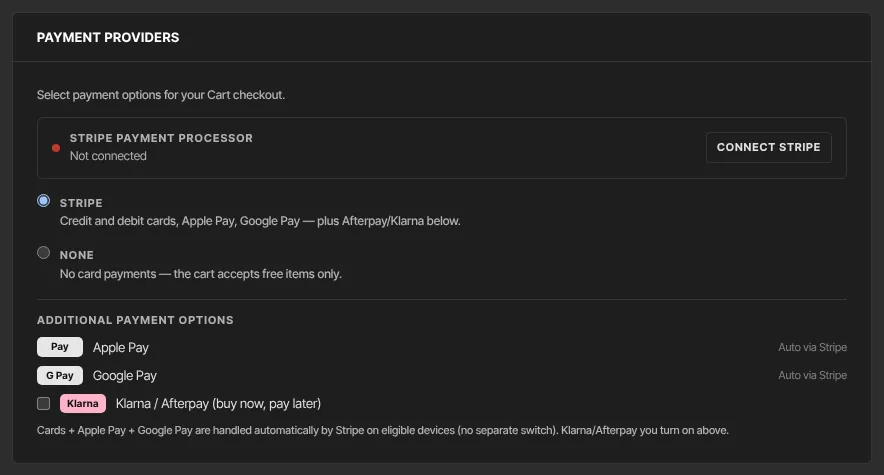
- Payment providers: the Stripe payment processor card shows Connected — ready to accept payments, Connected — finish verification to accept payments or Not connected. Choose Stripe, or None to accept free items only. Tick Klarna / Afterpay (buy now, pay later) if you want it; Apple Pay and Google Pay come with Stripe automatically.
- Customer fields: email is always collected. Tick Phone number, Address or Tax ID.
- Service agreement: Not required, Default service agreement ("I agree to the terms of service.") or Custom with your own text.
- Post-purchase: Order confirmation (with member login), or Custom URL starting with https://.
- Click Save cart settings. Saved appears.
How buyers add to the cart
- Offer cards on your website's pages show an Add to cart link under Buy now, for paid one-time offers that aren't pay what you want. The offer checkout page itself has no Add to cart button, whatever the note at the top of Revenue → Cart says.
- The cart is remembered in the buyer's browser for 30 days and holds up to 10 items, all from your school.
- Only one-time and free offers go in the cart. Subscriptions, payment plans and pay-what-you-want offers always check out on their own.
What buyers do at /cart
- Your cart lists each item with Remove.
- The panel shows the Total, an Email box, Discount or coupon code (optional) and your agreement, if you set one.
- They click the button (Continue to payment with the total, or your label) and pay on Stripe's secure page.
- They return to Order confirmed. with Go to login, or to your custom URL. The cart empties.
Free items need the buyer to be signed in to your school. A cart of only free items shows Get free access and always ends on Order confirmed., even with a custom URL set.
What happens next
- One payment, one line per item in Revenue → Transactions, and access to every item.
- One receipt per item. Only the newest email's sign-in button is sure to work; buyers can also sign in with an emailed code.
- Only cart-wide discount codes work in the cart (Discounts and discount codes).
- Affiliate referral links don't carry into the cart, so cart sales earn no commission.
- A buyer who leaves without paying gets one reminder about an hour later, titled with the first item's name and how many more. See Abandoned checkout emails.
Common errors
- "Enter a hex colour like #7C4DFF" (or #FFFFFF, #000000): use # followed by 3 or 6 letters and numbers, or leave it blank.
- "Enter a full URL starting with https://": fix the custom post-purchase address.
- "Could not save cart settings.": try again in a moment.
- Buyers see "Cart checkout is currently unavailable for this store.": Cart enabled is off.
- Buyers see "This store accepts free items only in the cart. Paid items can be purchased from their own checkout pages.": the provider is set to None.
- Buyers see "Please sign in with a verified email to claim the free items in your cart.": they need to sign in to your school first.
- Buyers see "This creator isn’t set up to accept payments yet. Please check back soon.": finish connecting payments.