With automatic tax on, Stripe works out the sales tax or VAT for each buyer from where they are, adds it at the payment step, and the amount is recorded on the order. You switch it on once for your whole school at Revenue → Tax. Whether you need to collect tax, and where, depends on your registrations: check with your accountant first.
Who can do this
- Owners and admins turn automatic tax on or off, on any plan.
- Staff and viewers can open Revenue → Tax and see the totals, but Turn on or Turn off shows "You don’t have permission to do that."
Turn on automatic tax
- Go to Revenue → Tax (
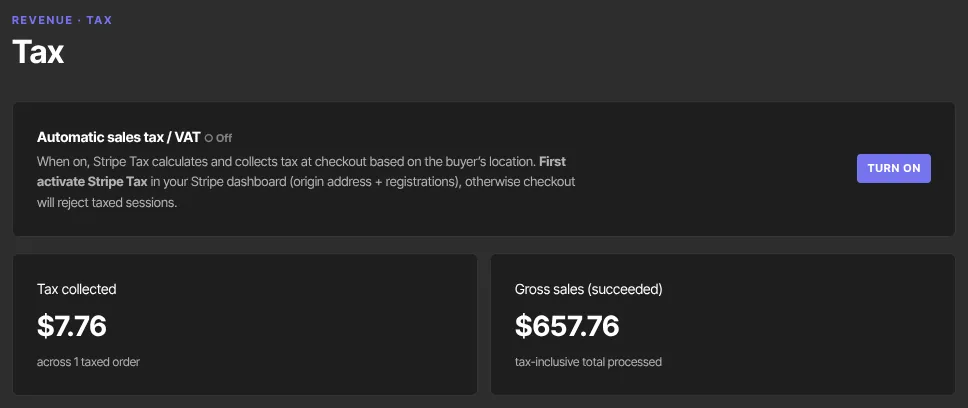
/sales/tax). The panel reads Automatic sales tax / VAT ○ Off. - Read the note under it: it asks you to activate Stripe Tax first, with your origin address and registrations, or checkout will reject taxed sessions.
- Click Turn on. The panel now reads ● On.
- Test it straight away: open the checkout link of one of your paid offers, enter an email and click the pay button. If the payment step opens, tax is working.
- If you see "We couldn’t start checkout — payments aren’t fully set up for this school yet. Please try again later.", click Turn off at once so buyers can pay, then contact Zinstruct support.
Turn it off
Click Turn off. New checkouts stop adding tax; orders you've already taken keep the tax they were charged.
What changes at checkout
- Your prices are before tax. Tax is added on top at the payment step, so the payment page shows the final total while Due now on your checkout page shows the price before tax.
- Stripe asks the buyer for the address it needs to work out the tax.
- It applies to every offer checkout, the cart and invoices.
- One-click upsell and downsell charges are taken at the add-on's price, with no tax added.
See the tax you've collected
- Tax collected shows the total and how many taxed orders it came from.
- Gross sales (succeeded) is the tax-inclusive total processed.
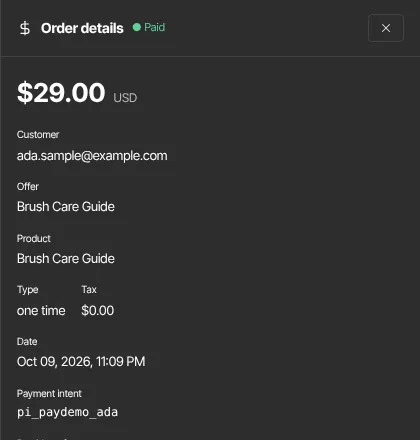
- Each order's Tax is shown in its Order details in Revenue → Transactions.
What happens next
- Taxed sales show their tax on each order and in the tiles above.
- For revenue over time, see The Analytics dashboard, tile by tile.
Common errors
- Buyers see "We couldn’t start checkout — payments aren’t fully set up for this school yet. Please try again later." after you turned tax on: turn automatic tax off, then contact Zinstruct support.
- "You don’t have permission to do that.": ask an owner or admin.
- "Your free trial has ended, so your workspace is read-only. Subscribe in Settings → Billing to start creating again — nothing has been deleted.": choose a plan.