An invoice bills one customer for one or more of your offers, with quantities and your own prices, and gives them a page where they pay by card. When they pay, they get access to every offer on it. Use invoices for sales that don't fit a checkout page, such as a team deal or a custom package.
Who can do this
- Owners and admins, on any plan. Paid invoices need a connected payment account; see Connect payments.
- You need at least one published one-time or free offer. Without one, New invoice shows "Publish a one-time or free offer first — invoices are billed against offers."
- Staff and viewers can see invoices. Create invoice and Save changes answer "You don’t have permission to manage invoices."; Send invoice, Resend email, Void and Delete show "You don’t have permission to do that."
Create an invoice
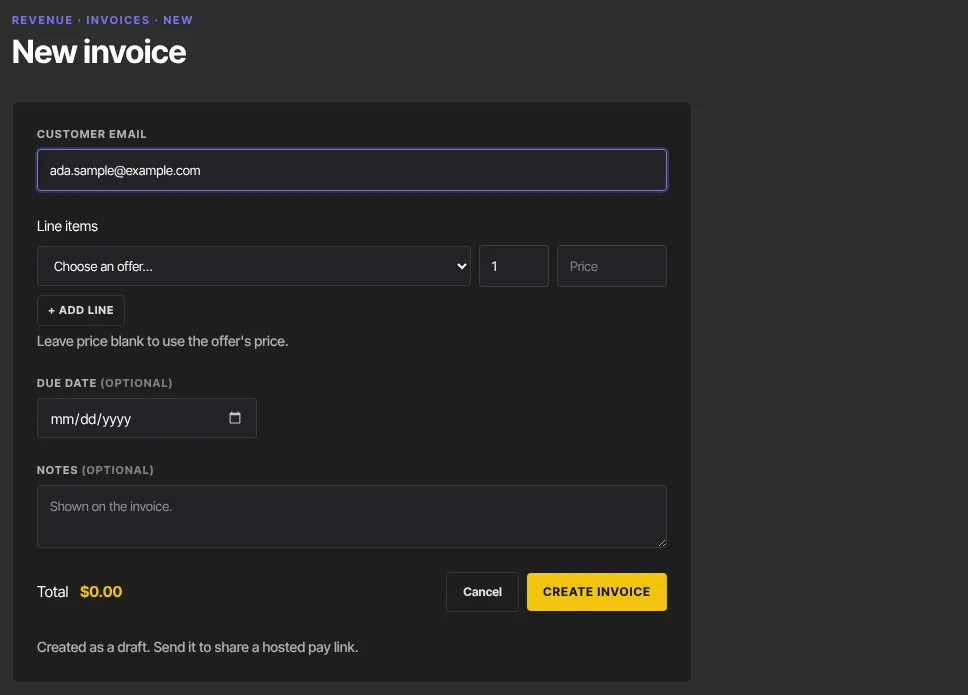
- Go to Revenue → Invoices and click New invoice.
- Enter the Customer email. Access goes to this address.
- Under Line items, pick an offer in Choose an offer…, set the quantity, and type a price to override the offer's (blank uses the offer's price). + Add line adds a line; Remove deletes one.
- Optionally add a Due date and Notes, which are shown on the invoice.
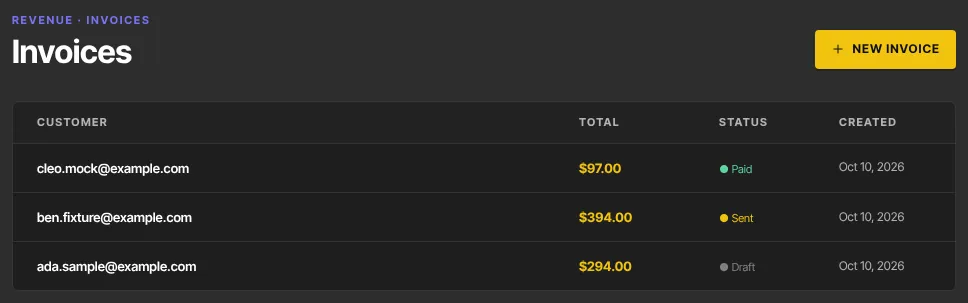
- Check the Total and click Create invoice. The invoice opens with the status draft.
Good to know:
- The same offer can go on more than one line (say, at two prices). Each line is recorded as its own order when the invoice is paid.
- An invoice is a single payment. A payment-plan offer on an invoice is charged once, at the price on the line, and the customer keeps access, so set the price you mean.
- An invoice must collect money. A $0 total is refused when you create, save or send it with "Use a free offer instead — invoices need an amount to collect." To give someone free access, use a free offer or grant it by hand; see Give or remove product access by hand.
Edit or delete a draft
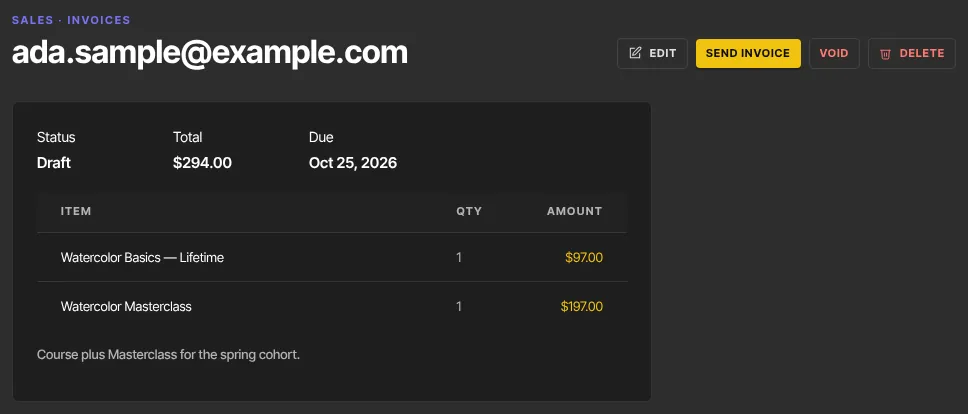
- Open the invoice from the list. A draft shows Edit, Send invoice, Void and Delete.
- Edit opens the same form; change it and click Save changes.
- Delete, then Delete draft, removes it. Only drafts can be edited or deleted.
Send the invoice
- Click Send invoice. The status becomes sent, and the customer gets an email from your workspace titled "Invoice from {your site name} — {total}", listing the items, total, due date and notes, with a Pay button.
- The page then says "Invoice emailed to {their email}." If the email couldn't go out, it says so instead; click Resend email, or share the link yourself.
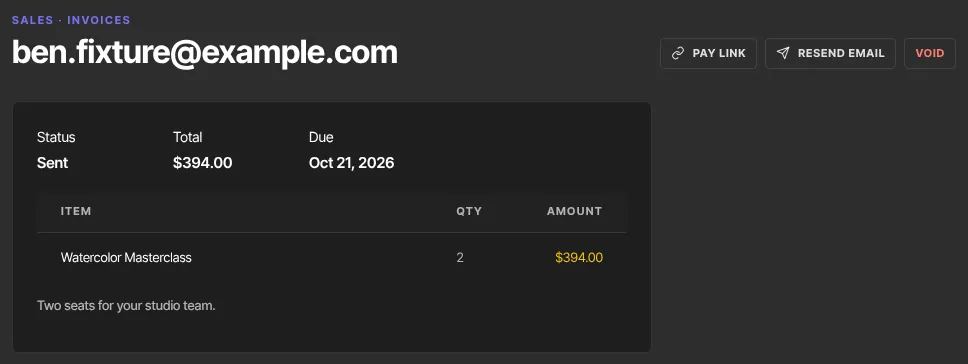
- A sent invoice shows Pay link, Resend email and Void. Pay link opens the customer's payment page so you can copy its address; Resend email sends the same email again, for example if they can't find it.
- Replies to the email go to the Support / reply-to email in Settings → Customer payments, if you've set one. The invoice email is sent even when Send purchase receipts is off.
- Until you send it, the link shows the customer "This invoice is not payable."
The customer opens the link, sees "Invoice for" their email with the items, due date and notes, clicks Pay and the total, and pays on Stripe's secure page. They come back to "Payment processing…" until the payment is confirmed (usually within a minute), then the page reads "Paid — thank you." Connect payments before you send: until your payment account can take charges, the page says "This creator isn’t set up to accept payments yet, so this invoice can’t be paid online right now." instead of a Pay button.
Each line of a paid invoice becomes an order in Revenue → Transactions, which you can refund line by line; see Transactions and refunds.
Void an invoice
- On a draft or sent invoice, click Void. Its status becomes void and no buttons remain. The customer's link now says "This invoice is not payable."
- A paid invoice can't be voided. To give money back, refund the order; see Transactions and refunds.
If the customer already had the payment page open and pays after you void it, nothing is granted: the payment is refunded in full automatically, and you and the customer each get an email saying so.
If a customer pays twice
A customer with the payment page open in two tabs can pay the same invoice twice. The first payment stands and nothing more is granted for the second: it's refunded in full automatically. You get an email titled "An invoice was paid twice — we refunded the second payment", with a link to the invoice, and the customer gets one saying their second payment was refunded and their purchase is unchanged.
What happens next
- When the customer pays, the invoice shows paid with the paid date, the customer is added to your Contacts, and they get access to every offer on it.
- Each line appears in Revenue → Transactions, and you get a new-sale email per line if it's turned on.
- The customer gets one receipt per line. Only the newest email's sign-in button is sure to work; they can also sign in with an emailed code.
- If automatic tax is on, tax is added at the payment step (Collect sales tax and VAT).
Common errors
- "Enter a valid customer email.": check the address.
- "Add at least one line item." or "Pick valid offers for the line items.": choose a published offer on each line.
- "Could not create the invoice.": try again in a moment.
- "Could not save the invoice — only a draft can be edited.": the invoice was already sent, paid or voided.
- "You don’t have permission to manage invoices.": ask an owner or admin. The same message appears when your free trial has ended; subscribe in Settings → Billing.
- The customer sees "This invoice is not payable.": it's still a draft. Click Send invoice.
- "The invoice is sent, but the email didn’t go out.": click Resend email in a moment, or share the Pay link yourself.
- "…can’t be emailed right now (for example, an earlier email to that address bounced)…": we've stopped emailing that address, usually because an earlier email bounced. Check the address on the invoice for a typo. Share the Pay link another way, for example from your own inbox. If the address is right, Zinstruct support can lift the block.
- The customer sees "This invoice was cancelled and can’t be paid.": you voided it. Create a new invoice if they should still pay.
- The customer sees "This creator isn’t set up to accept payments yet…": finish connecting payments; see Connect payments.
- The customer sees "We couldn’t start the payment just now, and you haven’t been charged.": a temporary problem reaching the payment page. They can try Pay again in a moment.