Money from your sales reaches your bank in two steps. When a buyer pays, Stripe takes the payment, Zinstruct's platform fee comes off, and the rest goes into your Stripe balance. Then Stripe pays that balance out to your bank on your payout schedule. Stripe makes every payout: Zinstruct doesn't hold your money or decide when it's paid.
Paying your affiliate partners is separate. See Pay your affiliates.
Who can do this
- Only the workspace owner can open the Stripe dashboard, where your payouts are listed.
- Admins, staff and viewers can open Payment setup and see the Stripe status, but can't open the dashboard.
See your payouts and when they arrive
- Click Settings in the sidebar. Under Payment settings, click Payment setup (
/settings/payment-setup).
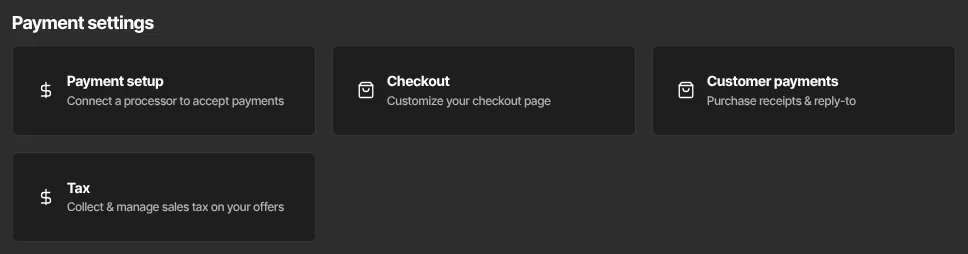
- Check that the Stripe panel shows Payouts: enabled.
- Click Open Stripe dashboard. You're signed straight in to your Stripe dashboard.
- Stripe lists each payout with its amount, its status and the date it should reach your bank. You can also change your bank account and your payout schedule there.
Get an email when a payout is sent
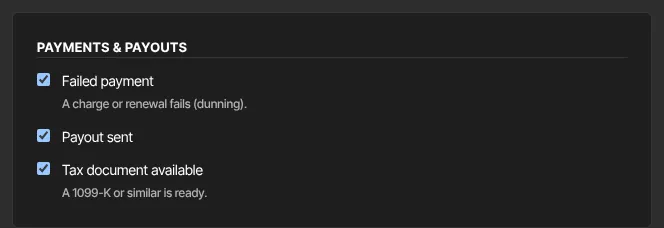
When Stripe sends a payout, Zinstruct can email you "A payout is on its way to your bank", with the amount and the date it should arrive. Turn on Payout sent under Payments & payouts on the Notifications page. See Notifications.
If a payout hasn't arrived
Work through these in order:
- Find the payout in your Stripe dashboard. Its status and expected arrival date are the answer for that payout. A payout Stripe has sent can take a little longer to show in your bank, depending on your bank.
- Check Payment setup. If it shows Payouts: off or Action needed, Stripe isn't paying out until you give it more information. Click Finish Stripe onboarding, give Stripe what it lists, then click Refresh status. See Connect Stripe to take payments.
- Check your payout schedule in the Stripe dashboard. Money from a sale is paid out on that schedule, not straight after the sale, and Stripe can take longer over a new account's first payout.
- Check for refunds and lost chargebacks. Both come back out of your Stripe balance, so a payout can be smaller than your sales, or there may be nothing to pay out. See Transactions, refunds and chargebacks.
Zinstruct can't see your payouts
Your Stripe balance, your payouts and your bank details are in your own Stripe account. Zinstruct's support team and the help assistant can't see them, so they can't tell you where a particular payout is. Check it in your Stripe dashboard. If the dashboard shows a problem with a payout, contact Stripe from there.