Zinstruct keeps track of what each affiliate has earned and what you've paid them. You pay them in one of two ways:
- By hand. You pay them yourself, by bank transfer, PayPal or however you've agreed, and record the payment here.
- Through your own PayPal account. Once you connect a PayPal app, Send pays affiliates who have a PayPal email through PayPal, out of your PayPal balance. Zinstruct never pays affiliates with its own money and never holds yours.
You can record payments one commission at a time, or let Zinstruct group each affiliate's pending commissions into a payout batch that you send.
Who can do this
- Owners and admins can save payment methods, connect PayPal, mark commissions paid, and generate, send and release payout batches.
- Staff and viewers see the same pages and buttons, but nothing they click there is saved, and a message under the button says why: "You don’t have permission to manage payouts." for Save PayPal and Save manual, "You don’t have permission to generate payouts." for Generate now (≥ $50 pending), "You don’t have permission to dispatch payouts." for Send, and "You don’t have permission to release payouts." for Release. Mark paid shows the notice "You don’t have permission to do that." In the PayPal payouts panel they see whether PayPal is connected and "Only the workspace owner or an admin can connect or change PayPal."
Record how you pay an affiliate
Batches only include affiliates who have a payment method saved.
- Go to Revenue → Affiliates and open the affiliate.
- In the Payment method panel, type a Manual settlement note, such as how and when you pay them, and click Save manual. "Payment method saved." appears under the button.
- Or type a PayPal email and click Save PayPal.
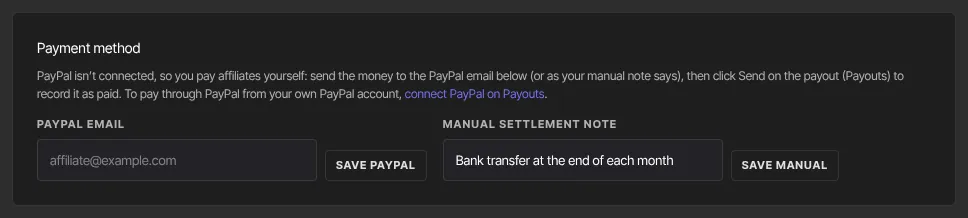
If the PayPal address isn't a valid email, "PayPal email must be a valid address." appears under Save PayPal and nothing is saved. A manual note can be up to 500 characters.
Which one is used depends on whether you've connected PayPal (next section). The panel says which applies:
- PayPal isn't connected: every batch is manual, even for an affiliate with a PayPal email. You pay them yourself, to that email or as your note says, and Send records it.
- PayPal is connected: an affiliate with a PayPal email gets paypal batches, and Send pays them through PayPal, even if a manual note is saved too. An affiliate with only a manual note still gets manual batches.
Affiliates can also save a PayPal email themselves in their portal, and there's no button to remove one.
Connect your own PayPal account
PayPal payouts are sent from your own PayPal account, out of its PayPal balance, through a PayPal app you create. Only the workspace owner or an admin can connect it.
- You need a PayPal Business account with Payouts enabled. PayPal may need to approve Payouts for your account before live payouts work. The app's settings in the PayPal Developer dashboard show whether Payouts is available.
- Go to developer.paypal.com, sign in with your PayPal Business login, and open Apps & Credentials. Pick Live (or Sandbox to try it first with PayPal test accounts), click Create App, and make sure Payouts is ticked in the app's features.
- Copy the app's Client ID and Secret.
- In Revenue → Affiliates → Payouts, under PayPal payouts, set PayPal app to Live — real payouts or Sandbox — PayPal test accounts only to match the app, paste the Client ID and Secret, and click Connect PayPal.
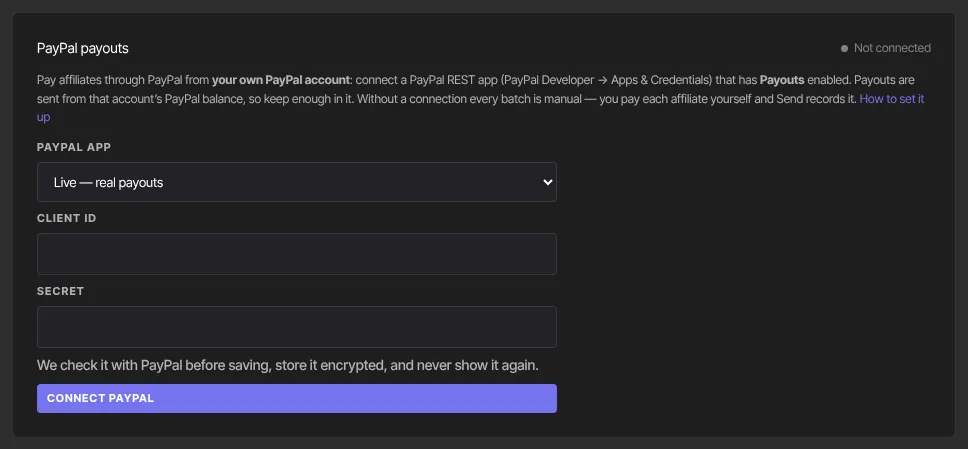
Zinstruct checks the Client ID and Secret with PayPal before saving. If PayPal says no, you see PayPal's reason and nothing is saved. The Secret is stored encrypted and never shown again; only a shortened Client ID is shown. Once connected, the panel says Connected — PayPal payouts are on, with the app (Live or Sandbox (test money)), the shortened Client ID and Last verified, and Settings → Integrations lists it under PayPal payouts.
Keep enough in your PayPal balance to cover the payouts and PayPal's Payouts fees. If there isn't enough, PayPal refuses and the batch fails with PayPal's reason.
If PayPal later refuses the app (you rotated the Secret, deleted the app, or Payouts was switched off), the panel says Needs attention — PayPal payouts are off with PayPal's reason, and new batches are manual until it's fixed. Fix it in PayPal and click Re-verify, or paste the new Secret and click Replace connection. Disconnect deletes the connection and its Secret, and new batches become manual. It waits until every PayPal batch has finished (paid or failed), because only that connection can confirm them.
Pay one commission at a time
Use this for a commission that isn't in a batch.
- Pay the affiliate that amount outside Zinstruct.
- On the affiliate's page, find the commission under Commissions and click Mark paid.
- Its status changes to paid. Commission owed and Commission paid update here and in the affiliate's portal.
A commission that's already in a batch shows In a payout instead of Mark paid. It's settled when you send that batch. A held commission (an open chargeback) has no Mark paid button either.
Mark paid settles one commission at its full amount and doesn't take off a clawback. If the affiliate has a Clawback line waiting, pay them through a batch instead, so it's taken off. See Refunds and chargebacks below.
Batch pending commissions
Click Payouts at the top of Revenue → Affiliates (/partners/payouts).
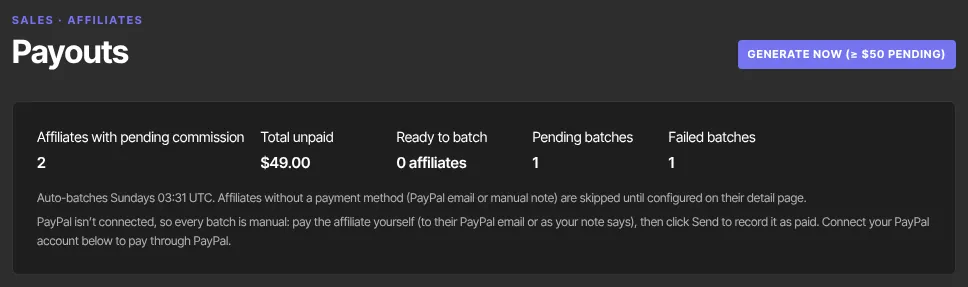
- Every Sunday at 03:31 UTC, Zinstruct puts each affiliate's pending commissions into one batch when they add up to $50 or more, after any clawbacks are taken off, and the affiliate has a payment method. Making a batch never moves money.
- To batch now, click Generate now (≥ $50 pending). A message under the button says how many batches were made, such as "Rolled 2 new payouts.", and the new batches appear under Pending batches. If no affiliate qualifies, it says "No new payouts to batch (nothing ≥ $50 in pending commissions, or no affiliates have a payment method)."
- Total unpaid is pending commission that isn't in a batch yet, less any clawbacks waiting. Ready to batch counts the affiliates at $50 or more with a payment method. Affiliates without a payment method are skipped until you add one.
The weekly run skips a workspace that's still on its free trial. Use Generate now instead.
Send a batch
The Method column says whether a batch is manual or paypal.
- For a manual batch, pay the affiliate the batch Amount outside Zinstruct first. For a paypal batch, don't: Send pays them.
- Under Pending batches, click Send on their row.

- A manual batch moves to Recently paid with a Provider ref that starts
manual:, and its commissions change to paid.

Send asks for no confirmation. On a manual batch it moves no money: it only records that you've paid. On either kind it counts only what's still owed. A commission voided by a refund, or held by a chargeback, after the batch was made is left out, a clawback in the batch is taken off, and the batch amount is corrected. If nothing is left to pay, the batch fails instead. If the Amount under Recently paid is lower than it was under Pending batches, a sale in it was refunded or charged back in the meantime, and the lower amount is what the affiliate is owed.
PayPal batches
On a paypal batch, Send pays the affiliate's PayPal email through your connected PayPal account, from your PayPal balance. The message under the button says "Sent to PayPal (batch …). It shows as paid once PayPal confirms, usually within the hour."
- The batch shows processing while PayPal works on it. Zinstruct checks PayPal every hour; once PayPal confirms, it moves to Recently paid and the commissions show as paid. Don't pay the affiliate another way while it's processing.
- If no PayPal account uses that email yet, the batch stays processing with a note that the payout is unclaimed. The affiliate can claim it by signing up to PayPal with that email. PayPal returns the money after 30 days if they don't, and the batch then fails.
- If PayPal refuses or returns the payout (for example, not enough money in your PayPal balance), the batch fails with PayPal's reason.
- If PayPal doesn't answer clearly, the message says it's retried automatically. Don't pay the affiliate another way.
A manual batch stays manual even if you connect PayPal after it was made: Send on it still only records what you paid by hand.
A batch stuck in processing
If Send is interrupted before it finishes (for example, the page shows "Could not dispatch payout. If it now shows as processing with a Retry button, click Retry."), the batch can stay processing with the note "Send didn’t finish, so this payout is stuck." and a Retry button.
- Click Retry. It runs Send again with the same checks.
- A PayPal batch is re-sent under the same id, so PayPal pays it at most once, even if the first attempt got through.
- If the retry fails and says the payout may have reached PayPal, look for the batch in your PayPal account's activity before you Release it.
A batch that shows PayPal's batch id is not stuck: PayPal has it, and it's checked every hour.
When a batch fails
Before anything is recorded or sent, each payout is checked against sanctions lists. A sanctions match, a payment method that changed since the batch was made, or a paypal batch while PayPal isn't connected (or PayPal has refused your app) sends the batch to Failed batches — needs retry. See Fix a failed affiliate payout.
Refunds and chargebacks
- A sale refunded, or lost to a chargeback, before its commission is paid: the commission is void and never paid.
- A sale refunded, or lost to a chargeback, after its commission was paid: a negative line with a Clawback badge appears in the affiliate's Commissions list, marked Offsets next payout. Commission owed drops by that amount, and can show a negative figure until new commissions cover it.
- The next batch takes it off: the batch Amount is what they've earned since, minus the clawback. Once you send that batch, the clawback line reads applied.
- A batch is never negative. If the clawback is bigger than what they've earned since, no batch is made for them, and the rest carries forward against future commissions.
- While a chargeback is open, that sale's unpaid commission is held: it isn't batched or paid. If you win the dispute it goes back to pending; if you lose, it's voided.
More on refunds and chargebacks is in How affiliates earn commission.
What happens next
- Paid commissions show paid on the affiliate's page and in their portal, and the affiliate's page lists the batch under Payouts.
- Zinstruct doesn't email the affiliate when you pay them. Let them know yourself. A PayPal payout also reaches them from PayPal.
- New sales keep adding pending commissions, and the next weekly run batches them.
Common errors
- "You don’t have permission to manage payouts.", "You don’t have permission to generate payouts.", "You don’t have permission to dispatch payouts." or "You don’t have permission to release payouts.": you're signed in as staff or a viewer, who can't use the payout controls. Ask an owner or admin.
- "You don’t have permission to do that." after Mark paid: you're signed in as staff or a viewer.
- "Your free trial has ended, so your workspace is read-only. …": subscribe in Settings → Billing to make changes again.
- "PayPal email must be a valid address.": check the address. Saving an empty box shows this too; it doesn't clear a saved PayPal email.
- "No new payouts to batch (nothing ≥ $50 in pending commissions, or no affiliates have a payment method).": no affiliate has $50 or more in pending commission outside a batch, after clawbacks, with a payment method. Check Total unpaid and Ready to batch, and add a payment method on the affiliate's page.
- "Could not save the payment method." or "Could not generate payouts.": nothing was saved. Try again.
- PayPal's reason after Connect PayPal or Re-verify: PayPal didn't accept the Client ID and Secret for the app type you chose (Live or Sandbox). Check both in the PayPal Developer dashboard, and that Payouts is enabled for the app. Nothing was saved.
- "PayPal can’t be connected yet: this platform isn’t set up to store your PayPal secret encrypted. Nothing was saved — please contact support.": contact Zinstruct support.
- "PayPal is still confirming a payout sent through this connection. …" after Disconnect: wait until every PayPal batch shows as paid or failed (PayPal is checked hourly), then disconnect.
- "Could not dispatch payout. If it now shows as processing with a Retry button, click Retry.": Send was interrupted. See A batch stuck in processing above.
- A paypal batch shows processing: PayPal is still working on it, or it's unclaimed. The note under processing says which. Don't pay the affiliate another way.
- A batch shows processing with a Retry button: Send didn't finish. Click Retry.
- A batch moved to Failed batches — needs retry: see Fix a failed affiliate payout.