Every paid checkout that arrives with an affiliate's referral code earns that affiliate a commission: their rate times the sale, before tax. This article explains which sales count, how the amount is worked out, how to set a different rate for one offer, when recurring payments earn, and what happens when a sale is refunded.
Who can do this
- Owners and admins set an affiliate's default rate when they add them (see Run an affiliate program), and can set a per-offer rate on any offer. The per-offer field is there on every plan.
- Staff and viewers can't change offers: saving shows "You don’t have permission to manage offers."
- Commissions are recorded automatically. Nobody has to approve them.
Which sales count
A sale earns commission when all of these are true:
- The buyer opened your checkout page with the code in its address, like
/checkout/…?ref=jane, and paid on that page. - The affiliate is Active at the moment of the payment.
- Money was actually paid. Free offers, the $0 start of a free trial and 100%-off payments earn nothing.
These don't earn commission:
- A buyer who visited a sales page or any other page on your site first, then clicked through to checkout. The code is only read from the checkout page's own address.
- Purchases made in the cart. The cart doesn't carry referral codes. See The shopping cart.
- A code that's misspelled or belongs to a disabled affiliate. The checkout still works; the sale just isn't credited.
How the amount is worked out
Commission is the rate times what the buyer paid for that item, after any discount and before sales tax. Stripe's fees and the platform fee aren't taken off first. Amounts are rounded to the nearest cent.
The rate is the affiliate's default (the Commission % you set when you added them), unless the offer has its own rate.
Set a different rate for one offer
- Go to Revenue → Offers and open the offer. It opens on the Details tab.
- Under Availability, find Affiliate commission %. An empty box means "Use affiliate default".
- Type a whole number from 0 to 100.
- Click Save changes. Saved. appears next to the button.
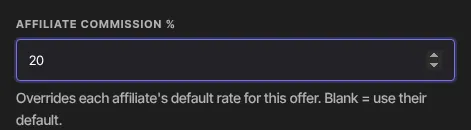
An offer's rate applies to every affiliate who sells it and always wins over their default. That includes 0: a 0% offer earns nobody anything, which is how you keep one offer out of your program. Clear the box to go back to each affiliate's default. A change affects future sales only; commissions already recorded keep their amount.
When commission is recorded
- One-time purchases: once, when the payment succeeds. Each order bump bought in the same checkout earns its own commission. A bank payment that takes a few days earns once it clears.
- One-click upsells and downsells accepted straight after a referred purchase earn too. If the card can't be charged in one click and the buyer is sent to a normal checkout page for the add-on, that purchase doesn't earn.
- Subscriptions: on every paid invoice, the first payment and every renewal, for as long as the subscriber pays and the affiliate stays active. A free trial earns nothing until the first real payment.
- Payment plans: on every installment, the same way as a subscription.
Refunds and chargebacks
- Refunded before it's paid: when you refund a sale from Revenue → Transactions, or a refund made in Stripe reaches Zinstruct, a commission on it that hasn't been paid yet changes to void. It drops out of Owed and Sales and is never paid.
- Refunded after it's paid: the commission stays paid, and a negative line with a coral Clawback badge is added to the affiliate's Commissions list. That amount comes off the affiliate's next payout batch. See Pay your affiliates.
- Partly refunded: a refund for less than the item's price, such as $10 back on a $100 course issued from Stripe, leaves the commission as it was.
- Chargeback open: while a buyer's chargeback is open, the unpaid commission on that sale is held. It isn't batched or paid, it's taken out of any batch you haven't sent yet, and it isn't counted in Owed. If you win the dispute, it goes back to pending. If you lose, it changes to void.
- Chargeback lost after it's paid: the same as a refund after payment. A Clawback line comes off the next payout.
- If a commission was in a payout batch and was then voided or held, Send leaves it out and records only what's still owed.
What happens next
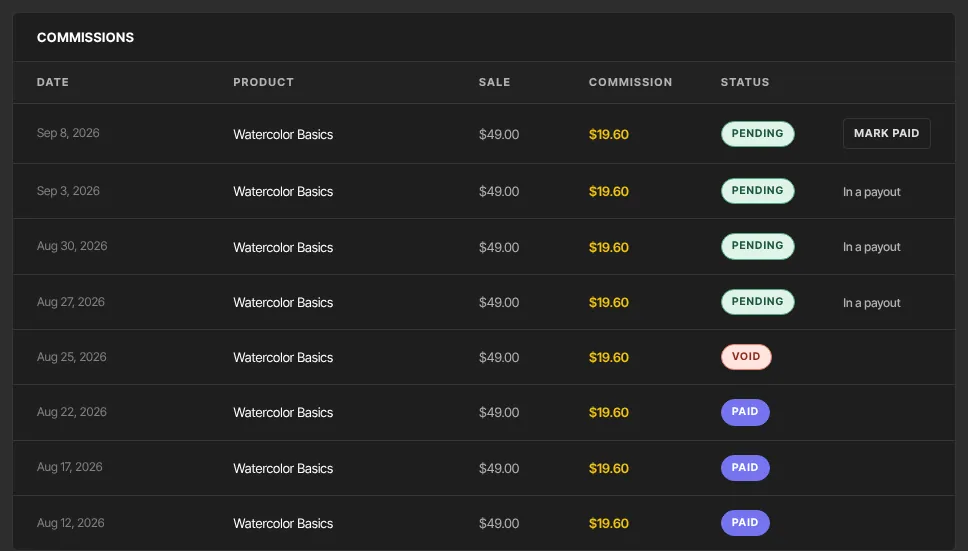
- Each commission appears on the affiliate's page under Commissions, with its Date, Product, Sale, Commission and Status: pending, held, paid or void. A clawback line shows a negative Commission and Offsets next payout (In a payout once it's in a batch), and its status reads applied once the payout that took it off is sent. The affiliate sees the same commissions in their portal.
- The affiliate isn't emailed about new commissions.
- To settle what's owed, see Pay your affiliates.
Common errors
- No commission for a sale you expected: check that the buyer used the checkout link with the code (not the cart or a sales page), that the affiliate was Active when they paid, and that the offer's Affiliate commission % isn't 0.
- "You don’t have permission to manage offers.": staff and viewers can't change offer settings. Ask an owner or admin.
- An error under Affiliate commission %: use a whole number from 0 to 100, or leave the box empty.
- A negative line marked Clawback: the sale was refunded, or lost to a chargeback, after you'd paid the commission. It comes off the affiliate's next payout batch, so there's nothing to do.
- A commission marked held: a chargeback on that sale is still open. It goes back to pending or changes to void when the dispute closes.