An affiliate is someone who promotes your offers in return for a share of each sale they send you. In Zinstruct you add each affiliate yourself and give them a referral code. Every paid checkout that arrives with that code earns them a commission. This article covers adding affiliates, giving them their links and portal, and turning an affiliate off. How much they earn is in How affiliates earn commission, and paying them is in Pay your affiliates.
Who can do this
- Owners and admins can add, disable and re-enable affiliates on Revenue → Affiliates (
/partners). - Adding a new affiliate needs the Professional plan. On a lower plan the page and the form still show, but Add affiliate is refused with an upgrade message. Affiliates you added before a plan change keep earning, and you can still pay them. See Plans and billing.
- Staff and viewers can open the Affiliates pages and see the same buttons, but can't change anything. Add affiliate shows "You don’t have permission to manage affiliates.", and Disable, Enable or Mark paid shows the notice "You don’t have permission to do that."
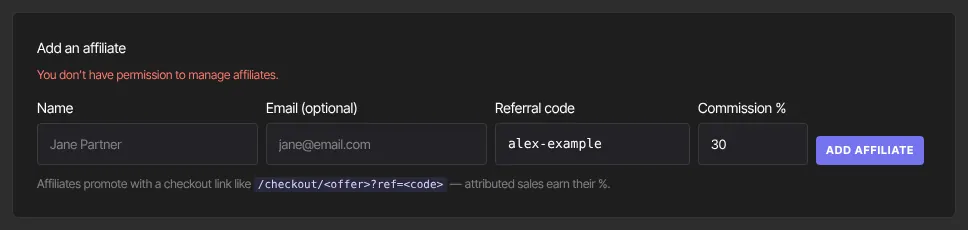
There's no public signup page for affiliates and no invite email. Every affiliate is someone you add by hand.
Add an affiliate
- Go to Revenue → Affiliates.
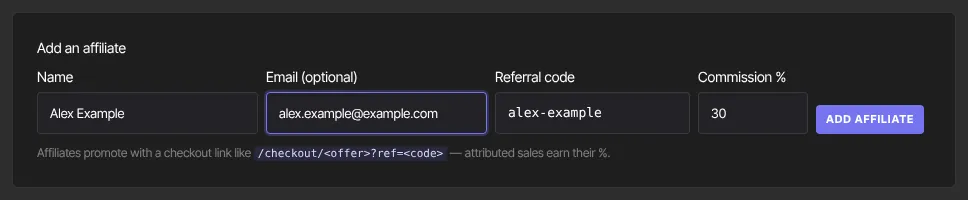
- In the Add an affiliate panel, type the person's Name. The Referral code fills itself in from the name as you type.
- Add their Email (optional). Use the address they'll sign in to their portal with: the portal finds them by this email and nothing else.
- Change the Referral code if you like. Codes are saved in lowercase with letters, numbers, dashes and underscores only; any other character is dropped. Each code can be used once in your workspace.
- Set Commission %, their default rate for every sale. It starts at 30. Don't leave it empty: an empty box saves 0%.
- Click Add affiliate.
You land on the new affiliate's page. It shows their Code, Commission, Status, Commission owed and Commission paid, a Payment method panel, and a Commissions list that fills as sales come in.
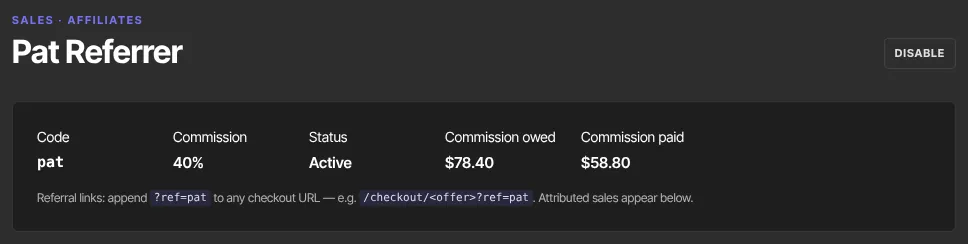
Check the details before you share anything. An affiliate's name, email, code and default rate can't be edited after you add them, and affiliates can't be deleted. To fix a mistake, add the person again with a new code and Disable the old entry.
Give your affiliate their referral links
A referral link is an offer's checkout link with ?ref= and the affiliate's code on the end.
- Go to Revenue → Offers and open the offer they'll promote. It must be published.
- Click Copy link at the top of the page. (Or click Checkout link to open the checkout page and copy its address.)
- Add
?ref=and the affiliate's code to the end, for examplehttps://yourname.zinstruct.com/checkout/…?ref=jane. - Send that link to your affiliate. Do the same for each offer they promote.
A sale counts only when the buyer opens that checkout page with the code in its address. Sending people to a sales page or your website first loses the code. How affiliates earn commission lists what does and doesn't count.
Point your affiliate to their portal
Affiliates have their own affiliate portal at app.zinstruct.com/affiliate. It isn't on your school's site, and nothing emails them the address, so send it yourself. They sign in with the email you added them under. The portal shows their code, sales, pending and paid commission and recent commissions, and lets them save a PayPal payout email. Their guide is Your affiliate portal in your member help center.
Disable or re-enable an affiliate
- On Revenue → Affiliates, click Disable on the affiliate's row. Or open the affiliate and click Disable at the top right.
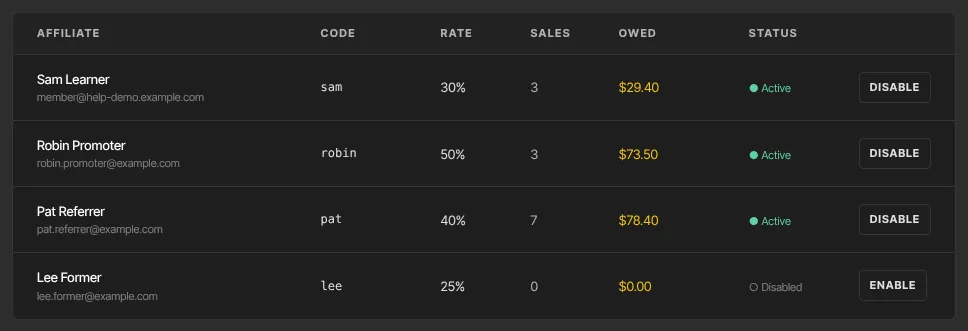
- Their status changes to ○ Disabled in the list and Disabled on their page.
- To turn them back on, click Enable.
While an affiliate is disabled:
- Checkouts with their code still go through, but no commission is recorded.
- That includes renewals of subscriptions they referred earlier. Those payments don't earn while they're disabled, and they aren't credited later if you re-enable them.
- Commission they'd already earned stays owed, and you can still pay it.
- Their portal shows "disabled" next to their code.
What happens next
- New affiliates appear in the list with their Code, Rate, Sales, Owed and Status. The totals at the top show Active affiliates, Commission owed and Commission paid.
- Zinstruct doesn't email affiliates: not when you add them, not when they earn, and not when you pay them. Tell them yourself.
- Each referred sale appears on the affiliate's page as a pending commission. To settle it, follow Pay your affiliates.
Common errors
- "That referral code is already taken.": another affiliate in your workspace uses that code, disabled ones included. Choose a different code.
- "Please fix the highlighted fields." with "Code must be at least 2 url-safe characters": the code needs at least two letters, numbers, dashes or underscores once other characters are removed.
- "Please fix the highlighted fields." with nothing marked: check the email address.
- "Affiliate program is included from the Professional plan up. Subscribe in Settings → Billing to unlock it.": your plan doesn't include adding affiliates. See Plans and billing.
- "Your free trial has ended, so your workspace is read-only. …": subscribe to make changes again.
- "You don’t have permission to manage affiliates.": you're signed in as staff or a viewer. Ask an owner or admin.
- "Could not create the affiliate.": the affiliate wasn't saved. Try again.
Related articles
- How affiliates earn commission
- Pay your affiliates
- Your affiliate portal
- Team and roles
- Plans and billing