When you click Send on an affiliate payout batch and it can't be recorded or paid, the batch moves to Failed batches — needs retry on the Payouts page, with the reason. No money moved on a failed batch, unless its reason says the payout may have reached PayPal (see below), and the affiliate stays unpaid. This article explains each reason, when a PayPal batch fails, and how to get the affiliate paid.
Who can do this
Owners and admins. Staff and viewers see the Release button, but clicking it only shows "You don’t have permission to release payouts." under it.
Find the reason
- Go to Revenue → Affiliates and click Payouts (
/partners/payouts). - Under Failed batches — needs retry, read the Reason column.

The commissions in a failed batch stay pending. On the affiliate's page they keep showing In a payout, with no Mark paid button, until you release the batch.
When a PayPal batch fails
A batch whose Method shows paypal is paid through your own connected PayPal account (see Pay your affiliates). It fails without anything being sent to PayPal when:
- PayPal isn't connected. For example, it was disconnected after the batch was made. The reason starts "PayPal isn’t connected for this workspace."
- PayPal has refused your connected app. The reason starts "PayPal refused your connected PayPal app", and the PayPal payouts panel at the top of Payouts says Needs attention — PayPal payouts are off.
- Your saved PayPal secret can't be read. The reason starts "Your saved PayPal secret can’t be read."
It also fails with PayPal's own reason when PayPal refuses or returns the payout: for example, there isn't enough in your PayPal balance, or nobody claimed an unclaimed payout within 30 days.
To pay that affiliate:
- Fix the cause: connect PayPal, or fix the app in PayPal and click Re-verify under PayPal payouts, or add money to your PayPal balance.
- Click Release on the failed batch.
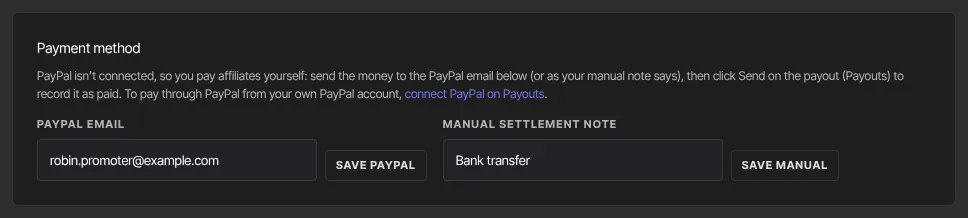
- Click Generate now (≥ $50 pending), or wait for the weekly run. With PayPal connected and working, the commissions come back as a new paypal batch; click Send on it. If PayPal still isn't connected, they come back as a manual batch: pay the affiliate yourself (to their PayPal email), then click Send to record it.
Release a failed batch
- Under Failed batches — needs retry, click Release on the batch.
- "Released — commissions back in pending pool." appears under the button. Its commissions lose In a payout, show Mark paid on the affiliate's page again, and count towards Total unpaid.
- Fix the cause. Then either click Mark paid on each commission, or let them be batched again by Generate now (≥ $50 pending) or the next weekly run, and Send the new batch. If the batch held a Clawback line, batch again rather than using Mark paid, so the clawback is taken off.
The released batch stays in the failed list afterwards. Clicking Release on it again shows the same message but changes nothing. To see whether its commissions are still waiting, check the affiliate's page.
What each reason means
- "PayPal isn’t connected for this workspace. …", "PayPal refused your connected PayPal app …" or "Your saved PayPal secret can’t be read. …": a PayPal batch that couldn't be sent. Follow the PayPal steps above.
- PayPal's own reason (for example, not enough money in your PayPal balance): PayPal refused or returned the payout. Fix it in PayPal, then release the batch and batch it again.
- "payment method changed or removed between batch + dispatch": the affiliate's payment method changed after the batch was made, for example they saved a PayPal email in their portal while PayPal is connected. Release the batch, then batch again or mark the commissions paid by hand.
- "nothing left to pay: the commissions in this payout were voided, held by a dispute, or offset by clawbacks": before you sent it, the sales in the batch were refunded, lost to a chargeback or put on hold by an open chargeback, or a clawback in it outweighed the rest. There's nothing to pay now. Click Release anyway, so anything still in the batch, such as a clawback, goes back to the pool and is settled in a later batch.
- "sanctions screen blocked: …": the affiliate's name or PayPal email matched a sanctions list. Zinstruct's team is alerted automatically. Contact Zinstruct support before you pay this affiliate any other way. If the team finds the match is a false positive and clears it, release the batch, batch it again and Send it: this time it goes through, and the same match won't stop that affiliate's later payouts.
- "… This payout got stuck once already, so it may have reached PayPal: …": a Retry of a stuck PayPal batch failed. Check your PayPal account's activity for the batch the reason names before you release it, so the affiliate isn't paid twice.
- "sanctions screen unavailable: …": the sanctions check couldn't run, so the payout was stopped to be safe. Release the batch, batch it again later and send it.
What happens next
- After you release a batch and mark its commissions paid, they show paid on the affiliate's page and in their portal.
- After you release a batch and batch again, the new batch appears under Pending batches, ready to Send.
Common errors
- The batch is still listed after Release: released batches stay in the failed list. Releasing one again shows "Released — commissions back in pending pool." but changes nothing. Released commissions show Mark paid on the affiliate's page.
- "You don’t have permission to release payouts.": you're signed in as staff or a viewer. Ask an owner or admin.
- "Could not release commissions.": the batch couldn't be released. Reload the page and try again.
- Mark paid is missing and the commission says In a payout: it's still in a batch. Send the batch, or release it once it has failed.
- PayPal batches keep failing: check the PayPal payouts panel at the top of Payouts. Connect PayPal, or fix the app in PayPal and click Re-verify, as described above.
Related articles
- Pay your affiliates
- How affiliates earn commission
- Run an affiliate program
- Your affiliate portal