After every purchase, Zinstruct can email the buyer a receipt with a button that signs them straight in to what they bought. On Customer payments you decide whether receipts go out at all, and which inbox gets the replies. This screen only controls those emails. Connecting the Stripe account that takes the money is a different screen, Payment setup: see Connect Stripe to take payments.
Who can do this
- Owners and admins can change Customer payments.
- Staff and viewers who open it see "Only owners and admins can change this." instead of the form.

Change your receipt settings
- Click Settings in the sidebar. Under Payment settings, click Customer payments (
/settings/payments). - Below the heading, a line shows the address receipts are sent from: your own verified sending domain, or the shared platform domain. To send from your own domain, click the link at the end of that line.
- Tick or untick Send purchase receipts.
- Optionally, fill in Support / reply-to email. When a buyer replies to a receipt, the reply goes to this address.
- Click Save. A green Saved badge appears.
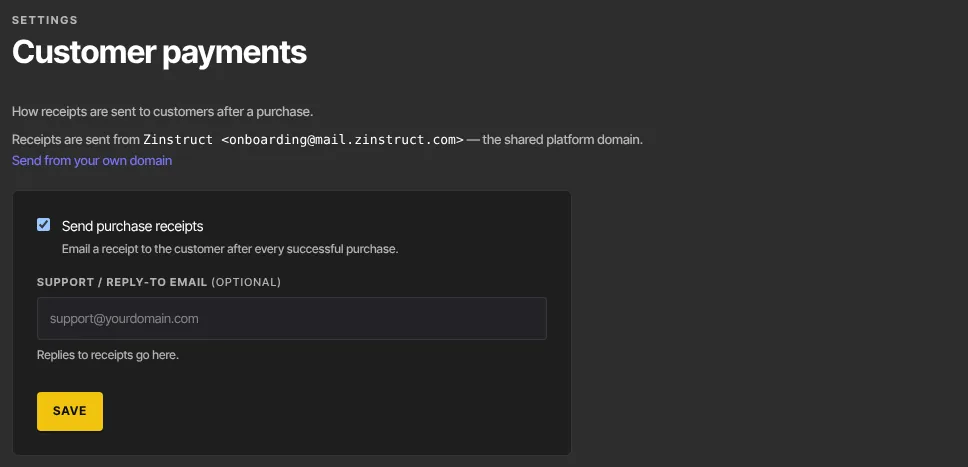
If you leave Support / reply-to email empty, replies go to the address the receipt was sent from.
Which emails this covers
When Send purchase receipts is ticked, these go out, with your reply-to address:
- The receipt for a one-time purchase or a free product. A buyer who also takes an order bump or a one-click upsell gets one combined receipt for the whole order. With one-click upsells, it goes out when they reach the confirmation page, or 30 minutes later if they leave before the end of your upsell offers.
- A receipt for every subscription or payment-plan payment, renewals included. When the offer has one-click upsells, the first payment is on that one combined receipt with the add-ons, instead of a receipt of its own. After free days, the combined receipt lists just the add-ons.
- On a gift, the receipt to the person who paid, and the note to the person who received it.
When it's unticked, none of those are sent, and Resend receipt in Transactions is refused. Buyers still get their access straight away either way.
Some emails don't depend on this box: member sign-in codes, the email a member gets when a membership starts with free days, and failed-payment emails. An offer whose Email tab is set to send your own custom message sends that message instead of the receipt, whether or not the box is ticked.
Change what the receipt says
The receipt's subject line and an opening paragraph can be changed in Settings → Email templates, under Purchase receipt. See Email templates and sender settings.
Not to be confused with Payment setup
- Customer payments decides what lands in a buyer's inbox after they pay.
- Payment setup connects the Stripe account that takes the money. If you can't take payments at all, that's where to look.
What happens next
- Your choices apply to the next purchase or renewal. Receipts that already went out aren't sent again.
- To send one buyer their receipt again, open the order in Revenue → Transactions and use Resend receipt. See Transactions, refunds and chargebacks.
Common errors
- "Only owners and admins can change this.": you're staff or a viewer. If you're the owner and see this when saving, your free trial has ended and the workspace is read-only: subscribe in Settings → Billing.
- "Please fix the highlighted fields.": the reply-to address isn't a valid email address. Correct it, or clear the field.
- "Could not save.": a temporary problem. Try again.
- "Receipts are turned off in Settings → Payments.": you tried Resend receipt while Send purchase receipts is unticked. That setting is on this Customer payments screen.