Your published subscription and payment-plan offers appear as cards on the member Plans page, unless you've hidden them from the member library. Members join a plan there and, if you allow it, move between plans later. You control each card's wording, the order of the cards, and which switches are allowed.
Who can do this
- Owners and admins, on any plan.
- Staff and viewers can look, but saving shows "You don’t have permission to manage offers." and the order arrows show "You don’t have permission to do that."
Write a plan card
- Open the offer from Revenue → Offers and click the Plan card tab.
- Tagline (optional): one line under the plan's name.
- Feature bullets (one per line, optional): leave blank and the card lists the products the plan unlocks.
- Tick Show as “Most popular” on the plans page to badge this card.
- Click Save plan card. Saved appears, and the Plan card preview beside the form shows the card at the size members see it.
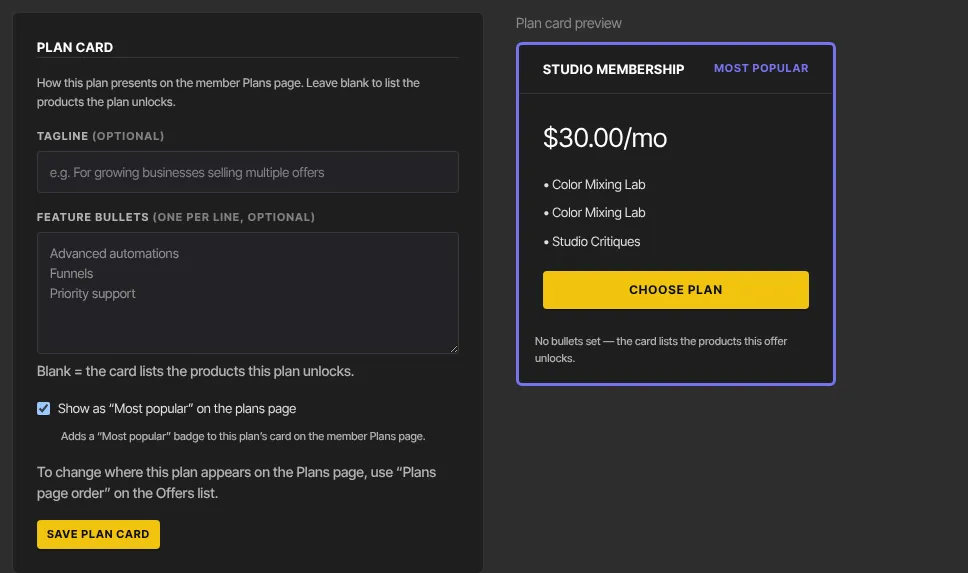
You can also fill these in during the wizard's How it presents step.
Change the order of the cards
- Go to Revenue → Offers.
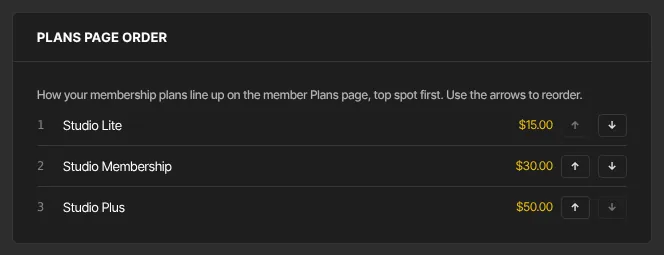
- Below the list, Plans page order shows your plans top spot first. It appears once you have at least two published plans that aren't hidden.
- Click ↑ or ↓ to move a plan one place.
Let members switch plans
- Open a subscription offer and click the Conversion tab.
- In Plan switching, tick each plan a member on this one may move to. Each shows Charged now or At renewal, with a note.
- Click Save switching options. "Saved." appears.
- The school-wide box Charge immediately when a member moves to a costlier plan decides when bigger switches are billed. New schools start with it ticked. Change it and click Save.
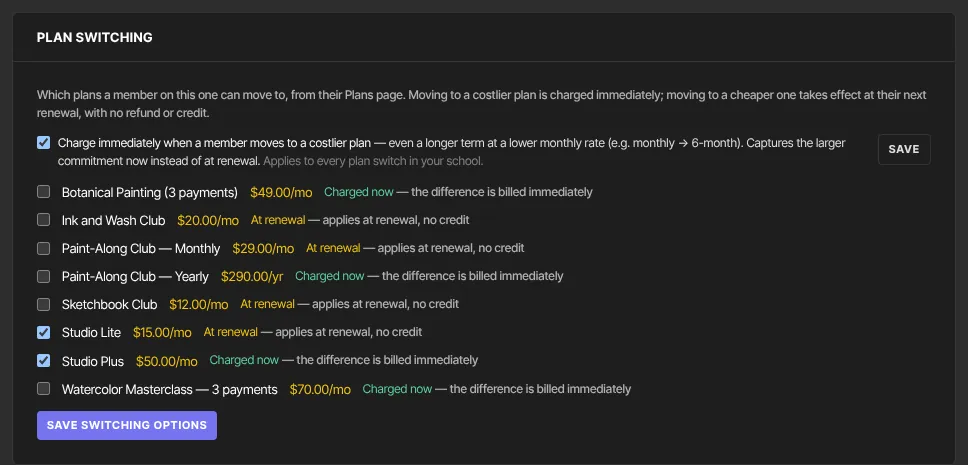
Switches are one-way: allowing Monthly to Yearly doesn't allow Yearly to Monthly. Set each direction on its own offer. Targets must be published subscription offers in the same currency. With none, the panel says "Publish another subscription offer in the same currency to offer a switch to it." On a one-time, free or payment-plan offer it says "Plan switching applies to subscription offers only. Payment plans can’t be switched to or from."
For exactly when a switch takes effect and what's charged, see Let members switch plans.
What happens next
- The Plans page shows your new wording and order straight away.
- Members on a plan see the switches you allowed, and choose them from the Plans page.
Common errors
- "Could not save the plan card.": try again in a moment.
- "That offer no longer exists.": the offer was deleted. Go back to the Offers list.
- "One of those plans isn’t available — reload and try again.": a target changed while the page was open. Reload.
- "One of those plans can’t be a switch target. Targets must be published, priced subscription offers in the same currency.": untick that plan, or publish it first.
- "Couldn’t save — you may not have permission to change school settings." or "Could not save your changes — please try again.": reload and try again, or ask an owner.
- I don't see Plans page order: you need two or more published subscription or payment-plan offers that aren't hidden from the member library.