A cancel flow runs when a member clicks Cancel membership on their profile. Instead of cancelling at once, it asks why they're leaving, can offer a discount to stay (a save offer), asks for feedback, and confirms before the cancellation is booked. This article covers building and publishing a flow and reading how many members it keeps.
Who can do this
- Your plan must include cancel flows; every paid plan does. How many flows you can keep (drafts, live and paused) depends on your plan, and a meter on the page shows how many you've used. On the free trial, the page shows an upgrade panel with Choose a plan instead. If your plan stops including cancel flows, your flows stop running and can only be paused or deleted: see Choose who sees a cancel flow.
- Owners, admins and staff can create, edit and publish flows.
- Viewers can open the pages, but every change is refused with "You don’t have permission to manage cancel flows."
- Everyone can open Activity. Only owners and admins can export it.
Create a flow
- Go to Revenue → Cancel flows (
/sales/cancel-flows). - Optionally type a name in the box (it suggests "Standard cancellation"), then click New flow.
- The editor opens on a starter flow: five reasons plus "Other", one save offer of 20% off for 3 months, and a feedback step.
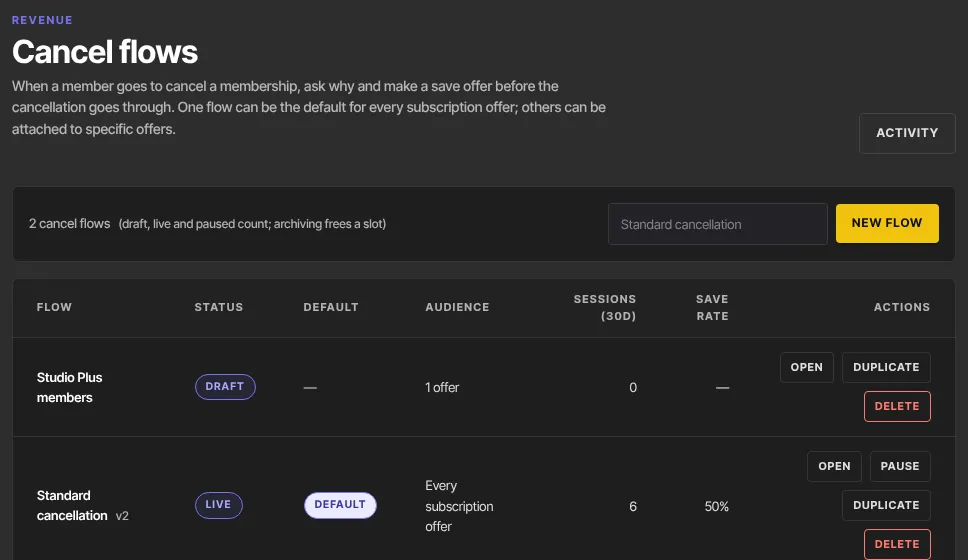
At your plan's limit, the box and button are replaced by the limit message and a Plans link.
Edit the flow
Work down the editor's panels. Each text field shows a character counter.
- Survey: the Headline, Subtext and 1 to 6 reasons, each with an optional follow-up question. Use Add reason and Remove, Randomize order, and Include “Other” with free text for a last option where members type their own.
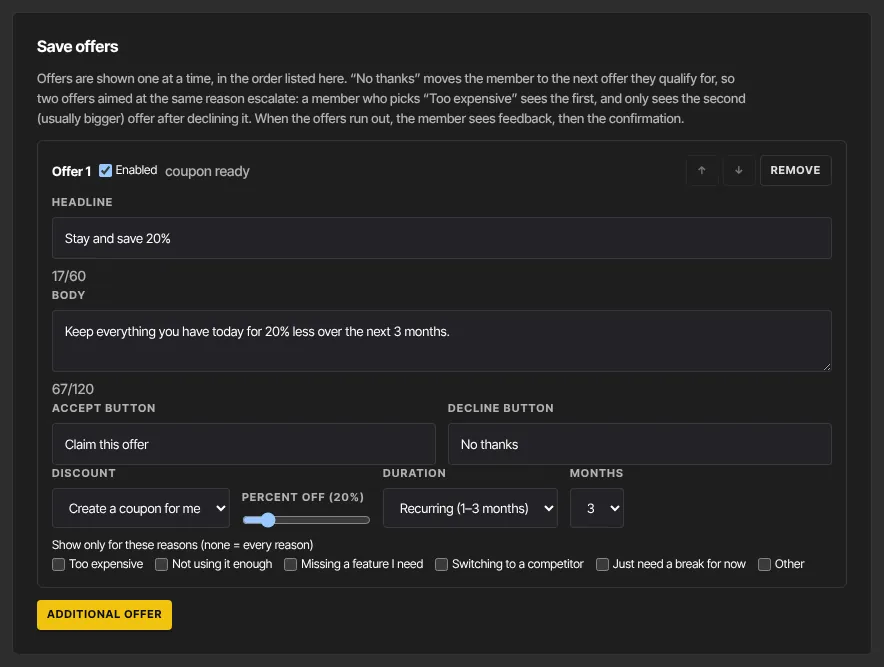
- Save offers: each offer has a Headline, Body, Accept button and Decline button. Under Discount, choose Create a coupon for me and set Percent off and Duration (Once, Recurring (1–3 months) or Forever), or choose Use an existing coupon and pick one of your active discounts. Tick reasons under "Show only for these reasons (none = every reason)" to target an offer. Reorder offers with the arrows, untick Enabled to switch one off, and click Additional offer to add another.
- Feedback: tick Enabled, then set the Headline, Question, Minimum characters, Show counter and Allow skip.
- Screens: the wording of the Offer accepted, Are you sure? and Cancellation confirmed screens. The two result screens also have a Button and a Button link (blank = close).
- Click Save draft. Members never see a draft. Anything that needs fixing is listed under Before publishing:.
Offers are shown one at a time, in order. The decline button moves the member to the next offer that matches their reason; when the offers run out, they see feedback, then "Are you sure?". For a default flow, pick existing coupons that aren't limited to particular offers, or members on other offers can't claim them.
Preview the flow
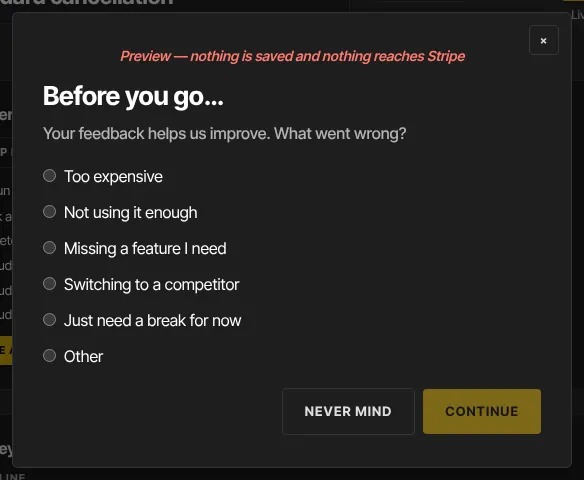
- Click Preview at the top of the editor. It runs your current draft, unsaved changes included, as a member would see it.
- A banner reads "Preview — nothing is saved and nothing reaches Stripe". Click through the steps, then close the window.
Publish the flow
- Click Publish & go live, or Publish changes on a flow that's already live. Unsaved edits are saved first.

- The page shows "Published — this flow is now live for its audience." and the status becomes Live.
- Choose who sees it: make it the default, or attach it to offers. See Choose who sees a cancel flow.
Publishing creates the discount behind each Create a coupon for me offer. It appears in Discounts and discount codes with a code starting SAVE-, and it can't be used at checkout. Edits to a live flow reach members only when you click Publish changes. A member partway through a flow finishes on the version they started.
Activity and the numbers
- On Cancel flows, click Activity (
/sales/cancel-flows/activity). - The tiles show Sessions, Saved, Cancelled, Save rate, Revenue saved and Revenue churned for every session that matches your filters, not just the rows listed below. Save rate is saved ÷ (saved + cancelled), so dismissed, expired and unfinished sessions don't count either way. The revenue tiles add up one month of each membership's price, so they're estimates.
- Filter by Email, Outcome, Reason, Offer accepted, Flow, From and To, then click Filter. Clear resets them.
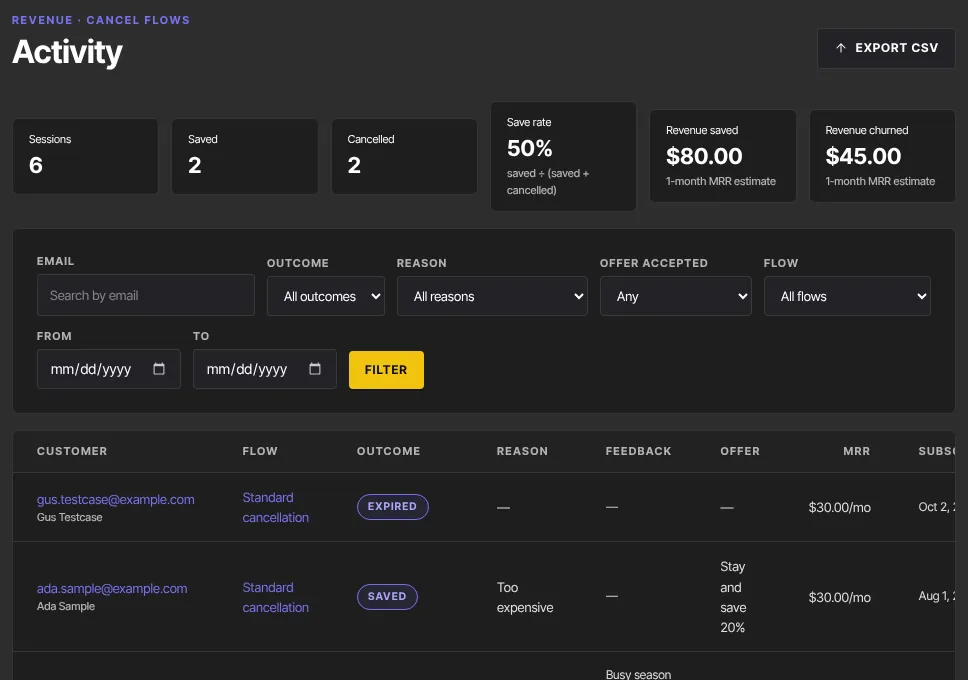
- Each row shows the customer, flow, outcome, reason, feedback, offer accepted, monthly amount and time (in UTC). Owners and admins can click Export CSV to download the same rows.
Activity lists the latest 500 matching sessions, and the CSV holds the same 500; the tiles still count them all. A session left unfinished for a day is marked Expired.
What happens next
- Members whose offer has a live flow see it the next time they click Cancel membership, as long as your plan includes cancel flows. Payment plans always get the plain confirm.
- A member who accepts a save offer gets the discount on their membership, added next to any discount it already has, and nothing is cancelled. A member who confirms keeps access until the end of the period they paid for.
- The Subscription cancellation requested and Member accepted a save offer automation triggers fire straight away. See Automations.
- The member's side is in Cancel a membership.
Common errors
- "You don’t have permission to manage cancel flows.": you're a viewer.
- "Cancel flows is included from the … plan up. Subscribe in Settings → Billing to unlock it.": your plan doesn't include cancel flows. You can still pause or delete the flows you have.
- "You've reached your … plan's limit of … cancel flows. Upgrade in Settings → Billing to add more.": delete a flow you no longer need, or upgrade.
- The publish button is greyed out: fix everything listed under Before publishing:.
- "Fix the flow before previewing: …": fix what it names, then preview again.
- "A save offer points at a coupon that no longer exists or is archived.": pick another coupon, or switch the offer to Create a coupon for me.
- "A save offer uses a coupon that is not valid for every offer this flow is attached to.": choose a coupon that covers all the flow's offers.
- "The save-offer coupon could not be created at Stripe.": try publishing again in a moment.
- "Your free trial has ended, so your workspace is read-only…": subscribe in Settings → Billing to make changes again.
- Export CSV opens a page saying "Not allowed": you're staff or a viewer. Ask an owner or admin.