If you sell more than one membership tier, members can move between them on their own, from the Plans page in their account. You choose which moves are allowed from each plan. When a switch takes effect, and when it's charged, follows from what the two plans cost.
Who can do this
- Owners and admins choose the switches and the billing setting. Staff and viewers can see the panel, but saving shows "You don’t have permission to manage offers."
- Switching works between subscription offers only. On a one-time, free or payment-plan offer the panel says "Plan switching applies to subscription offers only. Payment plans can’t be switched to or from." Payment plans aren't listed as targets either: a buyer on a payment plan keeps paying it off, and someone who wants a different plan buys it.
- Members need an active membership on the plan they're switching from. A switch is refused while a payment is past due or the membership is set to cancel, and the member is told what to sort out first.
Choose which plans members can switch to
- Go to Revenue → Offers and open the offer members switch from.
- Click the Conversion tab and find the Plan switching panel.
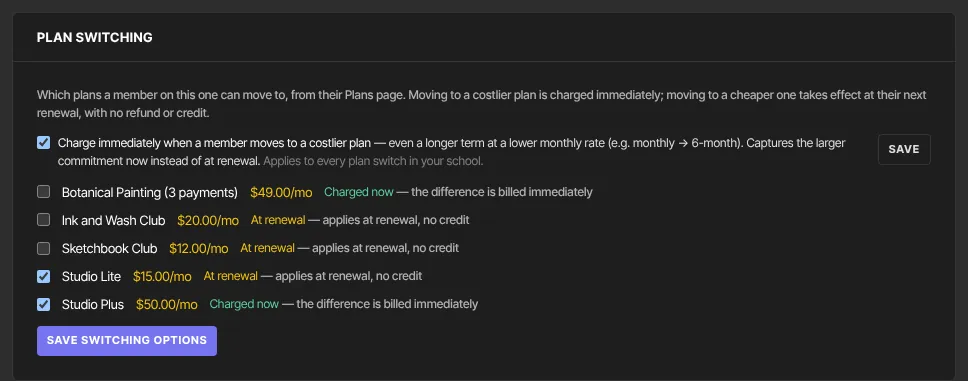
- Tick each plan members on this offer may move to. Each row shows the plan's price and when the switch is charged: Charged now (the difference is billed immediately) or At renewal.
- Click Save switching options. "Saved." appears.
- Repeat on your other plans' offers if members should be able to switch back.
Only published, priced subscription offers in the same currency can be picked. If there are none, the panel says "Publish another subscription offer in the same currency to offer a switch to it." Untick everything and save to offer no switches from this plan.
When each switch is charged
Plans are compared by price per month, so a yearly plan counts as its price divided by 12.
- To a higher monthly price: the switch happens at once. The member pays the difference now, adjusted for the days left in what they've already paid, and gets the new plan's products straight away.
- To a lower or equal monthly price: the switch happens at renewal. The member keeps their current plan until the period they paid for ends, then the new plan starts at its price. There's no refund or credit.
- During a free period: upgrading ends the free period, and the member pays for the new plan that day. Switching to a cheaper plan keeps the free period, and the cheaper plan starts when it ends.
Charge costlier switches straight away
A longer plan can cost less per month but more per bill, for example moving from monthly to a 6-month plan. By the monthly rule above, that switch would wait for renewal.
- On the Plan switching panel, tick Charge immediately when a member moves to a costlier plan.
- Click the Save button next to it. "Saved." appears.
With it ticked, any switch to a plan with a bigger bill is charged now, even when its monthly price is lower. It never delays a switch that would be charged now anyway. It's one setting for your whole school, so it applies to every plan, and the box shows its current state. Newer schools start with it ticked.
What members see
- Their Profile has a Membership panel with a Change plan button that opens Plans.
- Their own plan is marked Current plan. Plans you've allowed show Upgrade now, Switch now or Switch at renewal. Other plans say "Manage your current plan from your profile."
- Before anything changes they confirm, with a line such as "You’re charged the prorated difference today; the new plan starts now." or "Nothing is charged now — your current plan runs until renewal, then this one starts. No refunds or credits."
- A switch scheduled for renewal can be undone with Keep my current plan.
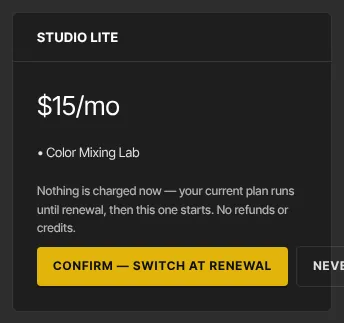
The member's full steps are in Switch to a different plan.
What happens next
- An immediate switch: the member gets the new plan's products at once and loses any of the old plan's products the new one doesn't include. The charge appears in Transactions, with a receipt if you send receipts.
- A switch at renewal: nothing changes until the renewal date. Then the products swap and the new price is charged.
- No second membership is created. Revenue → Memberships shows the same membership on its new plan.
Common errors
- "You don’t have permission to manage offers.": you're staff or a viewer. An owner or admin who sees it has a read-only workspace because the free trial ended.
- "One of those plans can’t be a switch target. Targets must be published, priced subscription offers in the same currency.": untick that plan, or publish and price it first.
- "One of those plans isn’t available — reload and try again.": the list changed. Reload the page.
- "That offer no longer exists.": the offer was deleted. Go back to Offers.
- "Couldn’t save — you may not have permission to change school settings.": the costlier-switch setting wasn't saved. Check that you're an owner or admin.
- "Could not save your changes — please try again.": a temporary problem. Try again.
- A member's upgrade was declined: their card didn't go through, so their plan didn't change. They update it with Manage membership on their Profile, then try again.
Related articles
- Switch to a different plan
- Pricing types in depth
- Manage subscriptions
- Offers overview