When a member's subscription or payment-plan payment fails, usually because a card expired or was declined, recovery is mostly automatic. Stripe retries the card over the following days, the member is emailed to update it, and they keep their access while the retries run. This is called dunning. This article explains each step and what you can change.
Who can do this
- It all happens automatically for every school with a connected Stripe account. There's nothing to switch on.
- Owners and admins can reword the Payment failed email and choose who gets the Failed payment notification.
- Everyone on your team can see each membership's status on Revenue → Memberships.
What happens when a payment fails
- Stripe tries to take the payment, and it fails.
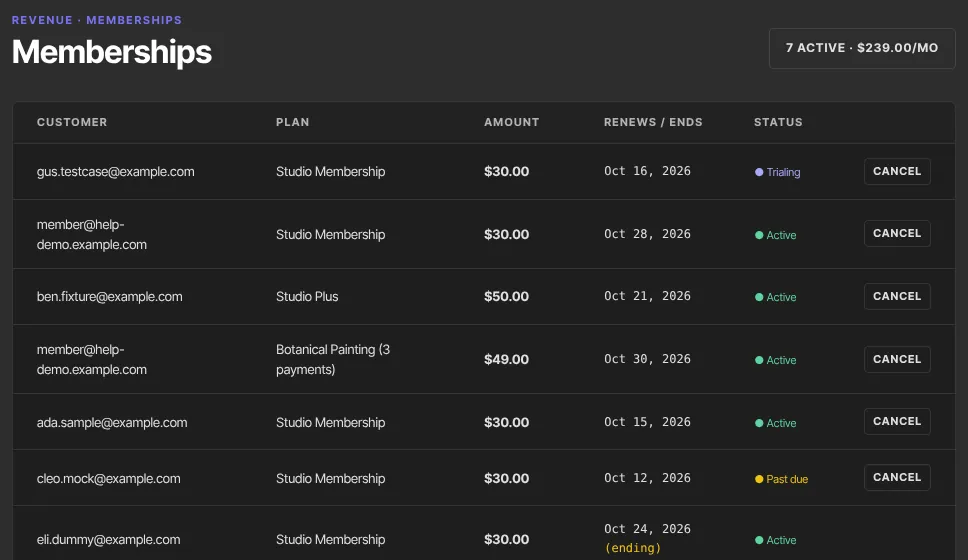
- The membership's status changes to Past due on Revenue → Memberships (
/sales/subscriptions). The member keeps full access.
- The member gets an email titled "Payment failed —" and the product name. It says the payment didn't go through and will be retried automatically, and it has an Update payment method button.
- You get a Failed payment email ("A payment failed") naming the member, the product and the amount.
- Stripe retries the card over the following days. Each failed retry sends the member's email and your notification again.
How it ends
- A retry works, or the member updates their card and the next attempt works: the payment is recorded in Transactions, the member gets a receipt if you send receipts, and the status goes back to Active. Their access never stopped.
- Every retry fails: the membership ends as Unpaid or Canceled, and the member loses the products that membership gave them. Anything they bought separately, or have through another active membership, stays. When it ends as Canceled, you get a Subscription canceled email ("A subscription was canceled").
- An Unpaid membership that's paid later becomes Active again, and its access comes back. A Canceled one can't be restarted: the member buys again from your checkout.
How many times Stripe retries, and whether a membership ends as Unpaid or Canceled, isn't something you set in your workspace.
When a payment plan stops being paid
A payment plan installment that fails goes through the same steps: Past due, the emails, and Stripe's retries, with access kept meanwhile. If every retry fails, the plan ends and the buyer loses the plan's products, even though earlier installments were paid. They keep them for good only once every installment is paid.
How the member fixes it
The Update payment method button opens your school's sign-in page. After signing in, the member opens their Profile, finds the membership under Subscriptions and clicks Manage membership to update their card on Stripe's secure billing page. Until a payment goes through, their Profile says "Payment past due — we’ll retry your card". The member's own steps are in Update your card or keep your membership.
Reword the Payment failed email
- Click Settings in the sidebar, then Email templates (
/settings/email-templates). - In the Payment failed panel, fill in Subject to replace the default subject, and Intro message to add a paragraph at the top. Leave a field empty to keep the default.
- Click Save email templates. A green Saved badge appears.
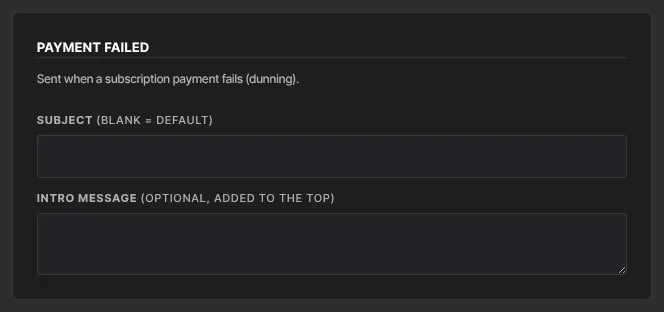
The rest of the email, including the Update payment method button, stays the same.
Choose who hears about failed payments
- Click your avatar at the top right, then Notifications.
- Under Payments & payouts, tick or untick Failed payment.
- Click Save preferences.
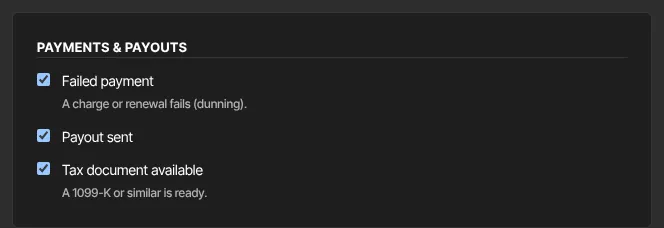
The owner gets it unless they untick it. An admin gets it only if the owner allows them money-related emails and they tick it themselves. See Choose which notification emails you get.
What happens next
- Past due members are your at-risk list. A personal note often helps when the amount matters.
- The Subscription payment failed automation trigger fires on each failed payment, if you'd like to send your own follow-up. See Automations.
- Failed payments aren't listed in Transactions: only successful payments are recorded there.
- You also get a Failed payment email when a one-off purchase paid by bank debit doesn't clear. Nothing is granted then, and Zinstruct doesn't email the buyer.
Common errors
- A member says the email's button only opened a sign-in page: that's expected. After signing in, they go to Profile and click Manage membership.
- "No saved payment profile for this subscription — contact support.": the member sees this when the membership has no saved payment details to update, for example one moved from another platform. Contact Zinstruct support.
- "Could not open the billing portal — please try again.": a temporary problem. The member should try again in a moment.
- The member updated their card but still shows Past due: the status changes once the next payment attempt succeeds.
- The member's Profile says "Payment failed — access paused": the membership is Unpaid. It has no Manage membership button, so they need to contact you.