Each lesson can have a discussion where members ask questions and you answer them. You choose per lesson whether members can comment, reply as the instructor from the lesson editor, and work through every comment in the course from one Manage comments queue.
Who can do this
- Owners, admins and staff can reply, hide or show comments, set a lesson's comment setting, and use the Manage comments queue, including deleting and restoring there.
- Only owners and admins can permanently delete a comment from the lesson editor, or switch comments on or lock them for every lesson at once. Staff see "You don’t have permission to do that."
- Viewers can read everything but can't change anything.
Choose who can comment on a lesson
- Open the lesson in the lesson editor.
- In Lesson settings, set Comments. Visible lets members read and post. Locked lets them read existing comments but not post. Hidden hides the discussion from members completely.
- Click Save lesson.
Change every lesson at once
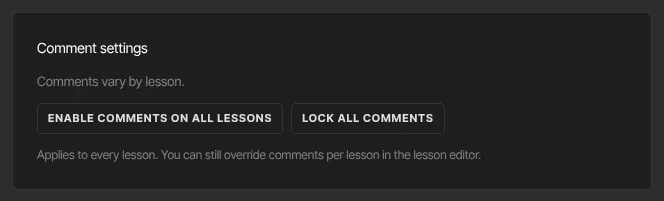
- Open the course's Settings tab and find Comment settings. A line sums up the current state, for example Comments vary by lesson.
- Click Enable comments on all lessons (every lesson becomes Visible) or Lock all comments (every lesson becomes Locked).
- You can still change single lessons afterwards in the lesson editor.
Reply as the instructor
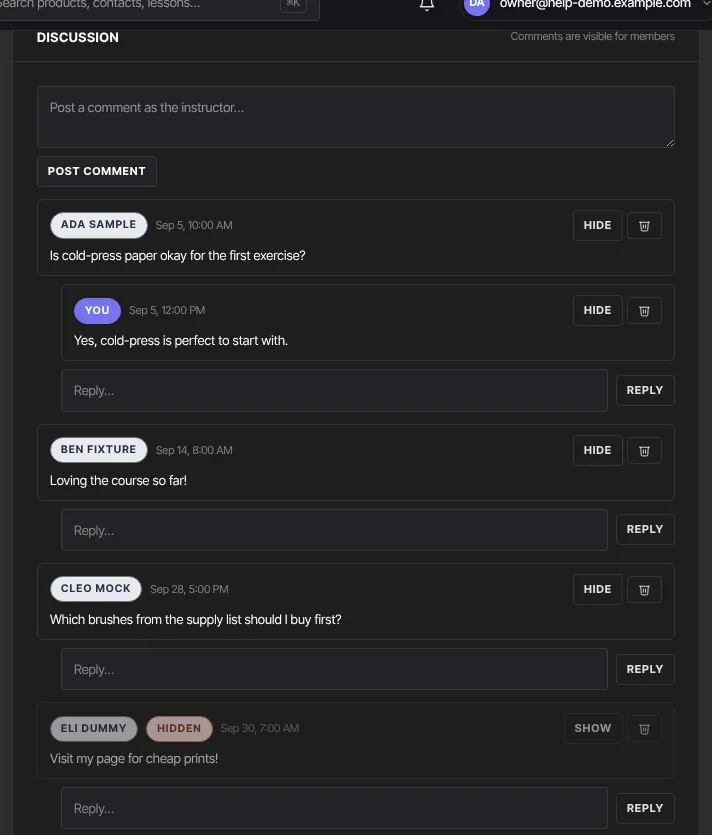
- In the lesson editor, scroll to Discussion. It notes how comments are set for members, for example Comments are visible for members.
- To start a thread, type in Post a comment as the instructor… and click Post comment. To answer someone, type in Reply… under their comment and click Reply.
- Your comments show a You badge here. Members see them under the first part of your sign-in email address (the part before the @), marked Instructor.
You can post even when a lesson's comments are Locked or Hidden.
Hide or delete a comment in the lesson editor
- Hide takes a comment out of members' view and marks it hidden for you. Click Show to bring it back.
- The trash icon (Delete comment, owners and admins only) deletes the comment permanently, with no confirmation. It can't be restored.
Work through the Manage comments queue
- In the course builder header, click Manage comments (
/products/{id}/comments). - Comments from every lesson are listed, newest first, on three tabs: Unread, Read and Deleted. Use Search comments or authors… to find one, and click a lesson's name to open it in the lesson editor.
- On a row, click Mark read (or Unread on the Read tab), or the trash icon to delete. To act on several at once, tick their boxes and use the buttons at the top: Mark read, Mark unread, Delete or, on the Deleted tab, Restore.
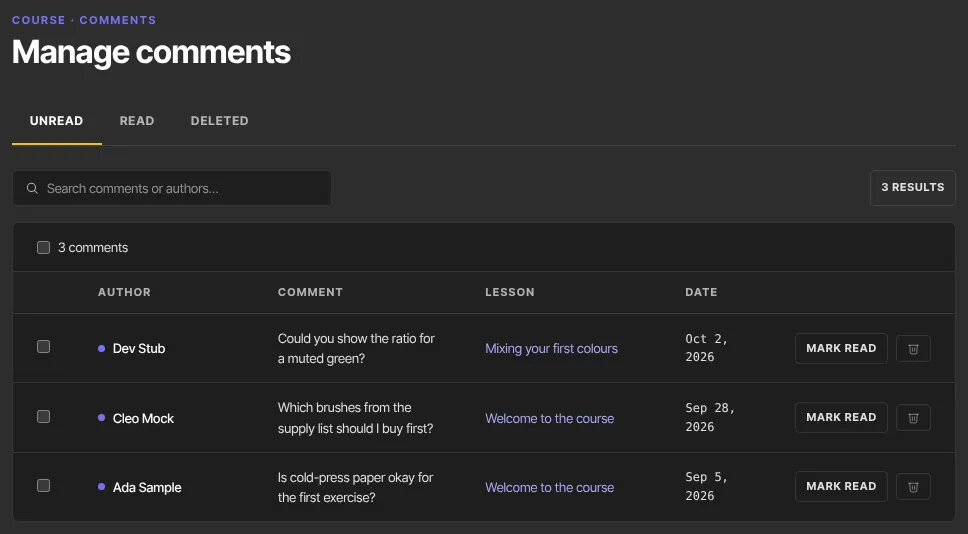
Deleting from the queue moves a comment to the Deleted tab, where Restore brings it back. Deleted comments are hidden from members, but they still appear, without a marker, in the lesson editor's Discussion panel.
What happens next
- Members see your changes the next time they open the lesson.
- A lesson set to Hidden shows no discussion to members, even if it already has comments.
Common errors
- "You don’t have permission to do that.": staff can't permanently delete comments or change every lesson at once; viewers can't change comments.
- "You don’t have permission for this.": shown in the queue to viewers.
- "Nothing to moderate.": no comments were selected.
- "Could not update the comments.": try again.
- Your comment didn't appear: comments can't be empty. Type a message and post again.
- "Your free trial has ended, so your workspace is read-only. …": subscribe in Settings → Billing to make changes again.