A free preview lets people who haven't bought your course watch the lessons you choose, while everything else stays behind your offer. It's an easy way to let someone try a course: they open it from your member library, watch the free lessons, and see a button to get full access.
Who can do this
- Owners and admins can use the Free / Members toggle on the course outline.
- Staff can't use the outline toggle (clicking it does nothing), but they can tick Free preview in the lesson editor and click Save lesson.
- Viewers can't change either.
Make a lesson free from the outline
- Open the course builder. The Free vs members-only classes note at the top explains the toggle.

- Expand the module. Each lesson row has a toggle showing Members (with a lock) or Free (with an eye).
- Click Members to make that lesson free; it switches to Free. Click it again to make the lesson members-only.

Make a lesson free from the lesson editor
- Open the lesson in the lesson editor.
- Under Release, tick Free preview — non-enrolled visitors can watch this lesson.
- Click Save lesson.
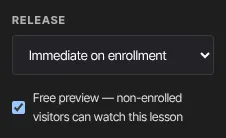
Both controls change the same setting, so a lesson made free in one shows as free in the other.
Choose what to give away
- Free lessons work best at the start of a course: a welcome, an overview, or one complete lesson that shows your teaching style.
- People previewing a free lesson get its video and text. Its downloadable files, quiz and discussion stay for members with access.
- For people previewing, the course home lists the number of lessons and how many are free previews, for example "8 lessons · 2 free previews".
What happens next
- People signed in to your member area who don't have access can open the course and watch its Free lessons. Other lessons show This lesson is part of the full course, with a Get Full Access button that goes to checkout.
- In your member library, a course with at least one free lesson shows Start for free to people who don't own it.
- The Get Full Access button and the library card come from a published offer for the course, so sell the course before you rely on previews.
- Only Live lessons in a published course can be watched.
- Members who already have access are unaffected: the free setting doesn't change their drip schedule.
Common errors
- Clicking Free or Members does nothing: you're signed in as staff or a viewer, or your workspace is read-only. Staff can use the Free preview box in the lesson editor instead.
- "You don’t have permission for this.": viewers can't change the lesson editor's Free preview box.
- "Could not save the lesson.": save again.
- Someone says they can't watch the free lesson: check that the lesson is Live, the course is published, and they're signed in to your member area.