AI can give you a head start on a new course. It reads your course title and description and proposes modules and lesson titles, and you review the proposal before anything is created. Once the course exists, AI can draft the text of empty lessons one module at a time, or rewrite a single lesson. Everything it writes is a draft you can edit.
Who can do this
- Owners, admins and staff can use AI drafting. Viewers see "You don’t have permission to use the AI builder."
- Your plan can limit how many AI generations you run each month. See Plans and billing.
- The AI options appear only when AI drafting is available for your account. If the switch on the course setup step is greyed out, it isn't.
Generate the outline
- In Catalog, click New product, keep Course and click Get started.
- Keep Start from scratch. Enter a specific Title and a Brief description of who the course is for and what it covers. The more concrete you are, the better the draft.
- Leave Use this info to generate content and additional resources switched on.
- Choose Evergreen or Cohorts on the right, then click Generate course. The page shows Drafting your course…. It usually takes under a minute; keep the page open.
- The review step, Here’s your draft course, shows the proposed modules and lessons, and you can edit all of it before anything is created: change a module's title or description, click the arrow beside a lesson to edit its title and content, move modules and lessons up or down, remove them, or use Add lesson and Add module. Click Regenerate for a fresh proposal, or Back to change the title or description (if you've edited the draft, you're asked first, since your changes are lost).
- Click Create course with this content. The course is created with those modules and lessons, all as drafts, and its builder opens.
A proposal has at most 12 modules, with up to 15 lessons in each.
Draft lesson text for a module
Lessons from the outline have titles but no text yet; the builder marks them Empty.
- Open the course builder. On each module row, a button says how many lessons it will write, for example Generate 2 lessons, next to a count such as 1 of 3 written.
- Click it. It reads Generating… while the AI writes.
- When it's done, the Empty badges clear from the lessons it wrote.
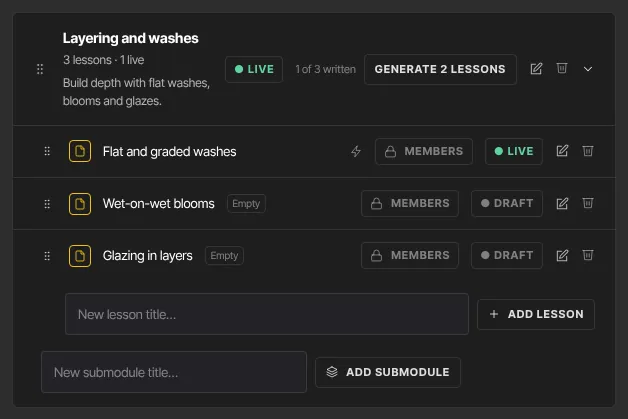
The button only fills empty lessons. It never overwrites a lesson that already has text, so it's safe to click again. A module where every lesson has text shows All lessons written, and a module with no lessons shows Add a lesson first. To steer the writing, give the module a description first (the pencil on the module row): the AI uses it as a brief, along with the course and module titles.
Rewrite one lesson
- On the outline, click the lightning icon next to a lesson that already has text. Or open the lesson and click Regenerate with AI under Lesson content (on an empty lesson it reads Generate with AI).
- A window asks Rewrite this lesson? Click Rewrite lesson to replace the current text with a fresh draft, or Cancel.
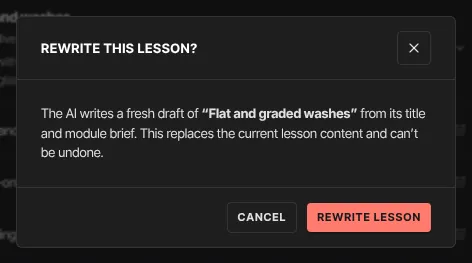
A rewrite replaces the lesson's text and can't be undone. If the AI returns nothing usable, your existing text stays as it was.
What happens next
- Generated text is saved straight away, but lessons stay Draft until you set them Live. Read and edit each one; see Write and set up a lesson.
- Members see nothing until the course is published and its lessons are Live.
Common errors
- "Add a course title first.": enter a title before generating.
- "AI is not available on this site yet.": AI drafting isn't available for your account. Build the outline yourself.
- "You’re generating very quickly — please wait a moment and try again.": wait a minute, then try again.
- "Plan limit reached for ai generation (…). Upgrade or request an override.": you've reached your plan's AI limit for the month. See Plans and billing.
- "The AI could not build a usable outline. Try a more specific title or description.": add detail to the description and click Generate course again.
- "The AI ran out of room before it finished. …": shorten the description, then try again.
- "The AI request failed. Please try again.": a temporary problem. Try again.
- "The generated outline could not be read — please regenerate.": click Regenerate, then create the course again.
- "Every lesson in this module already has content.": there's nothing empty to fill. Use the lightning icon to rewrite one lesson.
- "Wrote … — … came back empty, try again for those.": some lessons didn't get text. Click the module's button again to fill the rest.
- "The AI returned no usable lesson content. Please try again." or "The AI returned no usable content. Your existing lesson is unchanged.": try again.