The Customize tab styles the course home your members land on when they open a course. You can set an accent colour, show a short welcome message at the top, and choose whether the progress bar appears. A live preview shows your changes as you make them.
Who can do this
- Owners and admins can save these settings.
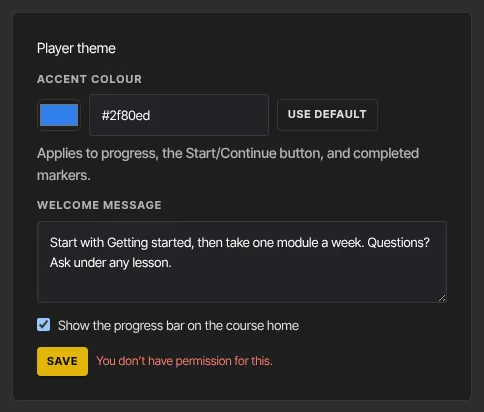
- Staff and viewers can open the tab and try changes in the preview, but Save shows "You don’t have permission for this."
Style the course home
- Open the course and click the Customize tab (
/products/{id}/customize). The page is titled Customize the player. - Under Player theme, set the Accent colour with the colour picker, or type a hex code such as #2f80ed. It colours the progress bar, the Start or Continue button and the completed-lesson markers. Click Use default to go back to the standard colour.
- Type a Welcome message of up to 280 characters. It shows at the top of the course home; use it to say where to start or where to ask questions.
- Tick or untick Show the progress bar on the course home.
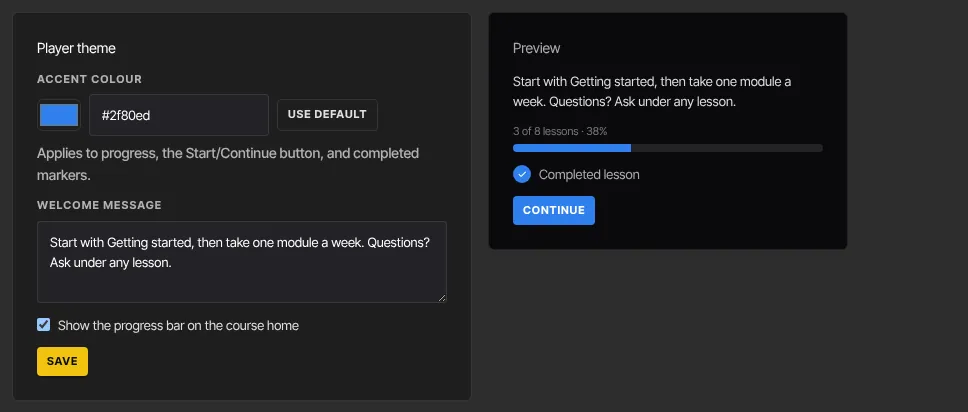
- Check the Preview on the right, then click Save. Saved appears.
What members see on the course home
- Your Welcome message sits at the top of the page, in a box edged with your accent colour.
- Under the course title, members with access see the progress bar and how many lessons they've finished, for example "3/8 lessons", unless you've turned the bar off.
- The big button reads Start course for a member who hasn't completed a lesson yet, and Continue after that. It takes them to their next unfinished lesson.
- People looking at a course through a free preview see the number of lessons and free previews instead of the progress bar, and a Get Full Access button, also in your accent colour.
- The course thumbnail, if you've set one, shows as a cover image under the title.
What it doesn't change
These settings style the course home only, not the lesson pages. Your school's logo, fonts and site-wide colours live in the Style Guide.
What happens next
- Members see the new colour and message the next time they open the course home. Click Preview as student in the builder header to check the result.
- Each course has its own settings, and duplicating a course copies them to the new course.
- For news that changes over time, post a course announcement rather than editing the welcome message.
Common errors
- "Accent must be a hex colour like #7c5cff.": type a hex code of 3 or 6 characters after the #, or click Use default.
- "Could not save the player theme.": save again.
- "You don’t have permission for this.": only owners and admins can save the course home settings.
- "Your free trial has ended, so your workspace is read-only. …": subscribe in Settings → Billing to make changes again.