Each lesson has its own editor, where you write the lesson's text, decide when members can see it, and attach video, files, a quiz and a discussion. This article covers the text, the lesson settings, moving a lesson and its downloadable files. Video, quizzes and comments have their own articles.
Who can do this
- Owners, admins and staff can use everything in the lesson editor. Staff can also set a lesson's Status and Free preview here, even though the quick toggles on the outline need an owner or admin.
- Viewers can open the lesson editor, but every save is refused with "You don’t have permission for this." or "You don’t have permission to do that."
Open the lesson editor
- In the course builder, click a lesson's title, or the pencil (Edit lesson) on its row.
- The lesson editor opens (
/products/{id}/builder/{lessonId}). The left column lists the other lessons in the module, and Back to outline returns to the builder. Preview as student opens this lesson as members see it, in a new tab. It works on drafts too, and a bar at the top says you're previewing (and, for a draft, that students can't see it yet). Click Back to editor in that bar, or close the tab, to return.
Write the lesson text
- In the Lesson content panel, type your lesson. The toolbar has B (bold), I (italic), U (underline), Size (S, M, L, XL), text colour (A) and highlight (H), each of which opens a palette of colours (highlight also has No highlight, and Custom… picks any colour), and Clear to remove formatting.
- Unsaved changes shows while you type.
- Click Save content. The panel shows Saved.
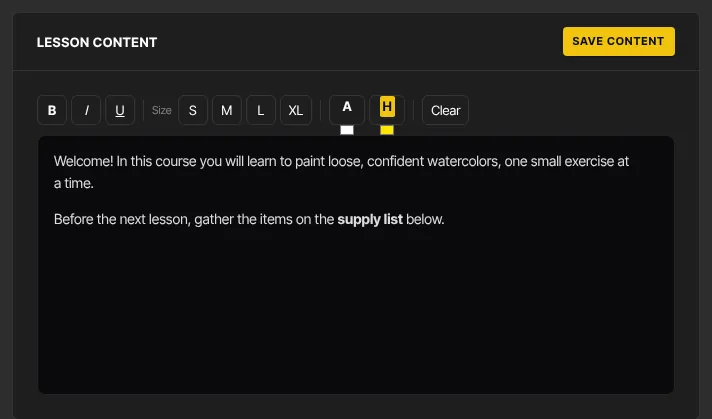
The editor handles text only; it can't add links, images or headings. If a lesson came in from an import with an embedded video, the panel says it also shows an embedded item (such as an imported video) above this text. Saving keeps it. Your text saves without touching the embed.
Save content saves only the text. The title and settings at the top of the page have their own Save lesson button.
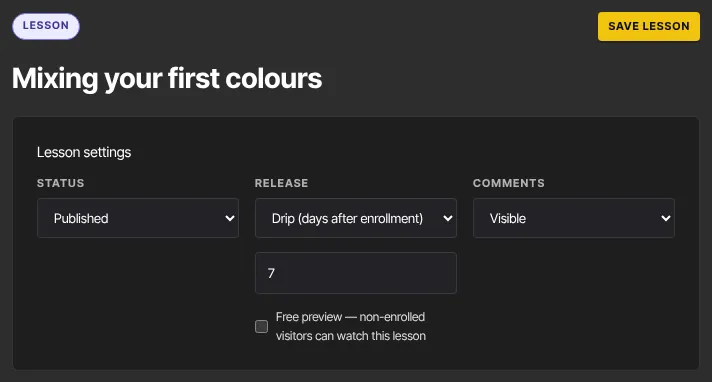
Set the title, status, release and comments
- Edit the large lesson title at the top of the page.
- In Lesson settings, set Status to Draft or Published. Published lessons are visible to members of a published course.
- Set Release. Immediate on enrollment opens the lesson as soon as a member has access; Drip (days after enrollment) holds it back for the number of days you enter. See Drip and schedule course content. Scheduled (date) opens it for everyone at a date and time you pick, and Locked (prerequisite) opens it once the member completes another lesson you pick.
- Tick Free preview — non-enrolled visitors can watch this lesson to let people without access watch it. See Free preview lessons.
- Set Comments to Visible, Hidden or Locked. See Lesson comments and moderation.
- Click Save lesson. ● Saved appears next to the Lesson badge.
Move a lesson to another module
- Below the lesson settings, find the Module menu. It only appears when the course has more than one module.
- Pick the module or submodule to move the lesson to. Moving… shows while it saves.
- The lesson moves to the end of that module, and the page refreshes.

Attach downloadable files
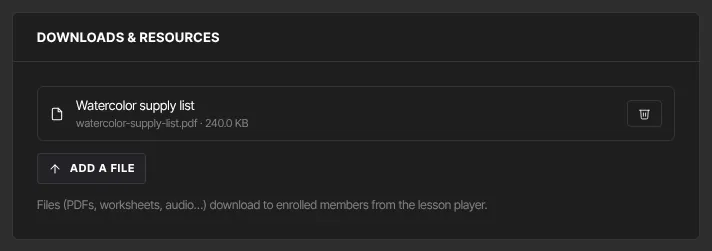
- In Downloads & resources, click Add a file and choose a file, such as a PDF, a worksheet or an audio file. The button reads Uploading… until it's done.
- The file appears in the list with its name and size. Members with access can download it from the lesson.
- To remove a file, click the trash icon on its row. It's removed straight away.
What happens next
- Members see your saved text, title and files the next time they open the lesson, as long as the lesson is Published and the course is published.
- Add a video (Add video to a lesson) or a quiz (Add a quiz to a lesson) on the same page.
Common errors
- "Please fix the highlighted fields.": the lesson title is empty or too long, or the drip days are out of range.
- "Lesson not found.": the lesson was deleted. Go back to the outline.
- "Could not save the lesson." or "Could not save the lesson content.": a temporary problem. Save again.
- "Lesson is already in that module.", "Unknown module.", "Lesson is not in this course." or "Could not move the lesson.": reload the page and pick the module again.
- "Could not start the upload.", "Upload failed." or "Could not finalize the upload.": the file didn't upload. Try again.
- A file finished uploading but isn't in the list: reload the page. If it's still missing, add it again.
- "You don’t have permission for this.": viewers can't edit lessons.
- "Your free trial has ended, so your workspace is read-only. …": subscribe in Settings → Billing to edit again.