You can make any page on your site members-only: a resource hub, a start-here page, or replays every member should see whatever they bought. Visitors who aren't signed in are sent to sign in, and people who aren't your members see a short notice instead of the content. You can also show some menu links only to members, or send your site's root address straight to sign-in.
Who can do this
- Staff, admins and owners can tick Members only in the builder and save.
- Only owners and admins can save menus and Site Details.
- Viewers can't change any of these.
Who counts as a member
Anyone who signs in to your school with an email that's in your contacts. That includes buyers, students you've given access to, and people who joined through one of your forms.
Signing in on your school's member sign-in page also adds that email to your contacts if it isn't there yet. So anyone who signs in there, including a visitor a locked page sent to sign in, counts as a member. Members only keeps a page from people who aren't signed in; it doesn't check what anyone bought.
A team login whose email isn't in your contacts sees the notice, just like any other non-member.
Lock a page
- Open the page in the builder from Website (landing pages work too).
- Tick Members only in the toolbar.
- Click Save draft, or Publish.

On a live page the lock takes effect as soon as you save: you don't need to publish again. In the pages list the page shows Members next to its title.

What visitors see
- Not signed in: they're sent to your school's member sign-in page. After signing in, with the emailed code or the link, they come back to the page. The first time someone signs in, they add their name on a welcome page first.
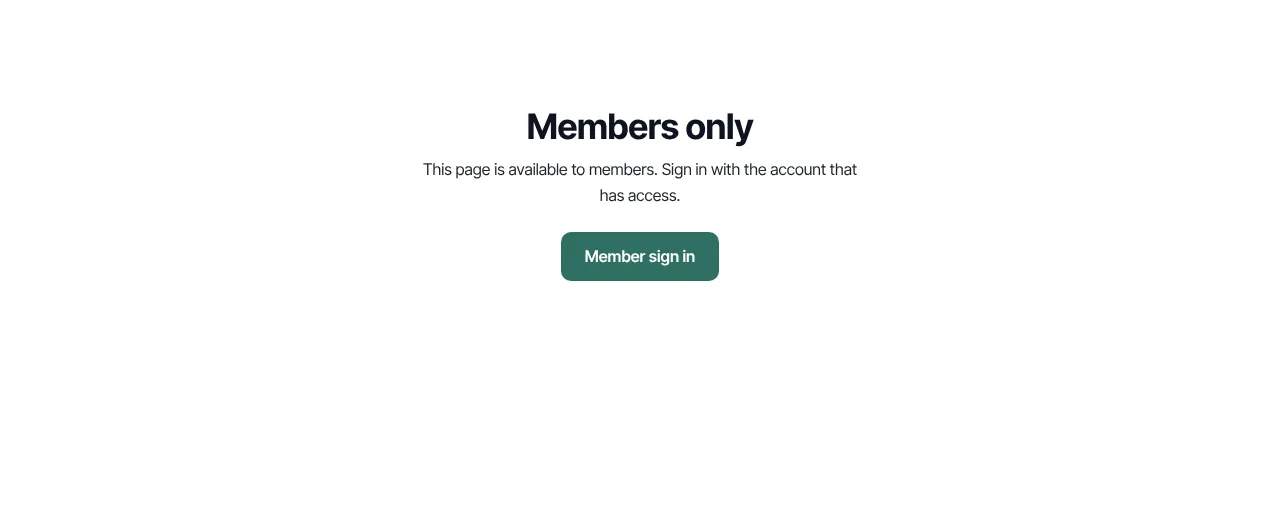
- Signed in, but not a member: the page shows your header and footer with a Members only notice ("This page is available to members. Sign in with the account that has access.") and a Member sign in button.
- Members: the full page.
The student-facing version of this is Pages for members only on your school's site in your member help center.
Show menu links only to members
- Go to Website → Navigation.
- Tick Members on a link and click Save navigation.
That link shows only to signed-in members. See Navigation menus.
Send visitors at your Zinstruct address to sign-in
- Go to Website → Domain.
- Under Your website and member area, choose Show the sign-in / join page under When someone opens, and click Save.
Visitors to your Zinstruct address land on your Join page, which links to sign-in for members. Your other pages stay public unless you lock them.
What happens next
- Locking or unlocking a page changes who can see it immediately.
- Members-only pages aren't tied to a product. To limit something to paying students, or to buyers of one course, put it in the course instead.
Common errors
- A student sees "Members only": they're signed in with an email that isn't in your contacts. Ask them to sign in with the email they bought or signed up with, or add that email as a contact. See Grant and revoke access.
- You see the notice when you check the page: your team login isn't one of your contacts. Use Preview in the builder instead.
- The page is still public: the change wasn't saved. Tick Members only and click Save draft.
- A members-only menu link doesn't show: you're not signed in as a member, or its page isn't published.