The AI page builder drafts page content from a short description. It can write a whole page, change the page you're on, or add one new section. It builds with your site's own blocks and Style Guide, and it can point offer and form blocks at your real offers and forms. Nothing is saved or published until you say so.
Who can do this
- Staff, admins and owners, on website pages and landing pages.
- Viewers see "You don’t have permission to use the AI builder."
- The AI button appears in the builder toolbar only when AI is available for your account. The blog post editor doesn't have it.
- There's a short limit on how many requests you can make in a minute. If your plan has a monthly AI limit, reaching it stops new requests until it resets.
Generate a whole page
- Open a page in the builder (see Edit a page in the builder) and click AI. The Build with AI panel opens.
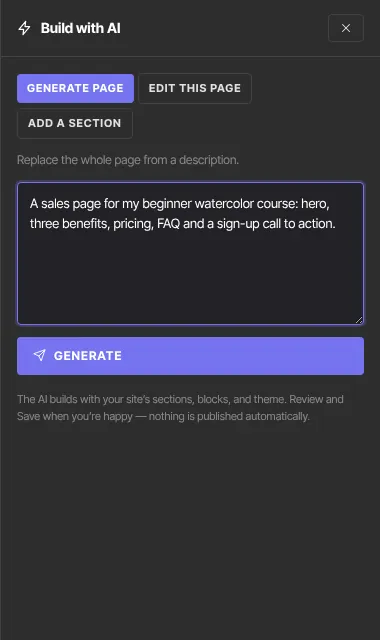
- Choose Generate page ("Replace the whole page from a description."). If the page already has content, the panel warns: "This page already has content. Generate page starts from scratch and replaces it when you apply. To keep this page, or the template it came from, and change it, use Edit this page."
- In the box, describe the page: who it's for, the sections you want and what each should say. For example: "A sales page for my beginner watercolor course: hero, three benefits, pricing, FAQ and a sign-up call to action." You can write up to 4,000 characters.
- Click Generate. The button reads Generating… while it works.
- The proposal appears under Proposals, with your description and a summary such as "Proposed: 4 sections, 12 blocks." Click Review to see it section by section and choose what to keep (see below), Apply to replace the page content in the builder with all of it, or Discard to throw it away.
- The toolbar says "AI changes applied — review and Save". Check every block, then click Save draft. An owner or admin publishes when it's ready.
Change the current page, or tailor a template
The page you're on is the AI's starting point. When the page already has content (a page made from a template, say), the panel opens on Edit this page: "Change this page, or tailor the template it came from to your business. Everything on the page stays unless you ask to change it."
- In the Build with AI panel, choose Edit this page.
- Describe the change, for example "Rewrite this for my yoga studio in Austin, warm tone. Add a class schedule and an FAQ after the reviews; remove the client logos." The AI keeps every section and block unless you ask otherwise, rewrites a template's placeholder words (such as [YOUR BUSINESS]) when you describe your business, adds sections only when you ask (with the blocks you name, or ones it picks), and removes or moves only what you name.
- Click Generate, then Review to see what changed, or Apply to take every change. The page in the builder is replaced with the revised version. Check it and Save draft.
Add one section
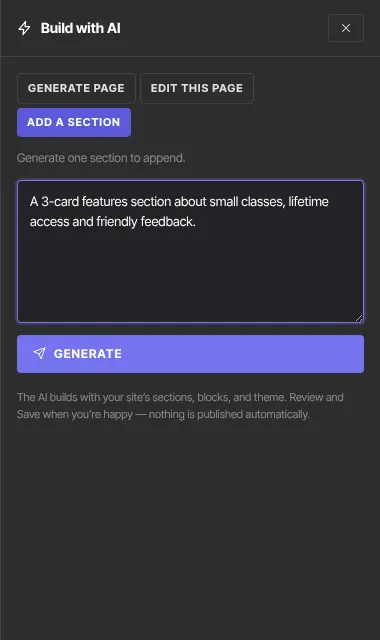
- Choose Add a section.
- Describe the section, for example "A 3-card features section about small classes, lifetime access and friendly feedback."
- Click Generate, then Review to see it first, or Apply. The section is added at the bottom of the page. Move it where you want it and Save draft.
Review a proposal before applying it
Click Review on a proposal. The Review AI proposal screen shows every section the AI proposed, drawn with your site's colours and fonts, exactly as it will appear in the builder.
- Each section in the Sections list has a Keep box. Untick a section you don't want: it says "Not kept — won’t be added" and drops out of the preview. The All sections box at the top ticks or unticks every section at once; it shows a dash when only some are kept.
- The bottom of the screen says how many you're keeping, for example "Keeping 7 of 10 sections."
- For Edit this page, each section is marked New, Changed, Unchanged or Removed by AI:
- Changed sections have AI version and Original. Choose Original to keep your page's version of that section. - Removed by AI sections are unticked. Tick Keep to leave one on your page. - Added since marks a section you added after asking the AI. It stays unless you untick it.
- Then apply:
- Generate page: Replace page swaps the page content for the sections you kept. Add below the page keeps your current content and adds the kept sections underneath. - Edit this page: Apply changes. - Add a section: Add to page.
- Back returns to the panel. Your ticks are kept with the proposal, and Apply on the proposal card uses them too ("Your review: Keeping 7 of 10 sections.").
- Discard proposal throws it away.
Everything you keep can be edited in the builder afterwards, like any other section. Nothing is saved until you click Save draft.
Your proposals are kept until you use them
The AI takes a while, so nothing it makes is thrown away by accident:
- You can close the panel while it's Generating… and keep working on the page. When the proposal is ready the toolbar says "Your AI proposal is ready — click AI to review it".
- Every proposal stays in the panel under Proposals until you click Apply or Discard. Closing the panel, opening Templates or Design, editing the page, reloading, or leaving the page and coming back all keep them.
- The AI button shows how many are waiting, for example AI (2), and AI · working… while one is being made.
- Generating again adds a new proposal next to the earlier ones, so you can compare them. The newest 5 are kept, for up to 14 days.
- What you've typed in the box is kept too.
- Proposals are kept in this browser. Another computer or browser won't show them.
What happens next
- Nothing changes on your live site until you save and publish. An applied proposal is unsaved until you click Save draft; if you leave first, the builder offers to restore it the next time you open the page.
- If the AI suggested something the builder can't make, you'll see how many blocks "couldn’t be created and were removed." The rest is still usable.
- Offer, pricing and form blocks may be pointed at your own offers and forms. Check each one before you publish, and see Block catalog for their settings.
- Each request is recorded against your workspace.
Common errors
- "Please enter a short description of the page.", "Please describe the change you want." or "Please describe the section you want.": the box was empty. Type a description.
- "You’re generating very quickly — please wait a moment and try again.": wait a minute, then generate again.
- "The AI could not build a usable section. Try rephrasing.": describe the section differently.
- "The AI ran out of room before it finished. This is a size limit, not your wording — a shorter brief, or fewer modules, will fit.": ask for fewer sections, or build the page a section at a time with Add a section.
- "The AI request failed. Please try again." or "Something went wrong. Please try again.": a temporary problem. Try again.
- A message starting "Plan limit reached for ai generation": you've used this month's AI allowance. See Plans and billing.
- "You don’t have permission to use the AI builder.": you're a viewer, or your free trial has ended and the workspace is read-only.
- There's no AI button: AI isn't available for your account, or you're in the blog editor.