Beyond writing posts, your blog has a few settings of its own: the title and description search engines show for your blog page, a separate reading-friendly look, an RSS feed, and an optional comments section. This article covers each one, and what visitors see on your blog.
Who can do this
- Owners and admins can change Blog settings, the Blog Style Guide and the Disqus shortname.
- Staff and viewers can open these screens, but saving shows "You don’t have permission for this."
Set your blog page's title and description
- Go to Website → Blog and click Settings. The page is titled Blog settings (
/website/blog/settings). - Fill in Blog title (if blank, it's "Blog — " and your site title), Blog description (SEO) (aim for about 160 characters) and Social share image URL.
- Click Save blog settings. A green Saved badge appears.
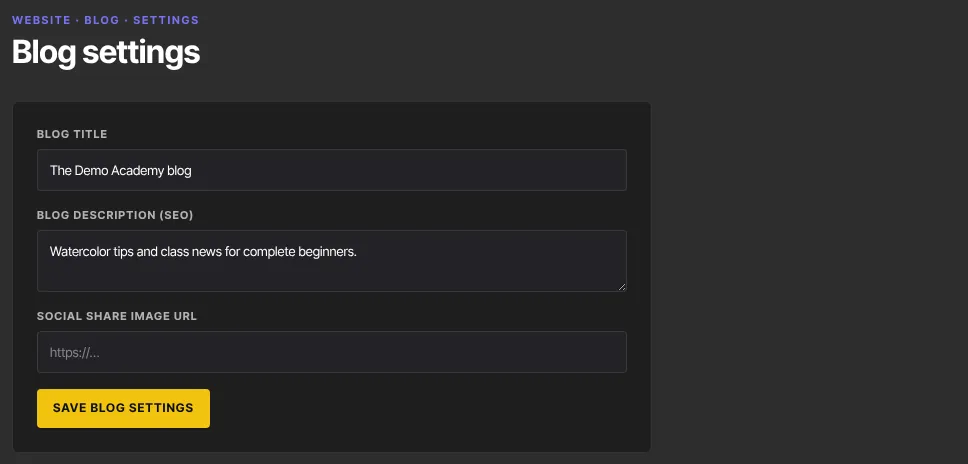
These apply to your blog's main page in search results and link previews. If the description or image is blank, the SEO description and Social share image URL from Site Details are used. Each post uses its own SEO and Sharing settings; see Write, schedule and publish blog posts.
Give the blog its own look
- Go to Website → Style Guide and scroll to the Blog Style Guide panel.
- Set the colours (Page background, Surface, Body text, Headings, Muted text, Links & accents and Borders), the Content width (px) and Corner radius (px), the font weights and line heights under Typography, and the heading and body sizes under Type scale (px).
- Click Save blog style guide. A green Saved badge appears.
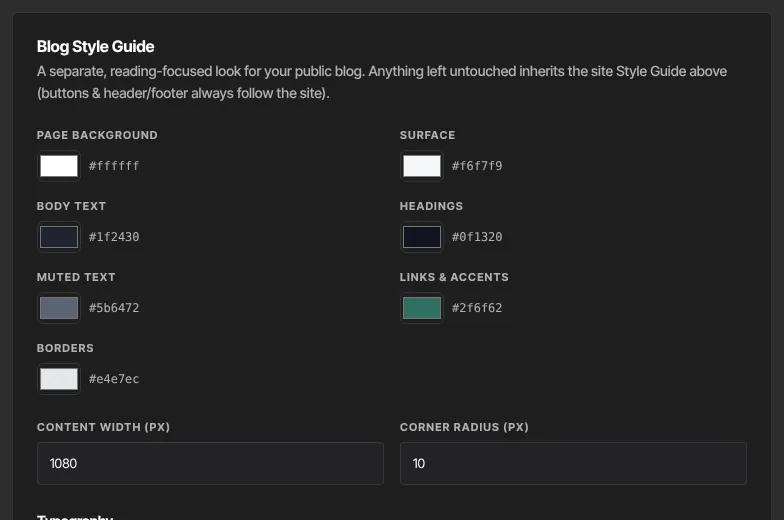
Anything you leave untouched follows your site's Style Guide. Buttons and the header and footer always follow the site.
Turn on comments
Comments on posts use Disqus, a free commenting service you sign up for separately.
- Create a site in Disqus to get your shortname.
- Go to Website → Site Details, enter it in Disqus shortname (blog comments) and click Save settings.
- A comments section appears under every post. Clear the field and save to remove it.
Share your RSS feed
Your blog has an RSS feed at yourname.zinstruct.com/blog/rss.xml (or on your own domain).
- Copy that address.
- Paste it into a feed reader, or into a tool that reads RSS, such as a newsletter or social scheduling service.
The feed lists your published posts, newest first, with each title, link, date and excerpt. Scheduled posts join it when their time comes. It can take about five minutes for a new post to show. The feed's title is your site title followed by "— Blog", and its description is the SEO description from Site Details. Blog settings don't change the feed.
What visitors see
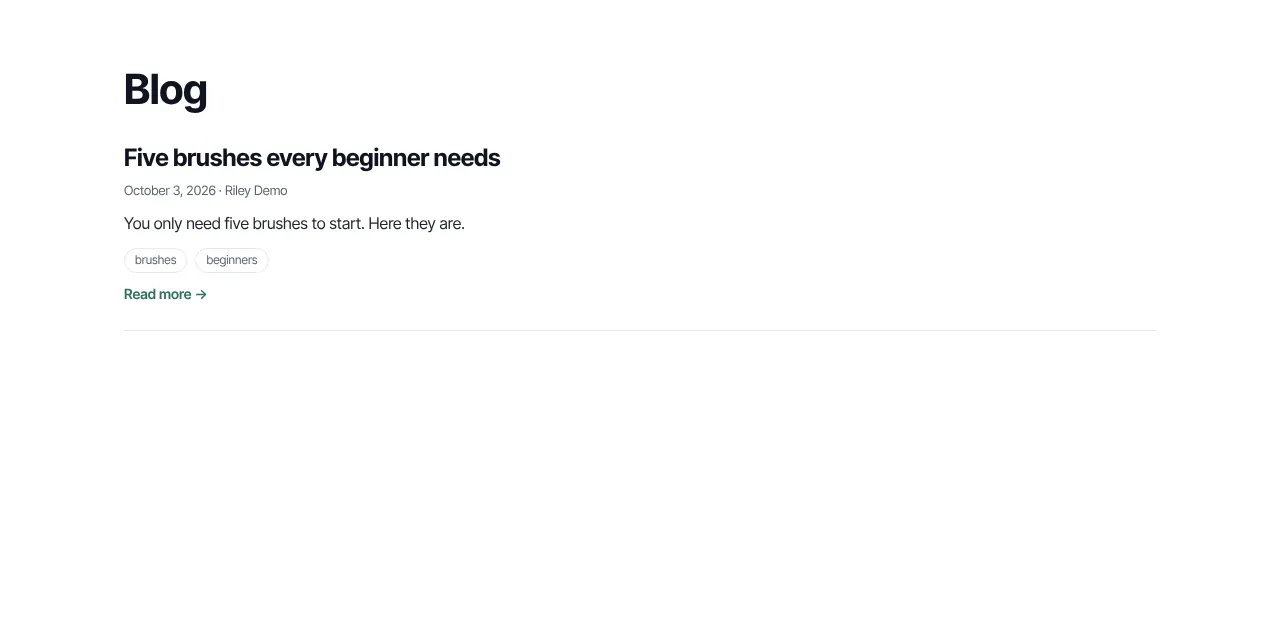
- Your blog page has the heading Blog and lists posts newest first: title, date, excerpt, tags and Read more →.
- Clicking a tag shows only posts with that tag, with "Tagged “…” · Clear filter" at the top.
- A post shows its title, date, featured video or audio, blog image, tags, then the body, and comments if you turned them on.
What happens next
- Blog settings, the Blog Style Guide and the Disqus shortname take effect on your live blog as soon as you save.
- Visits to your blog are counted with the rest of your site's page views.
Common errors
- "Please fix the highlighted fields.": the Social share image URL must be a full link starting with https://.
- "Could not save blog settings." or "Could not save the blog style guide.": try again.
- "You don’t have permission for this.": only owners and admins can change these.
- Comments don't appear: check the shortname is exactly as Disqus shows it, using only letters, numbers and hyphens.
- Your feed reader can't find the feed: check the address uses your live web address and ends in
/blog/rss.xml.