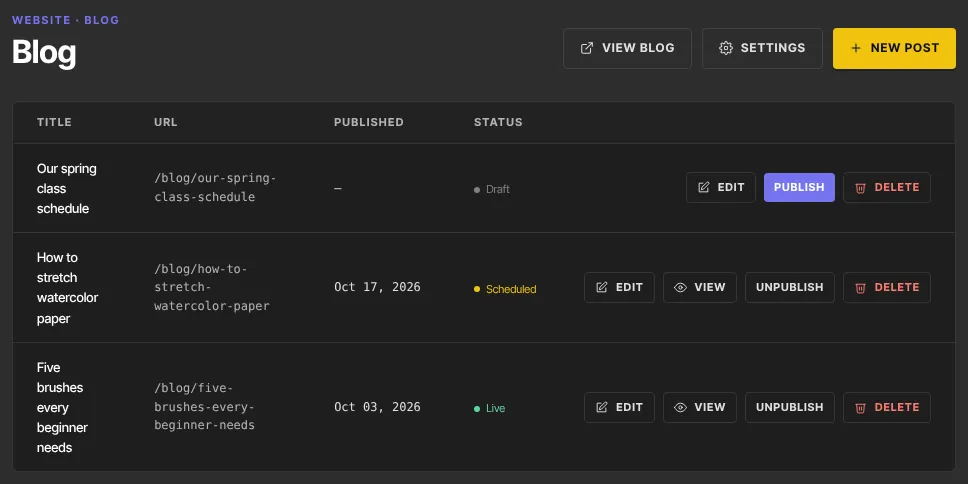
Your site has a blog at /blog. Posts are written in the same block builder as your pages, with a title, URL, excerpt, tags, an optional featured video or audio file, a blog image and their own SEO. You can publish a post straight away or schedule it for a future date.
Who can do this
- Staff, admins and owners can create posts, edit them and save drafts.
- Only owners and admins can publish, schedule, unpublish and delete. When staff click Publish in the editor, the draft is saved, then "You don’t have permission for this." appears. Publish, Unpublish and Delete in the list show "You don’t have permission to do that."
- Viewers can read posts but can't create or change them.
Start a post
- Go to Website → Blog (
/website/blog) and click New post. - The Templates page opens on its Blog posts tab, headed New blog post. Pick Blank post (first) or a layout:
- Standard article: an intro, a feature photo, two subheadings, "The short version", an email sign-up and more posts. - How-to guide: what you'll need, three steps with a tip, common questions, an email sign-up and more posts. - Announcement: a lead photo, the news, what's new, key dates and a call to action. - List post: an intro, a photo, five numbered items, the one thing to do, an email sign-up and more posts. - Case study: the numbers, where they started, what you did, the result and their quote, then a call to action. - Interview / Q&A: the guest's photo, the questions and answers with a pull quote, where to find them and an email sign-up. - Resource roundup: a card with a photo and a link for each pick, how you chose them, an email sign-up and more posts. - Video or episode post: the player, what's covered, links mentioned, a transcript, an email sign-up and more posts.
Each card shows the top of the post itself, and Preview under it shows the whole post. While your blog still has the default look, each one shows in its own example palette. The email sign-up is a Form block: pick your form in its Form setting. Paste your video link into the Video block of a video post. The other tabs' layouts work for a post too. ← Blog takes you back.
- The post editor opens with a draft called "Untitled post" and a URL like
untitled-post-1a2b3c.
Writing the same kind of post often? Click Save as template in the post editor's toolbar and name it. The layout on screen (saved or not) becomes one of your blog-post templates, under My templates on the Blog posts tab. The post's title, tags and SEO settings stay with the post. Edit or delete it there too; see Create a web page from a template.
Write the post
- In the toolbar, type the Title. Then set the URL after
/blog/yourself: it doesn't follow the title. Use lowercase letters, numbers and hyphens. - Add a Short excerpt (shown on your blog page) and Tags, separated by commas.
- Write the body in the builder below. It works like the page builder, without Templates, Design, Members only or reusable sections. See Edit a page in the builder.

- Under the builder, Featured media can show a video or audio file above the post: pick Video or Audio in Type and paste the file's link. Blog image takes an Image (rec. 1280×720): upload one, choose from your library, or paste a link. Add Image alt text to describe it.
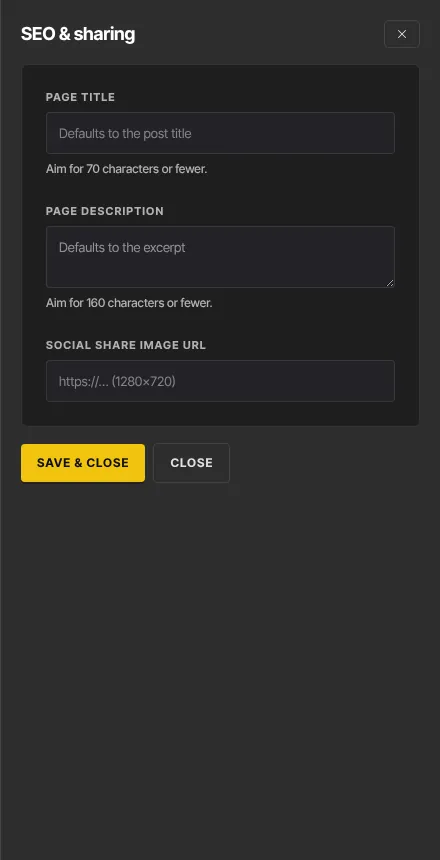
- Click SEO and Sharing to set the Page title (defaults to the post title followed by your site title), Page description (defaults to the excerpt) and Social share image URL (defaults to the blog image, then to the share image in Site Details). Click Save & close.
- Click Save draft. The toolbar says "Saved". Preview saves and opens the post in a new tab with a Draft preview banner.
Publish now
- Leave Publish date empty, or set a date in the past.
- Click Publish. The toolbar says "Published", the status becomes Live, and View appears.
You can also click Publish on a Draft row in the Blog list.
Schedule a post
- In Publish date, pick a future date and time. It uses your computer's time zone.
- Click Publish. The toolbar says "Scheduled", and the post shows Scheduled in the list.
- At that time the post appears on your blog, at its address, in your RSS feed and in Recent posts blocks. You don't need to do anything else.
Unpublish or delete a post
- In the Blog list, click Unpublish on a live or scheduled post. It becomes a draft at once. The editor has no Unpublish button.
- To delete, click Delete, then Confirm delete. This can't be undone.
What happens next
- A live post is at
yourname.zinstruct.com/blog/plus its URL. It's listed newest first on your blog page with its excerpt and tags. - Editing a live post: body changes wait until you click Publish again. The title, URL, excerpt, tags, images, featured media, SEO and publish date change on the live post as soon as you save. A future publish date saved on a live post hides it until that time. Changing the URL breaks old links.
- To set the blog's own title, look, feed and comments, see Blog settings: SEO, look, RSS feed and comments.
Common errors
- "Please fix the post settings.": the URL is empty or has characters other than lowercase letters, numbers and hyphens, the excerpt is too long, or a link isn't a full web address starting with https://.
- "That URL slug is already taken.": another post uses that URL.
- "The post content is invalid.": undo your last change and save again.
- "Post not found.": the post was deleted, perhaps in another tab.
- "Could not publish the post.": try again.
- "You don’t have permission for this." or "You don’t have permission to do that.": you're staff or a viewer. Ask an owner or admin.
- "That template isn’t available any more. Pick another one." or "We couldn’t create the page. Try again in a moment." on the Templates page: the post couldn't be created. Click the card again, or pick another one.
- A post isn't on your blog: check its status. Scheduled posts appear at their publish date, and drafts never do.