Once you've subscribed, Settings → Billing is where you look after your Zinstruct plan: update the card you pay with, find invoices, move to a different plan, and cancel your plan or change your mind. Card changes happen on Stripe's secure billing portal; the rest is on the Billing page.
Who can do this
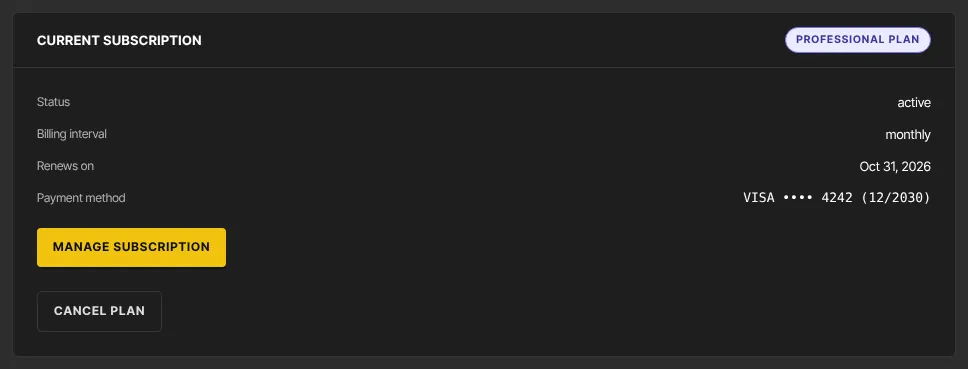
- Only the workspace owner, once the workspace has a paid plan. That's when Manage subscription and Cancel plan appear in the Current subscription panel.
- Admins, staff and viewers see "Only the workspace owner can view billing." instead.
- If the Zinstruct team set up your plan ("Your … plan is provided by the Zinstruct team."), there's nothing to manage here. Contact Zinstruct support to change it.
Update your card or billing details
- Open Settings → Billing (account menu → Subscription & billing).
- Click Manage subscription. Stripe's billing portal opens.
- Update your card or billing details there.
- Use the portal's link back to Billing. The Payment method row shows the new card; if not, reload after a moment.
Find your invoices
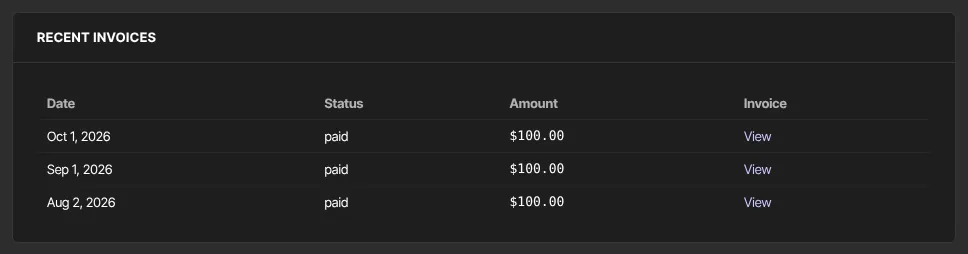
- Scroll to Recent invoices: your last 10 plan invoices with Date, Status (for example "paid" or "open") and Amount. Until the first one it says "No invoices yet."
- Click View to open an invoice on a Stripe page in a new tab.
Change your plan or billing interval
Billing only shows plan cards when you don't have a plan, so changes go through the billing portal.
- Click Manage subscription.
- If the billing portal offers to change your plan, choose the new plan or billing interval there and confirm.
- Back on Billing, the plan badge and Plan usage show the new plan.
If the portal doesn't offer a plan change, contact Zinstruct support from the email you sign in with and say which plan you want. When the team changes it, the new plan applies straight away and the price difference is added to your next invoice.
A smaller plan never deletes anything. If you're over one of its limits, everything stays, the meter shows "… over limit", and you can't add more of that thing until you're back under (unless the Zinstruct team made that limit a soft one). See Plan limits and upgrade prompts.
If you have more team members than the new plan includes, everyone keeps their access; you just can't invite anyone new until you're within the limit or upgrade.
Cancel your plan
Cancelling stops your plan from renewing. You keep it, and everything it includes, until the end of the period you've paid for.
- On Billing, click Cancel plan. It shows One moment… briefly.
- If the button is replaced by the line "Cancel at the end of the current period — your school stays live until then.", click Confirm cancel (it shows Cancelling…), or Never mind to keep your plan.
- If a dialog opens instead, the Zinstruct team is running a short exit survey. Follow the next section.
Cancel through the exit survey
- Pick the reason that fits best (some ask a short follow-up question) and click Continue.
- You may be offered a discount to stay. Click the offer's main button to accept it (see below), or the other button to carry on.
- You may be asked for feedback. Type it and click Send feedback, or Skip if offered. A counter shows any minimum length.
- Click Cancel my membership. Despite the wording, this cancels your Zinstruct plan; your members' subscriptions aren't touched.
- You see "Updating your membership with our payment provider…", then a confirmation. Click its button to close it.
Before the last step, Never mind, the × button or the Esc key closes the dialog without changing anything.
Accept a save offer
- On the offer screen, click the offer's main button. It shows Applying….
- The dialog confirms the discount. Close it, and Billing shows "Offer applied: …".
Your plan carries on at the discount and nothing is cancelled. The discount is added alongside any discount already on your plan, such as a promo code; you keep both.
Keep your plan after cancelling
- While a cancellation is scheduled, Current subscription shows Cancellation "Scheduled — will not renew", and a Keep my plan button in place of Cancel plan.
- Click Keep my plan. It shows Resuming….
- The Cancellation row disappears and Cancel plan is back. Your plan renews as normal.
What happens next
- After you cancel, your plan keeps working until the Renews on date, and it doesn't renew.
- When that date passes, the plan ends and your workspace becomes read-only: your site and members keep working and nothing is deleted, but your team can't create or change anything. Billing shows the plan cards again, and subscribing restores everything at once. See When your workspace is read-only or offline.
- Cancelling your plan doesn't close your workspace or delete anything. To close the workspace for good, see Export your data, or close your workspace.
- If a plan payment has failed, see When your workspace is read-only or offline for the emails you'll get and how long you have.
- If Zinstruct changes your plan's price later, the new price is for new subscriptions. Yours keeps the price you pay today.
Common errors
- "Subscription management is temporarily unavailable. Your plan and billing are unchanged — please try again in a few minutes.", "We couldn't open your billing record. Your plan and billing are unchanged — we've been notified and are looking into it.", or another notice saying "Your plan and billing are unchanged": the billing portal couldn't open. Nothing changed; try again later.
- "Your plan is already set to cancel at the end of the period.": use Keep my plan if you've changed your mind.
- "There is no active plan to cancel.": the workspace has no live plan.
- "Could not cancel right now — please try again." or "Could not resume right now — please try again.": nothing changed. Try again.
- "Your plan is not scheduled to cancel.": nothing to undo. Reload Billing.
- "That offer is no longer available.": the save offer has ended. Click Close; your plan hasn't changed.
- "Stripe was temporarily unavailable." with Try again: the change didn't go through. Click Try again.
- "Stripe declined the change.": nothing changed. Click Close, and contact Zinstruct support if it happens again.
- "This session has moved on." or "Session not found.": close the dialog, reload Billing and start again.
- "Only the workspace owner can change the plan.": you're not the owner.