This is the full list of what you can filter on when you build a segment. Each condition is a field, an operator and, usually, a value. Use it to choose the right field, and to work out why a contact is, or isn't, in a segment.
Who can do this
Anyone on your team can build a segment and click Preview matches to test conditions. Saving needs a staff, admin or owner role; see Segments.
Build a condition
- On Contacts → Segments, click New segment, or Edit on an existing segment.
- In a row, pick the field first. The operator list changes to suit it.
- Pick an operator, then type or choose the value. is set and is empty need no value.
- Click + Add condition for more rows, and choose all (every condition must match) or any (one is enough) at the top.
- Click Preview matches to see who matches.
A segment brought in by a migration can also hold nested condition groups ("Any of: …"). The builder shows each group read-only under your conditions and keeps it exactly as it is when you save; use × to remove one.
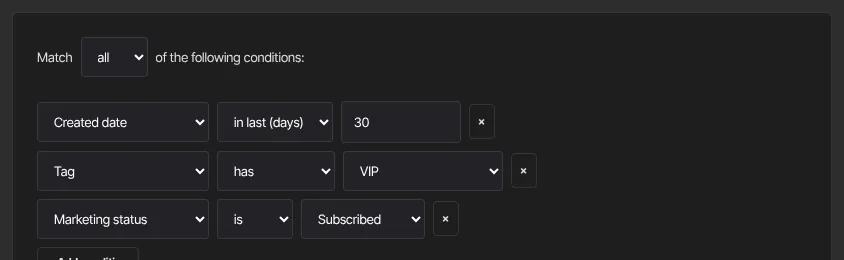
Contact fields
- Email, First name, Last name, Full name, Country, City and Source: text. Operators: is, is not, contains, starts with, is set, is empty.
- Marketing status: is or is not, with Subscribed or Unsubscribed.
- Created date: when the contact was added. Operators: after, on or after, before, on or before, in last (days), is set, is empty.
Tips:
- contains and starts with ignore capital letters. is and is not need the exact text, capitals included.
- Commas, brackets and asterisks are removed from what you type.
- Source is a short word for how the contact arrived, for example import (a CSV import), form (a form sign-up) or api (added on the New contact form).
- Country and City are only filled in for contacts whose import file had those columns.
- A date is compared with the very start of the day you pick. To include everyone added on 31 January, use before 1 February.
- in last (days) counts back from the moment the segment is used, so it rolls forward by itself.
- People waiting to confirm a double opt-in match neither is Subscribed nor is Unsubscribed. is not Subscribed includes them.
Relationship fields
These use has or doesn't have, and you choose the value from a list of up to 500.
- Tag: the contact carries that tag.
- Product access: the contact has access to that product right now, however they got it. Students who finished a course still count. Access that was removed doesn't count.
- Purchased offer and Purchased product: a paid purchase of that offer or product. Refunded purchases and free claims don't count.
- Has offer (paid or free): anyone who got that offer, whether they bought it or it was granted to them for free. Pick the offer from the list.
What happens next
A segment stores conditions, not people. It's worked out again every time you open the Segments page, filter the Contacts list with it, or send a broadcast to it. Broadcasts add one rule of their own: only subscribed contacts are emailed.
Common errors
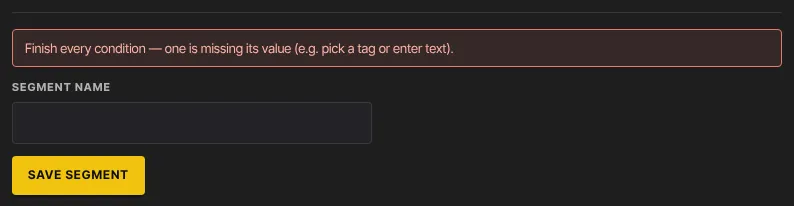
- "Finish every condition — one is missing its value (e.g. pick a tag or enter text).": a row has no value. Fill it in or remove the row.
- A count of 0 you didn't expect: check all versus any, and that is matches the exact capitals. Try contains instead.
- A tag condition matches nobody: the tag may have been deleted. Choose another tag.