When you need to do the same thing to a group of people, such as tagging everyone from a webinar or unsubscribing a batch of old addresses, select them on your Contacts list and use the bulk actions bar. It works on the contacts you can see on the current page, up to 100 at a time.
Who can do this
- Tag, Subscribe and Unsubscribe: staff, admins and owners.
- Delete: owners and admins only.
- Export: everyone on your team, including viewers. The file is made in your browser.
Everyone sees the whole bar. If your role doesn't allow an action, the bar shows "You don’t have permission for this." and nothing changes.
Select contacts
- Go to Contacts → All people (
/contacts). - To work on a particular group, narrow the list first: search, or pick a segment from the All contacts menu. Set Show to 100 to fit more on one page.
- Tick the box at the start of each row you want. The box in the header selects every contact on this page.
- The bulk actions bar appears above the table and shows how many you picked, for example 3 selected.
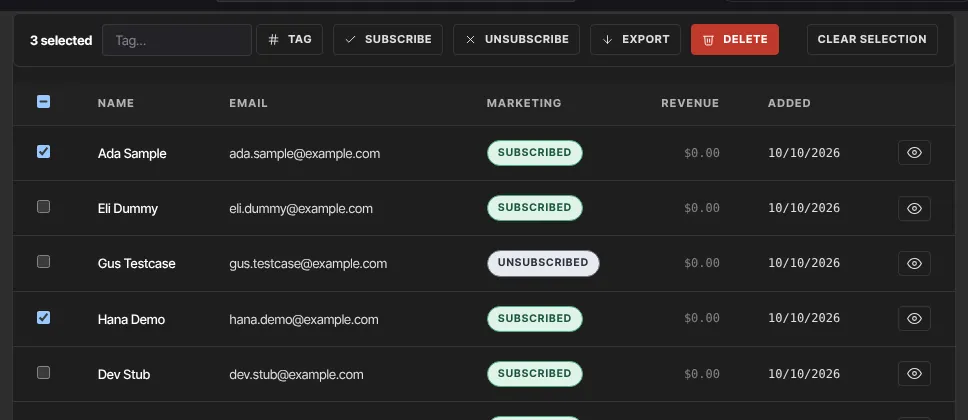
Your selection only covers the page you're on. Moving to the next page, searching or changing the filter clears it. Click Clear selection to start over.
Tag the selected contacts
- Type a tag name in the Tag… box (up to 80 characters). Use an existing tag's exact name, or a new name to create the tag.
- Click Tag.
- The bar says Tagged N contacts with “name”. The number counts only people who didn't have the tag already.

People who already carry the tag are skipped. The message counts only the contacts that newly got it, so it can say 0 when everyone you selected already had it.
The bar can only add tags. To take a tag off one person, use their record; to take it off everyone, delete the tag.
Subscribe or unsubscribe them from marketing email
- Click Subscribe or Unsubscribe.
- The bar says Subscribed N contacts. or Unsubscribed N contacts.
Subscribe only people who agreed to hear from you, and don't re-subscribe someone who unsubscribed themselves. See Email preferences and unsubscribes.
Download the selected contacts
- Click Export.
- Your browser downloads
contacts-selected-N.csvwith each person's Email, Name, Marketing status, Lifetime value (in cents) and Added on date.
To download your whole list rather than one page, use the Contacts report; see Reports and CSV exports. To download one person's full record, use Export contact (.csv) on their record.
Delete the selected contacts (owners and admins)
Click Delete to permanently delete every selected contact. There's no confirmation step: they're deleted the moment you click, together with their product access. Read Delete contacts before you use it.
What happens next
- Tag: each newly tagged contact starts any automation that uses Tag is added for that tag, and segments that use the tag update straight away.
- Unsubscribe: those people stop getting broadcasts, sequence emails, newsletter issues, course announcement emails and automation emails. They still get receipts and sign-in codes.
- Subscribe: they're included in your next broadcast to subscribed contacts.
- Tagging and subscription changes also show on each contact's Lifecycle tab.
Common errors
- "Select at least one contact.": tick at least one row first.
- "Enter a tag name of 1–80 characters.": the tag name is blank or too long.
- "Could not tag those contacts. Please try again.", "Could not update those contacts. Please try again." or "Could not delete those contacts. Please try again.": a problem on our side. Try again.
- "You don’t have permission for this.": viewers can only export, and staff can't delete.
- The bar disappeared: you changed page, searched or filtered, which clears the selection.