Tags are short labels you put on contacts, such as "VIP", "webinar-june" or "waitlist". Use them to group people, then target them with a segment or start an automation when a tag is added or removed. A contact can carry as many tags as you like.
Who can do this
- Staff, admins and owners can create and rename tags, and put tags on contacts or take them off.
- Only owners and admins can Delete or Merge a tag, because both change every contact that carries it.
- Viewers can look at the Tags page only. Everyone sees the same menus; a role that isn't allowed gets "You don’t have permission for this."
The Tags page
Go to Contacts → Tags (/contacts/tags). Every tag is listed A to Z with the number of Contacts that carry it. Type in Search tags… to filter the list. The page shows up to 500 tags.
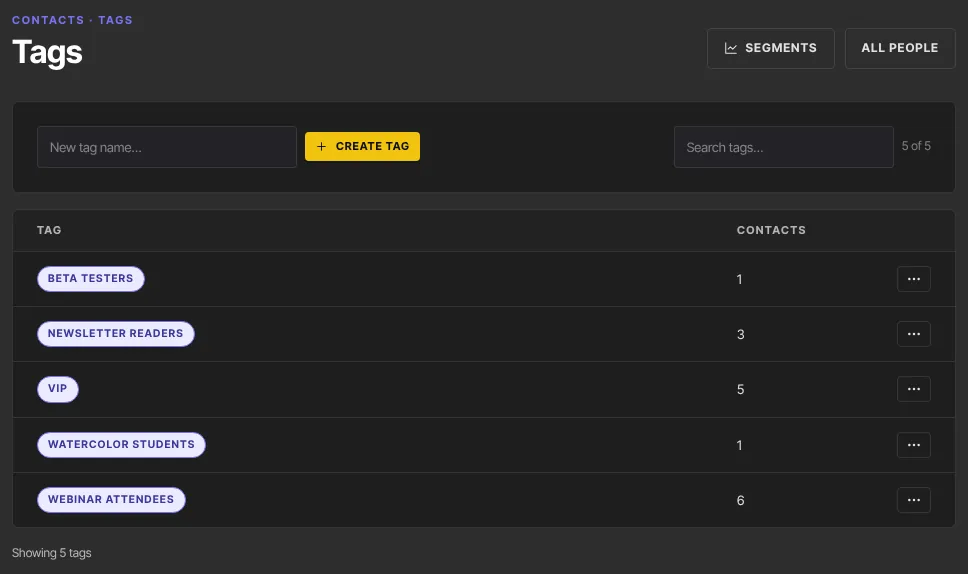
Tag names can be up to 80 characters. Extra spaces are removed, and capital letters count: "VIP" and "vip" are two different tags.
Create a tag
- Type a name in New tag name….
- Click Create tag. You'll see Created “name”. The new tag starts with 0 contacts and can be picked in segments and automations straight away.
Put tags on contacts
- One contact: on their record's Info tab, type in Add tag… and click Add. Click × on a chip to take it off. See The contact record.
- Many contacts: tick them on the Contacts list, type the tag in the bulk bar's Tag… box and click Tag. See Change many contacts at once. The bulk bar can only add tags.
- New contacts: type tags in the Tags box on the New contact form.
- Automatically: with an automation's Add a tag or Remove a tag action.
Rename a tag
- Click the ⋮ button at the end of the tag's row, then Rename.
- Edit the name and click Rename. You'll see Renamed to “name”.

Segments and automations that use the tag keep working under the new name.
Merge two tags (owners and admins)
Merging moves everyone from one tag onto another, then deletes the first tag. Use it to tidy up near-duplicates such as "Webinar" and "webinar".
- Click ⋮ on the tag you want to get rid of, then Merge into….
- Pick the tag to keep from the Merge into… list.
- Click Merge. You'll see Merged — N contacts moved. N counts people who didn't already have the tag you kept.
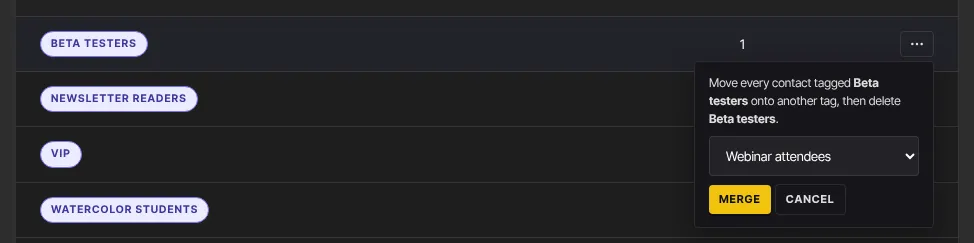
Merging works for tags of any size. If something goes wrong partway, nothing is deleted: both tags stay, and you can run the merge again.
Merge into… is greyed out when you have only one tag.
Delete a tag (owners and admins)
- Click ⋮ on the tag, then Delete.
- The menu tells you how many contacts it comes off, and that the contacts themselves are untouched.
- Click Delete tag, or Cancel. You'll see Tag deleted.

What happens next
- Adding a tag on a record, on the New contact form or in bulk starts automations that use Tag is added for that tag. Removing one on a record starts Tag is removed automations.
- Deleting or merging a tag starts no automations, and tags changed by an automation don't start other tag automations.
- After you delete a tag, a segment condition Tag has that tag matches nobody, and doesn't have matches everyone. Check your segments.
Common errors
- "Enter a tag name of 1–80 characters.": the name is blank or too long.
- "“name” already exists.": a tag with exactly that name exists. Use it instead.
- "Could not rename to “name” — that name may be taken.": another tag already has that name. Merge the two instead.
- "Pick a different tag to merge into.": you picked the same tag.
- "Could not merge those tags. Please try again.": try again.
- "Tag not found.": someone already deleted it. Refresh the page.
- "You don’t have permission for this.": staff and viewers can't delete or merge, and viewers can't create or rename.