Moving your school from another platform? Import & migrate brings your contacts, courses, lesson videos, offers, discount codes, purchase history, member access and blog posts across in bulk. Every import shows a preview first, and nothing is saved until you commit it.
Who can do this
- Owners and admins. Open Import & migrate in the sidebar (under Workspace), or its card in Settings. The address is
/settings/import. - Staff and viewers see the sidebar item, but the page shows only "Only owners and admins can run imports." If they open an import's page directly, they're sent back to Import & migrate.

What's on the page
- Import from YouTube connects your YouTube channel with read-only access so you can browse your uploads, Shorts and playlists. See Connect your YouTube channel.
- Fetch from Kajabi and Fetch from Teachable connect to your old platform and pull your courses in. See Fetch your courses from another platform.
- New import takes a file you upload or paste. What to import offers six kinds: Contacts, Products & courses, Videos (Wistia → Stream), Offers & coupons, Commerce history & access and Blog posts.
- Bulk access re-grant and Grant a member list give migrated members access to what they own. See Migrate purchase history and access.
- Recent imports lists your last 50 imports.
Import in this order
Later imports look up what earlier ones created, so work in this order:
- Contacts, so purchases and access can find each person by email. See Migrate contacts with tags, custom fields and notes.
- Products & courses, from a file or a fetch. See Course import file format.
- Videos, if your lesson videos come in a separate file. See Move your lesson videos into Zinstruct.
- Offers & coupons, which attach to the products you imported. See Migrate offers and discount codes.
- Commerce history & access, then Bulk access re-grant.
Blog posts can go in at any point; see Import blog posts.
Run an import
- Go to Settings → Import & migrate.
- In New import, choose What to import. The box under it shows the columns or file shape that kind expects.
- Choose a file under Upload CSV file (or Upload JSON file), or paste the text into Paste CSV (or Paste JSON). Keep each upload or paste under 1 MB; split a bigger file and import the parts one after another.
- Click Preview import. The button reads Preparing preview… while it works.
- The Review import page opens with a Dry run badge. It shows how many records would be created, updated, skipped and failed, any errors, and a sample. Nothing has been saved yet.
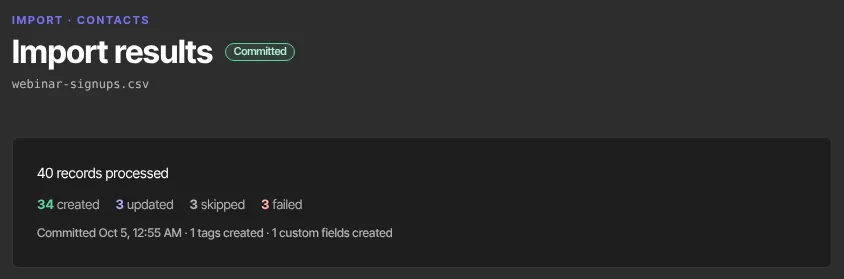
- Click Commit import once, and wait for the page to reload. It now reads Import results with a Committed badge, and a button to see what you brought in, such as View contacts →.
Check past imports and download errors
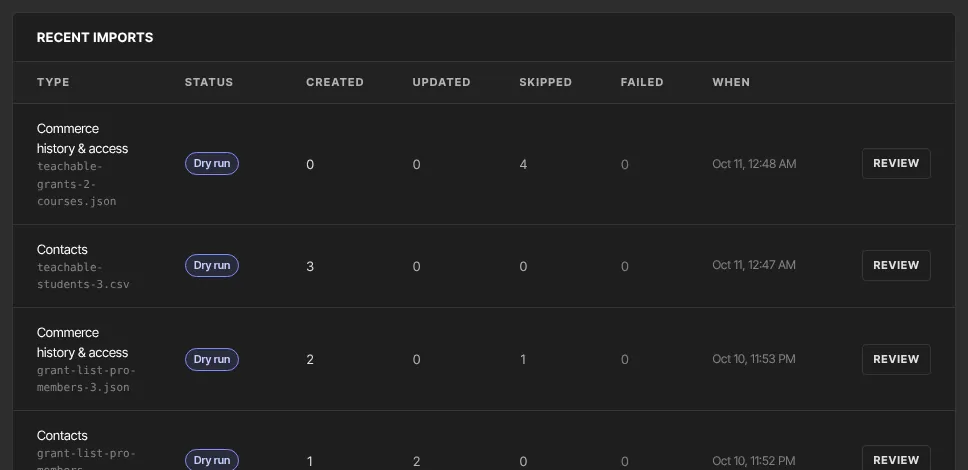
- Under Recent imports, each row shows the Type and file name, the Status (Dry run, Committed or Failed), the Created, Updated, Skipped and Failed counts, and When.
- Click Review on a dry run to look it over and commit it, or View on any other import.
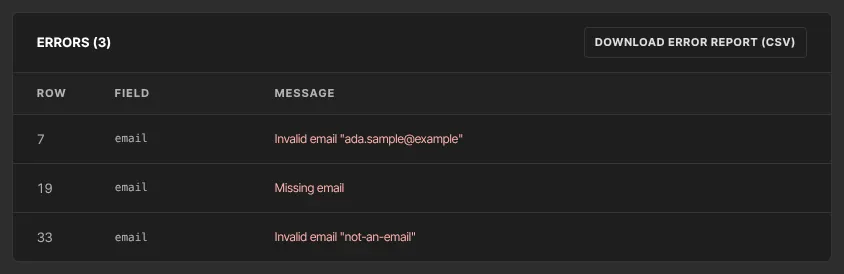
- If rows had problems, the import's page shows Errors with each Row, Field and Message. The page lists the first 50.
- Click Download error report (CSV) to save the errors as a spreadsheet with row, column and message columns. We record up to 200 errors per import. If a file has more problems than that, fix the ones listed and import it again to see the rest.
Importing the same file again
- Imports match what's already here, so running a file again updates instead of duplicating: contacts by email; products, modules and lessons by their source id (or title); offers by source id; discount codes by code; blog posts by slug. Past purchases that were already imported are skipped, never rewritten.
- A second run replaces changes you've made here since with what's in the file. Finish migrating before you edit what you imported.
- A committed import can't be committed again. To run it again, upload the file again and commit the new preview.
- There's no undo and no delete for imports. A preview you don't commit stays in Recent imports along with the data you uploaded, so only upload what you mean to import.
What happens next
- No import emails your contacts, buyers or members, and imported contacts and access don't start automations.
- If you use webhooks, each committed import sends one
import.committedevent, not one per row. - Find what you imported in Contacts, Catalog, Revenue → Offers, Revenue → Transactions and Website → Blog.
Common errors
- "Only owners and admins can run imports.": you're signed in as staff or a viewer, so ask an owner or admin. If you are the owner or an admin, your free trial may have ended without a plan, which makes the workspace read-only. Subscribe in Settings → Billing, then try again.
- "Upload a CSV file or paste CSV text." or "Upload a JSON file or paste JSON.": nothing was chosen or pasted.
- "No workspace found for your account.": your login isn't connected to a workspace right now. Sign out, sign back in and try again.
- "Invalid JSON: …": the file isn't valid JSON. Look for a missing comma, quote or bracket near the position the message gives.
- An import shows Failed with a message: it stopped partway, and some items may already be saved. Fix the cause, upload the file again and commit the new preview. Running it again is safe.
- Commit import only reloads the page: the import was already committed (open it from Recent imports to see its results), or a course import from the product wizard is still running. See Bring a whole course over in the product wizard.