When you create a course, the product wizard can bring whole courses over from your old platform for you. You connect, pick the courses and start the import. It runs in the background with a progress bar, so you can carry on working, and a pop-up tells you when it's done.
Who can do this
- Owners and admins.
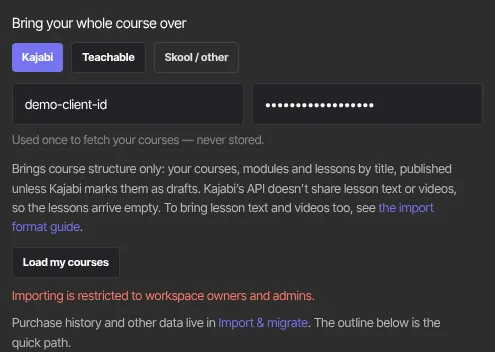
- Staff and viewers see the same panel, but Load my courses shows "Importing is restricted to workspace owners and admins." They can paste an outline instead; see Import an existing course outline.
- You need an API client ID and secret (the same credentials Fetch from Kajabi uses) or a Teachable API key. They're used once to fetch your courses and never stored.
- Each new course counts toward your plan's product limit, and courses over the limit are skipped. See Plans and billing.
Start the import
- In Catalog, click New product, keep Course and click Get started.
- Under How do you want to start?, choose Import existing course.
- In Bring your whole course over, pick your old platform. The first button asks for an API client ID and secret; Teachable asks for a Teachable API key. Skool / other opens the Course import file format guide. The line under the fields says what the platform you picked brings; see "What each platform brings" below.
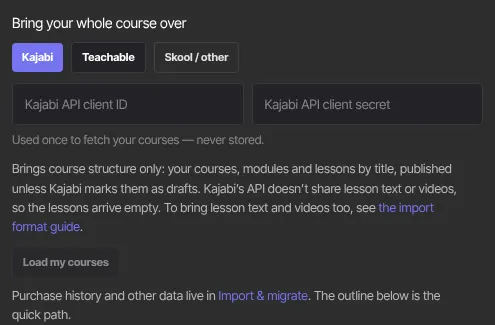
- Enter your credentials and click Load my courses. It reads Connecting… while it works.
- Your courses appear, all ticked, with a count such as "3 of 3 selected". Untick any you don't want, or use Select all and Select none. One import takes up to 100 courses.
- Click the import button, which shows your count, such as Import 3 courses. It reads Fetching your courses… while it collects them.
You don't need to fill in Title or Brief description for this: each imported course keeps its own title.
While it runs
- The panel shows Starting…, then a line such as "Importing 2 of 3 courses…" above a progress bar, then "Imported 3 courses".
- It also says "You can leave this page — the import keeps running, and we’ll pop up a message when it’s done."
- When it finishes, the panel shows View your products and Import details.
- A pop-up titled Your import is complete appears on whatever admin page you're on, for example "3 courses imported — 40 created, 0 updated". The counts include modules and lessons, and "with problems" is added when some items couldn't be saved. Click Details, View products or Close.
- The pop-up appears only in the browser you started the import from, even after you close it and come back. In a private window it may not appear: check Recent imports in Settings → Import & migrate instead.
What each platform brings
- The API client ID and secret option brings structure only: courses, modules and lessons by title, in order, published unless they were drafts on your old platform. Lesson text and videos aren't available through that connection, so the lessons arrive empty. Add text and videos in each lesson afterwards, or bring them in a file instead: the panel links to the import format guide.
- Teachable brings courses, modules and lessons with their text (as plain text) and videos, where Teachable gives a direct video link. Videos copy in the background, up to 50 per course each time you import; import the same courses again to bring the rest.
- Purchase history and other data aren't part of this import. They live in Import & migrate.
Check the results
- Click Import details (or Details in the pop-up). It opens the import's page in Settings → Import & migrate.
- Everything on the page adds up every course in the import: the counts at the top, the Catalog panel (Courses, Modules and Lessons, each as created and updated) and the video line, which shows how many video copies started, how many were reused and how many are pending.
- If videos are pending, a Teachable course had more than 50 lessons with video. Import the same courses again, here or with Fetch from Teachable, to copy the next 50 per course. Lessons that already have a video are skipped. Importing again also replaces lesson text with what Teachable has; see Fetch your courses from another platform.
If the import stops
While an import is running, its details page reads Review import and shows a Commit import button. Leave it alone: pressing it while the import runs only reloads the page.
If an import makes no progress for 15 minutes, the wizard shows Import failed with "The import stopped before it finished. Open Import & migrate to finish it.", and the pop-up, titled Your import didn’t finish, says the same. To finish it:
- Click Details in the pop-up, or Import details in the wizard.
- Click Commit import. This brings in the whole import; courses that already came across are updated, not duplicated.
- The page changes to Import results with a Committed badge.
If the message under Import failed says anything else, the import hit an error and can't be finished. Start it again from the wizard.
What happens next
- The courses appear in Catalog. Copied videos appear in their lessons when they're ready; see Move your lesson videos into Zinstruct.
- Nobody is emailed. To bring over purchases and access, use Import & migrate.
Common errors
- "Importing is restricted to workspace owners and admins.": ask an owner or admin to run the import.
- "Connected, but no courses were found on that … account." or "Connected, but no courses were found on that Teachable school.": check you used the right credentials.
- Another message under the form: it comes from your old platform, usually about wrong credentials. Create new ones and try again.
- "These courses have … lessons; one fetch supports up to 600. Select fewer courses and run again — fetches are re-runnable and merge by source id.": import fewer Teachable courses at a time.
- "No workspace found for your account." or "Please sign in again.": sign out, sign back in and try again.
- "The import stopped before it finished. Open Import & migrate to finish it.": follow "If the import stops" above.
- "Something went wrong. Open Import & migrate for details.": click Details to see what happened.