After your contacts, products and offers are in, bring over who bought what and who can open what. The Commerce history & access import loads past purchases and access from one file. Bulk access re-grant then gives every buyer the products their purchases include. For a platform with no export, such as Skool, Grant a member list gives a pasted list of emails access to one product.
Who can do this
- Owners and admins, from Settings → Import & migrate (
/settings/import). - Staff and viewers see "Only owners and admins can run imports.", and the re-grant refuses them with "Only owners and admins can re-grant access."
- Import contacts, products and offers first. Purchases and access are matched to contacts by email, and to products and offers by
source_ref.
Import purchases and access
The file is { "transactions": [ … ], "grants": [ … ] }.
- Each transaction needs a
provider_ref: the purchase's id on your old platform, which stops it being imported twice. Optional:contact_email,offer_source_ref,product_source_ref,amount_cents,currency,status(succeeded,refunded,failedorfree; defaultsucceeded),kind(one_time,subscriptionorfree) andcreated_at(the purchase date; default today). - Each grant needs a
contact_emailand either aproduct_source_refor aproduct_id. Optional:offer_source_ref,status(active,revokedorcompleted; defaultactive) andenrolled_at.
- In New import, set What to import to Commerce history & access, upload or paste the file and click Preview import.
- Under Will import, check Transactions (ledger) and Access grants. The notes say how many purchases are already here and won't be imported again, and how many grants can't find their contact or product yet.
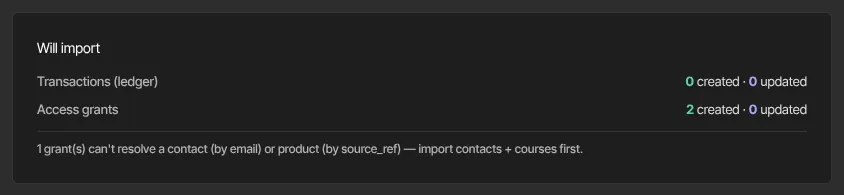
- Click Commit import, then View orders → to see the purchases in Revenue → Transactions with their original dates.
- Past purchases are history only: nobody is billed. A purchase whose email, offer or product doesn't match is still recorded, just not linked to them.
- Purchase history is never rewritten: purchases already imported are skipped on later runs.
- People who already have access to a product, including anyone whose access was removed, are left as they are.
Give buyers what they bought: Bulk access re-grant
- In Bulk access re-grant, click Preview re-grant. It reads Computing… while it works.
- Read the dry run: "from … entitlement(s): … grant(s) to create · … already enrolled", plus how many are unresolved because their purchase has no product or bundle. "Nothing has been written yet."
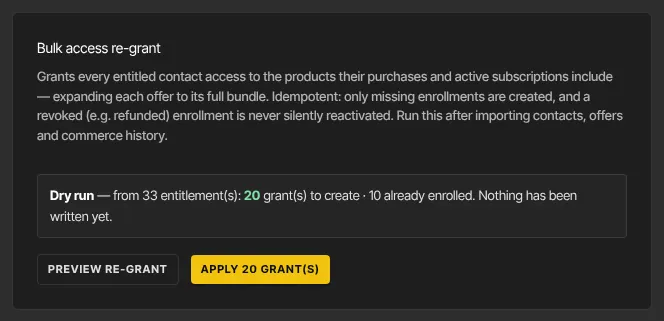
- Click the Apply button, which shows your count, such as Apply 30 grant(s). It appears only when there's something to create.
- The panel shows Done, with how many enrollments were created and how many already existed.
The re-grant looks at every successful or free purchase and every active subscription, however many you have, and gives each buyer every product in their offer's bundle. It only adds missing access, and anyone whose access was removed stays removed. You can run it again at any time, for example after another import, or if an earlier run missed anyone.
Grant a pasted member list
Use this when your old platform has no export, such as Skool.
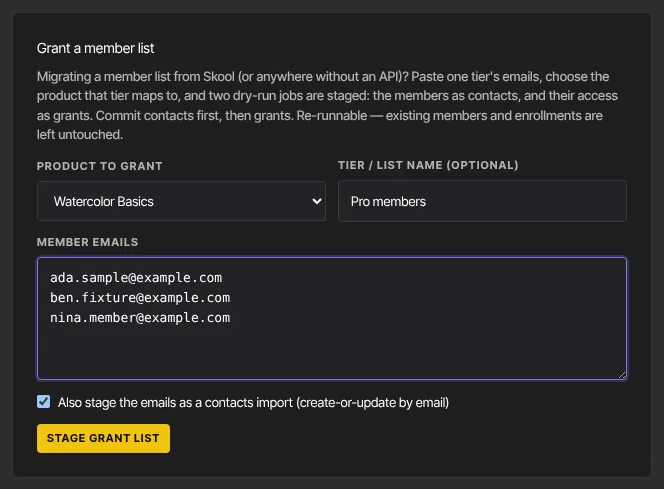
- In Grant a member list, choose the Product to grant.
- If you like, fill in Tier / list name (optional), such as "Pro members". It's used to name the imports.
- Paste the emails into Member emails, one per line or separated by commas or spaces. A list can hold up to 20,000.
- Leave Also stage the emails as a contacts import (create-or-update by email) ticked, unless everyone is already a contact.
- Click Stage grant list.
- Under Recent imports, click Review on the Contacts import named after your list and click Commit import. Then do the same for its Commerce history & access import. Until the contacts are committed, that preview may say grants can't find a contact; that's expected.
Give or remove product access by hand covers the other ways to give access.
What happens next
- Members see the products in their library the next time they open it. Nobody is emailed, and no lesson-unlock reminders go out for dripped courses.
- Each person's access shows on the Products tab of their contact record.
Common errors
- "No contact for …": commit the contacts import first, or check the email. A committed import can't run again, so upload the file again (or stage the list again) afterwards.
- "No product for …": import the product first, or check its
source_ref. - "Provide at least one transaction or grant." or "Grant needs a product_source_ref or a product_id.": fix the file.
- "Invalid email address" next to a
contact_email: fix the address. - "Choose a product to grant." or "Paste at least one member email.": fill in the form.
- "… not valid emails (…) — fix them and retry.": correct or remove the entries it lists.
- "That's … emails — one list supports up to 20,000. Split it and run again.": paste the list in parts.
- "That product was not found in your workspace.": reload the page and choose the product again.
- "… error(s): …" after you apply the re-grant: some grants couldn't be saved. Run the re-grant again.
- "Only owners and admins can re-grant access." or "Only owners and admins can run imports.": ask an owner or admin.