Bring the posts from your old blog into your Zinstruct blog with the Blog posts import. Each post keeps its title, address (slug), excerpt, cover image, author and date, and its text is converted for your blog's editor. Imported posts go live straight away unless your file marks them as drafts.
Who can do this
- Owners and admins, from Settings → Import & migrate (
/settings/import). - Staff and viewers see "Only owners and admins can run imports."
Prepare the file
The file is { "posts": [ … ] }. For each post:
- Required:
slug(the end of the post's web address, such asmy-first-post) andtitle. - Optional:
excerpt,cover_image(a link to the image),author,published_at(the date it was published) andstatus(published, the default, ordraft). - The text goes in
body_html(the HTML from your old blog) orbody(plain text, with a blank line between paragraphs).
From HTML, headings, paragraphs, bold, italic and links come through, and list items become lines that start with a dash. Very small headings come through at the smallest heading size. Images, videos and other embeds inside the post text are left out, so add them again in the blog editor. Keep each file under 1 MB.
Import the file
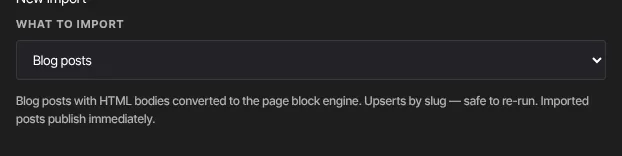
- In New import, set What to import to Blog posts. Its description reminds you that imported posts publish immediately.
- Upload or paste the file and click Preview import.
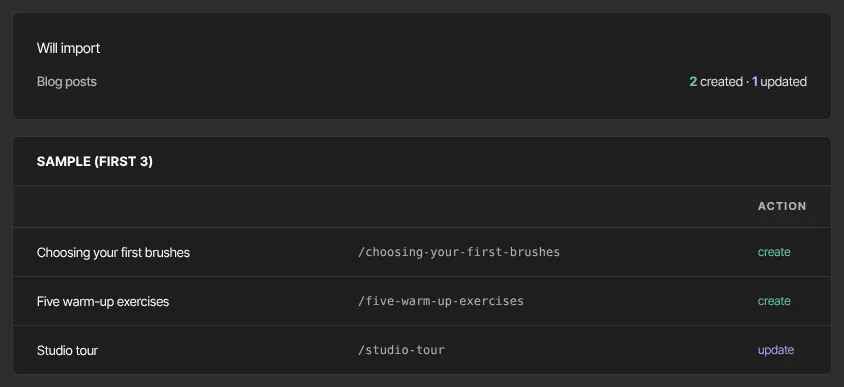
- Under Will import, Blog posts shows how many posts will be created and updated. Sample lists the first posts with their slug and create or update. If you don't have a website yet, a note says "No site exists yet — one will be created on commit."
- Click Commit import, then View blog →.
Importing the file again
- Posts are matched by slug, so a second run updates them instead of making copies.
- A second run replaces each matched post's title, excerpt, cover image, author, status and text with what's in the file, including edits you've made here since.
- If the same slug appears twice in your file, only the first post is used; the other counts as skipped.
What happens next
- Published posts appear on your blog straight away, dated with their
published_at(or today, if the file has none). Drafts wait in Website → Blog. See Write, schedule and publish blog posts. - If you had no website yet, a basic one is created, using your workspace name and web address.
- Importing doesn't email anyone.
Common errors
- "Invalid JSON: …": the file isn't valid JSON. Check for a missing comma, quote or bracket.
- "Invalid input: expected string, received undefined" next to a path such as
posts.0.slug: a post is missing its slug or title. - "Invalid input: expected array, received undefined" next to
posts: the file needs a top-level"posts"list. - A slug with a database message: that post wasn't saved; the rest were.
- The import shows Failed with "Could not resolve a site for blog import.": open Website once so your site is set up, then upload the file again.
- "Only owners and admins can run imports.": ask an owner or admin.