The Products & courses import builds your catalog from one JSON file: your products and, for courses, their modules, lessons, lesson text and videos. It isn't tied to any platform. If you can produce this shape by hand, from a spreadsheet or with an AI assistant working from a copy of your course, you can import from anywhere, including Skool. You see a preview before anything is created.
Who can do this
- Owners and admins, from Settings → Import & migrate (
/settings/import). Staff and viewers see "Only owners and admins can run imports." - New products count toward your plan's product limit. If the file holds more new products than your plan allows, the preview warns that some will be skipped at commit and offers Upgrade your plan. Products you're updating don't count. See Plans and billing.
The shape of the file
- The top level is
{ "products": [ … ] }. A plain list of products works too. - Each product needs a
title. Optional:type,description,statusandsource_ref. Thetypeiscourse(the default),coaching(shown as Consulting),community,podcast,newsletterordownload(shown as a File). - A
communityproduct comes in with its community set up, including a General space, so it's ready to use. - Only courses have
modules. Each module needs atitleand can haveposition,status,source_refandlessons. - Each lesson needs a
titleand can haveposition,status,source_ref,body,videoandvideo_link. bodyis the lesson text, as plain text. Leave a blank line between paragraphs.videocopies a video into your video library:{ "source_url": "…" }, plus an optionalduration_minutesandsource_ref(the video's own id, which stops the same video being copied twice). Thesource_urlmust be a direct link to the video file.video_linkshows an embedded player at the top of the lesson. It takes a YouTube, Vimeo, Loom or Wistia page link, or a direct link to an .mp4 or .webm file. Nothing is copied: the video stays where it is. This suits Skool courses, whose videos are usually YouTube, Vimeo or Loom links.- A lesson can have both, one or neither.
A small example: { "products": [ { "type": "course", "source_ref": "wc-101", "title": "Watercolor Basics", "status": "published", "modules": [ { "source_ref": "wc-101-m1", "title": "Getting started", "lessons": [ { "source_ref": "wc-101-m1-l1", "title": "Welcome", "body": "Hello and welcome.", "video_link": "https://www.youtube.com/watch?v=…" } ] } ] } ] }
Source ids and status
source_refis a stable id, ideally the one your old platform uses. A second import matches each item by it (or by its title when there's none) and updates it instead of making a copy.- Each
source_refmust be unique across your whole workspace, not just within one course. A module or lesson whosesource_refis already used in another course is moved into the course in your file. Prefix ids with the course, likewc-101-m1-l1, to keep them apart. - Anything without a
statuscomes in as a draft. That includes a second import: a published course in a file withoutstatusgoes back to draft. Items without apositionkeep the order of your file.
Import the file
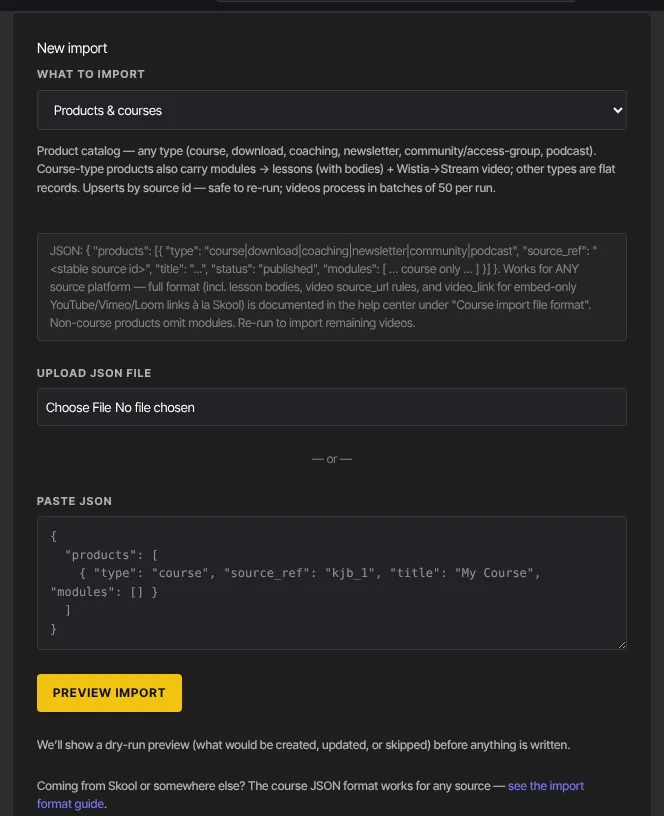
- Go to Settings → Import & migrate. In New import, set What to import to Products & courses. The fields change to Upload JSON file and Paste JSON.
- Choose your file or paste the JSON, then click Preview import.
- On Review import, the Catalog panel shows Courses, Modules and Lessons, each as created and updated, and how many videos will be copied. Sample lists your courses with their module, lesson and video counts.
- Problems with the file appear under Errors, with the place in the file in the Field column, such as
products.0.modules.1.title. If the file has a problem like this, nothing is imported; fix it and upload it again.
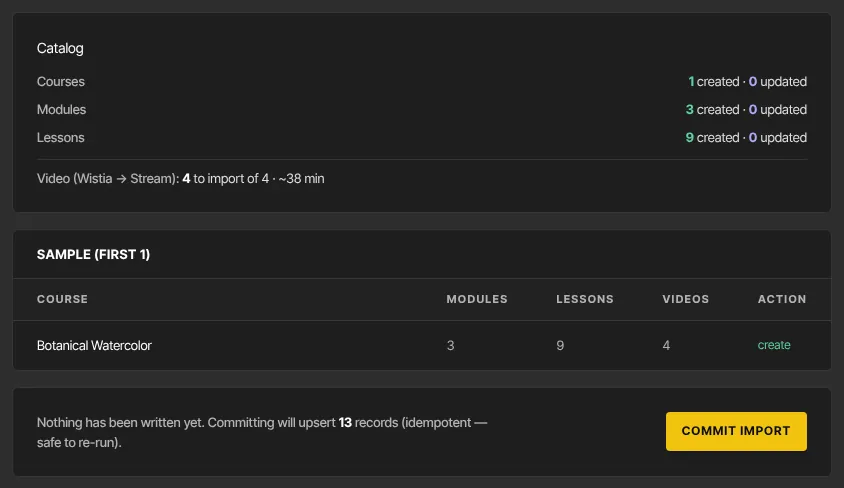
- Click Commit import. Your products, modules and lessons are created or updated, and up to 50 lesson videos start copying. Click View products → to see them.
Importing the file again
- Matched items are updated with what's in the file: titles, order, status and lesson text. A lesson with no
bodyin the file loses any text you've added to it here, and a lesson with avideo_linkgets its embedded player and text rebuilt. Make your last import before you start editing, or leave courses you've edited out of the file. - A lesson that already has a copied video keeps it. Only lessons without one get a new video.
- More than 50 videos? Import the same file again to copy the next 50. See Move your lesson videos into Zinstruct.
What happens next
- The courses appear in Catalog. Members see a course only once it's published and they have access to it.
- Copied videos show as processing at first and appear in their lessons when they're ready.
- Nobody is emailed.
Common errors
- "Invalid JSON: …": the file isn't valid JSON. Check for a missing comma, quote or bracket.
- "Invalid input: expected string, received undefined" next to a path ending in
title: that item has no title. - "Invalid option: expected one of …" next to a
typeorstatus: use one of the values listed above. - "Invalid URL" next to a
source_urlorvideo_link: use a full link starting with https://. - "Video import failed: …": that lesson was imported, but its video couldn't start copying. Check that the link downloads the file directly, then import the file again.
- A product, module or lesson title with a database message: that item, and everything under it, wasn't saved. The rest were.
- "community setup failed: …" next to a community product's title: the product was imported, but its community wasn't set up. Open the product from Catalog and click its Spaces tab, which finishes the setup.
- "… products will be skipped at commit — your … plan allows …": you've reached your plan's product limit. Upgrade, or import fewer new products.