When you migrate, lesson videos hosted elsewhere can be copied into your Zinstruct video library, so your members watch them here. Videos come across with your courses (from a course file, Fetch from Teachable or the product wizard), or afterwards with the Videos (Wistia → Stream) import, which attaches videos to lessons you've already imported. Each run starts copying up to 50 videos.
Who can do this
- Owners and admins, from Settings → Import & migrate (
/settings/import) or the product wizard. - Staff and viewers see "Only owners and admins can run imports."
How copying works
- We copy each video from a direct link to the video file. A link to a page that needs a sign-in, or that only shows a player, can't be copied. For those, use
video_linkin a course file to embed the player instead; see Course import file format. - Each commit starts copying up to 50 videos. The rest wait for your next run.
- A lesson that already has a video is skipped, so each run picks up where the last one stopped.
- A video copied before, recognised by its
source_ref, is reused rather than copied again. - A copied video starts as processing. We check processing videos every 15 minutes, and the player appears in the lesson on its own once the video is ready. Until then, members see Video is still processing. You can follow each video in the Media Library.
Videos that come with your courses
- Import your courses with their videos: a
videowith asource_urlon each lesson of a course file, or a fetch from Teachable. - The preview's Catalog panel shows the videos to copy, with "(up to 50 per commit — re-run to continue)" when there are more than 50.
- After you commit, Import results shows how many copies started, how many were reused and how many are pending, with "… videos still to import — run another import of the same file to continue."
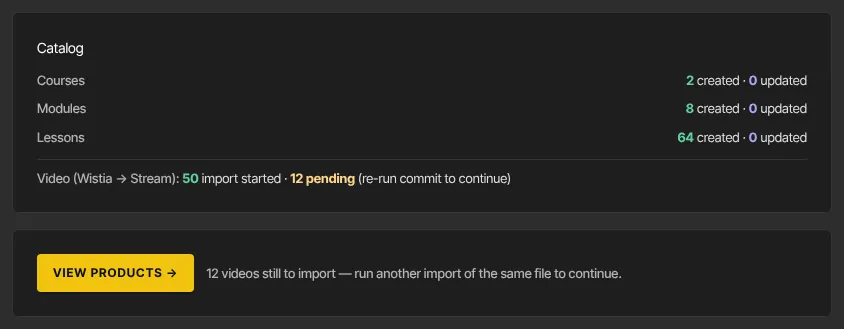
- A committed import can't be committed again, so start a new one. Upload the same course file again, or for a fetch from Teachable, fetch the same courses again. Preview it and click Commit import.
- Repeat until nothing is pending.
Each new run also updates lesson titles, order, status and text from the file or from your old platform. Finish copying videos before you edit those lessons here.
Attach videos to lessons you've already imported
Use the Videos (Wistia → Stream) import when your videos are listed in a separate file.
The file is { "videos": [ … ] }. Each entry needs a lesson_source_ref (the source_ref the lesson got when you imported its course) and a source_url. Optional: source_ref (the video's own id on its old host) and duration_minutes.
- In New import, set What to import to Videos (Wistia → Stream), upload or paste the file and click Preview import.
- Under Will import, Videos to transfer counts the lessons that will get a video. The notes below say how many lessons already have a video, how many entries point at a lesson that doesn't exist, and whether you're over the 50-per-commit limit. The sample shows each lesson id with transfer, skip or no lesson.
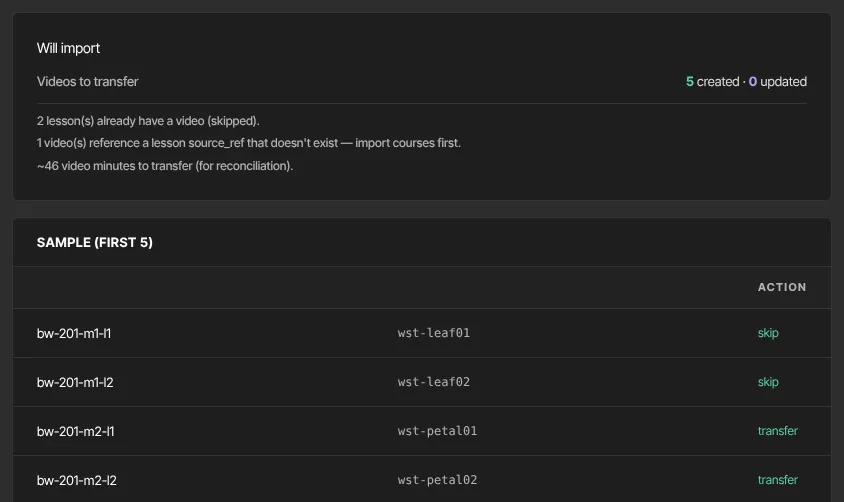
- Click Commit import. Import results shows Videos transferred, where "updated" means a video that had been copied before was reused.
- If it says "… video(s) still to transfer — re-run this import to continue.", upload the same file again and commit the new preview.
What happens next
- Members get the player in a lesson as soon as its video is ready, the next time they open the lesson. You don't need to publish anything again.
- If a video still shows as processing after a day, open the Media Library and click Refresh on it. If it failed, upload the video to the lesson yourself; see Upload video to lessons.
Common errors
- "No lesson with source_ref "…"": import that lesson's course first, and check the id matches.
- "Transfer failed: …" or "Video import failed: …": that video couldn't start copying. Check that its link downloads the file directly, then run the import again.
- "Invalid URL" next to a
source_url: use the full link, starting with https://. - "Invalid input: expected array, received undefined" next to
videos: the file needs a top-level"videos"list. - "Only owners and admins can run imports.": ask an owner or admin.