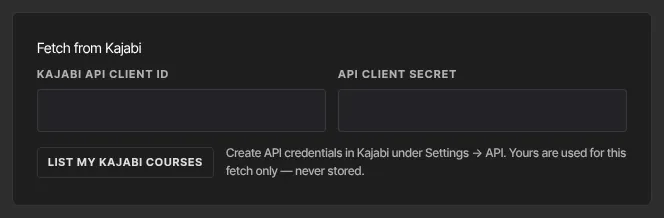
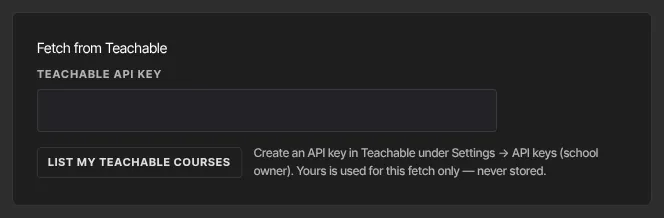
Instead of building an import file, let Import & migrate connect to your old platform and pull your courses in. Two panels do this: Fetch from Kajabi and Fetch from Teachable. Each turns the courses you pick into a normal import that you preview and commit. Fetch from Teachable can also bring your students across with their access.
Who can do this
- Owners and admins, from Settings → Import & migrate (
/settings/import). Staff and viewers see only "Only owners and admins can run imports." - You need credentials from your old platform. Fetch from Kajabi asks for an API client ID and secret, which you create in that platform under Settings → API. Fetch from Teachable asks for an API key, which the school owner creates in Teachable under Settings → API keys.
- Your credentials are used for that one fetch and never stored, so you enter them each time.
- New courses count toward your plan's product limit. See Plans and billing.
What each one brings
- Fetch from Kajabi brings structure only: each course with its modules and lessons, in order. Lesson text and videos aren't available through this connection, so every lesson arrives empty. Items come in published unless they were drafts on your old platform, so check them before you give anyone access.
- Fetch from Teachable brings structure plus each lesson's text and its video, where Teachable provides a direct video link. Videos copy into your video library, up to 50 each time you commit. Items unpublished on Teachable come in as drafts; the rest come in published.
Use Fetch from Kajabi
- Go to Settings → Import & migrate. In Fetch from Kajabi, enter your API client ID and API client secret.
- Click the button under the fields to list your courses. It reads Connecting… while it works.
- Courses to fetch lists every course, all ticked. Untick any you don't want. One fetch takes up to 100 courses.
- Click Fetch & preview import.
- The Review import page opens. Check the Catalog counts, then click Commit import.
- Add each lesson's text and video in the course builder. See Upload video to lessons.
Use Fetch from Teachable
- In Fetch from Teachable, enter your Teachable API key and click List my Teachable courses.
- Under Courses to fetch, tick the courses you want. One fetch handles up to 600 lessons across all the courses you pick, so fetch a big school a few courses at a time.
- Click Fetch & preview import, check the preview, then click Commit import.
A lesson whose details Teachable doesn't return comes in with its title only.
Bring Teachable students and their access
Import the courses first: access is matched to the courses you've fetched from Teachable.
- In Fetch from Teachable, list your courses and tick the ones whose students you want.
- Click Fetch enrollments → stage access grants. It reads Fetching enrollments… while it works.
- Two new previews appear at the top of Recent imports: a Contacts import named like
teachable-students-….csvand a Commerce history & access import named liketeachable-grants-….json.
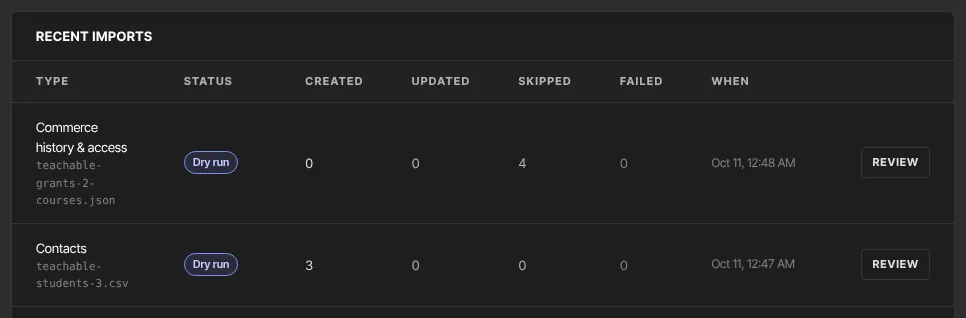
- Click Review on the contacts import, then Commit import.
- Go back and click Review on the grants import, then Commit import. Its preview was worked out before your students were contacts, so it may say many grants can't find a contact. That's expected: when you commit it, it finds the students you just imported.
Commit them in that order. If you commit the grants first, students who weren't contacts yet are skipped: click Fetch enrollments → stage access grants again and commit both new previews in order.
- Every enrollment comes across as active access, including any that had expired on Teachable. Remove access for anyone whose access should have ended; see Give or remove product access by hand.
- Students who already have access here are left as they are. Nobody is emailed.
Fetching again
- Fetching the same courses again updates them: titles, order, status and lesson text are replaced with what your old platform has now. Text you've added here is replaced too, and Fetch from Kajabi, which brings no text, clears it. Don't fetch a course again once you've started writing its lessons here.
- Fetching again is also how you continue copying videos past the first 50. See Move your lesson videos into Zinstruct.
What happens next
- Committed courses appear in Catalog, and copied videos appear in their lessons once they're ready. Students and their access arrive when you commit both student previews.
Common errors
- "Enter your … API client ID.", "Enter your … API client secret." or "Enter your Teachable API key.": fill in the field.
- "Connected, but no courses were found on that … account." or "Connected, but no courses were found on that Teachable school.": check you used the right account's credentials.
- Another message after you list courses: it comes from your old platform, usually about wrong or expired credentials. Create new ones and try again.
- "Select at least one course to fetch." or "Select at least one course to fetch enrollments for.": tick a course.
- "Select at most 100 courses per fetch.": fetch in smaller batches.
- "These courses have … lessons; one fetch supports up to 600. Select fewer courses and run again — fetches are re-runnable and merge by source id.": pick fewer courses at a time.
- "Teachable returned no lecture details — check that the API key has full school access.": create the key as the school owner.
- "No enrollments with a resolvable student email were found on the selected courses.": none of those courses' students has an email address.
- "Teachable users: … found — one fetch supports up to 20000.": your school is bigger than one fetch can handle. Export each course's student emails from Teachable and use Grant a member list instead.
- "No workspace found for your account.": sign out, sign back in and try again.